
If you've recently encountered the frustrating XAMPP error "MySQL shutdown unexpectedly", you're not alone. This issue is common among developers and website administrators who use XAMPP to run MySQL locally. One moment everything is working perfectly, and the next, XAMPP MySQL won't start, and you see an error message that simply says:
Error: MySQL shutdown unexpectedly.
This may be due to a blocked port, missing dependencies,
improper privileges, a crash, or a shutdown by another method.
Annoying, but rarely fatal. That message is a symptom, not a diagnosis. XAMPP is telling you mysqld.exe started, failed, and quit — it isn't telling you why. One quick clarification: modern XAMPP ships MariaDB, not Oracle MySQL. The service, folders, and control panel labels still say "mysql," which is why everyone searches for xampp mysql not starting. Commands and file paths are identical, so don't worry about it.
In this article, we will walk you through how to fix the XAMPP error "MySQL shutdown unexpectedly" step-by-step, explaining the root causes, providing solutions, and answering frequently asked questions. For users who need more stability for their projects, migrating to a professional server for SQL database hosting can often prevent these local environment limitations entirely.
🔍 Start Here: Identify Your Cause in 60 Seconds
Don't start deleting files. I've watched people nuke their data folder in a panic when the real problem was Skype squatting on a port. Diagnose first.
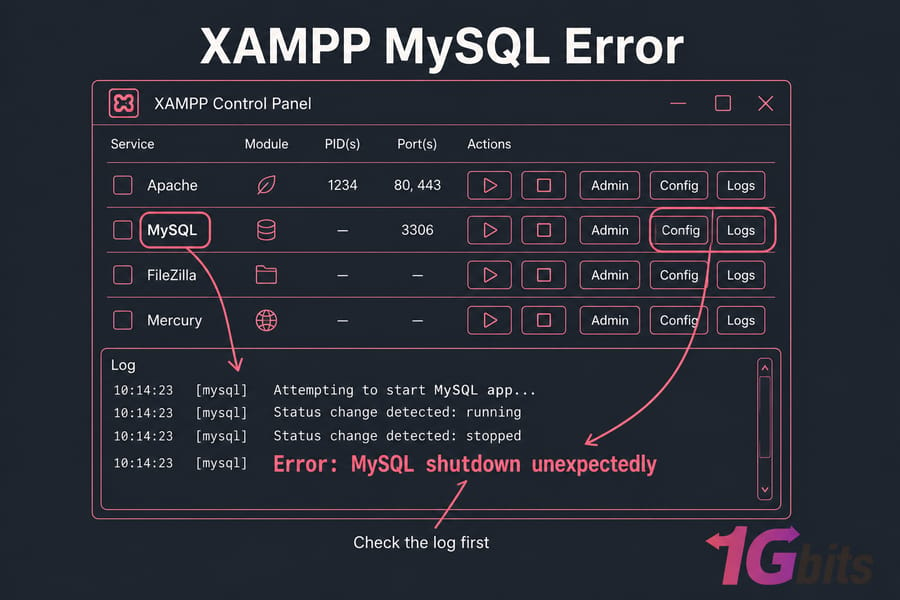
Read the XAMPP Control Panel log
The bottom pane of the control panel usually names the culprit. "Port 3306 in use" is a conflict. "InnoDB: Database page corruption" is corruption. "Access denied" is permissions.
Open the MySQL error log
Real detail lives here: C:\xampp\mysql\data\mysql_error.log (sometimes named after your PC, like DESKTOP-ABC123.err). Open it, scroll to the bottom, read the last 20 lines. Typical patterns:
Can't start server: Bind on TCP/IP port: No such file or directory→ port conflictInnoDB: Attempted to open a previously opened tablespaceorLog scan progressed past the checkpoint lsn→ corrupted InnoDB files after a hard crashFatal error: Can't open and lock privilege tables→ broken or missingdatafolderAbortingright after a config line → bad edit inmy.ini
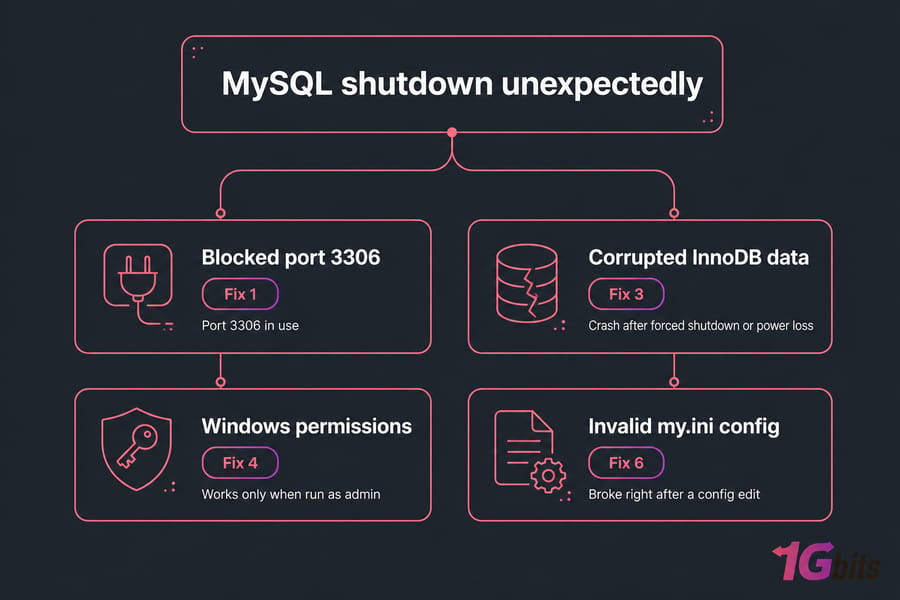
Classify it
- Port message → jump to the port conflict fix
- Crash after a forced shutdown or power loss → data file repair
- Works only when run as admin → permissions
- Broke right after you edited a config →
my.inicheck
🚀 What Causes the XAMPP Error "MySQL Shutdown Unexpectedly"?
Before jumping into the solutions, it's crucial to understand why MySQL might be shutting down unexpectedly in XAMPP. Identifying the root cause can help you apply the most effective fix quickly and avoid unnecessary troubleshooting. Here are the most common reasons behind this error:
- Port 3306 Conflict: MySQL by default uses port 3306. If another application like Skype, another MySQL instance, or even a previously opened XAMPP service is already using this port, MySQL fails to start.
- Improper Shutdown of XAMPP or MySQL: Forcefully shutting down your system or closing XAMPP without stopping MySQL properly can lead to corrupted data or log files, which may prevent MySQL from restarting.
- Missing or Corrupted Files in the MySQL Data Directory: Accidental deletion, power failures, or improper uninstallation of related software can damage essential files in the mysql/data folder.
- Software Conflicts: Other applications that rely on MySQL or similar services may interfere with XAMPP's MySQL, especially if they are configured to run at system startup.
- Recent Updates or Configuration Changes: Alterations in configuration files like my.ini or my.cnf, especially after a system update, can break compatibility or create misconfigurations that prevent MySQL from running.
- Permission or Windows Service Issues: MySQL requires the proper privileges to run. If Windows blocks XAMPP services due to permission changes or antivirus interference, you may encounter this error.
If you are starting fresh, we recommend reviewing our guide on how to install XAMPP to ensure your initial configuration is optimized.
🛠 Method 1: Rename or Delete the ibdata1 File (Data Corruption Fix)
A common reason for MySQL shutting down unexpectedly in XAMPP is a corrupted ibdata1 file. This file stores the internal data dictionary for InnoDB tables, and when corrupted, it prevents the engine from loading databases.
Before you touch anything: copy the entire C:\xampp\mysql\data folder somewhere else. Name it data_old. This is your only insurance.
Quick plain-English glossary:
ibdata1— the shared InnoDB tablespace. On older setups it holds your actual InnoDB table data. Delete it carelessly and those tables are gone.ib_logfile0/ib_logfile1— InnoDB redo logs. Usually safe to remove ifibdata1is intact, and InnoDB will rebuild them.xampp\mysql\backup— a pristine copy of the system tables XAMPP shipped with. Not your databases.
Steps:
- Navigate to your XAMPP installation directory. Typically:
C:\xampp\mysql\data - Find the file named
ibdata1and rename it toibdata1.bak. - Go to
C:\xampp\mysql\backup\and copy all the contents. - Paste these into the data directory to replace the missing/corrupt files.
- Start MySQL from the XAMPP control panel.
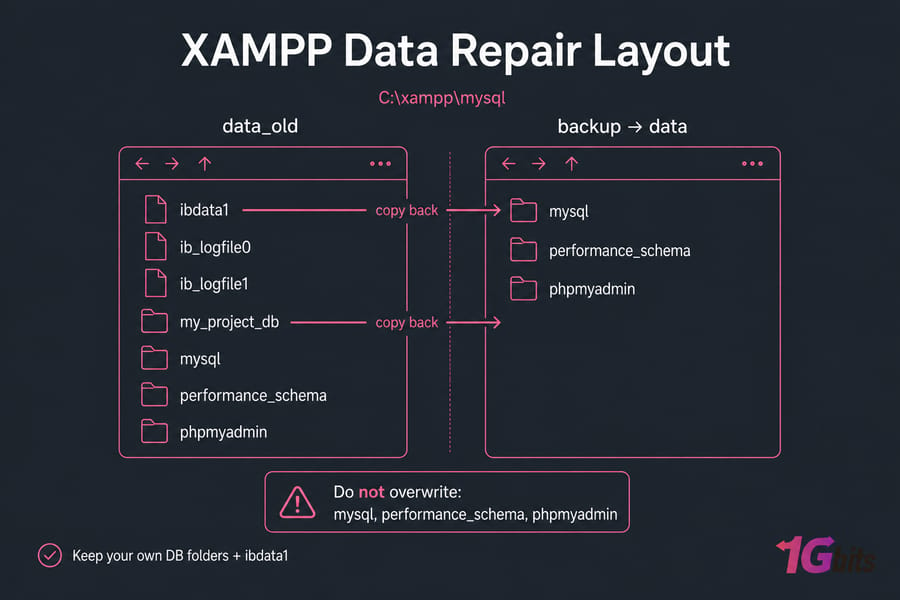
The standard recovery, in more detail:
- Rename
datatodata_old. - Copy
backupand rename the copy todata. - From
data_old, copy back only your own database folders (the ones named after your databases) into the newdata. - Also copy
data_old\ibdata1over the fresh one — this is what preserves InnoDB tables. - Do not overwrite the
mysql,performance_schema, orphpmyadminfolders. Those are the system tables you just replaced on purpose. - Start MySQL.
✅ Pro Tip: Always back up your current data folder before making any changes. Learning how to secure MariaDB and MySQL databases can help you understand how to manage your data directory more effectively, which reduces the likelihood of future corruption.
🔌 Method 2: Change the MySQL Port (Fix for Blocked Port Issue)
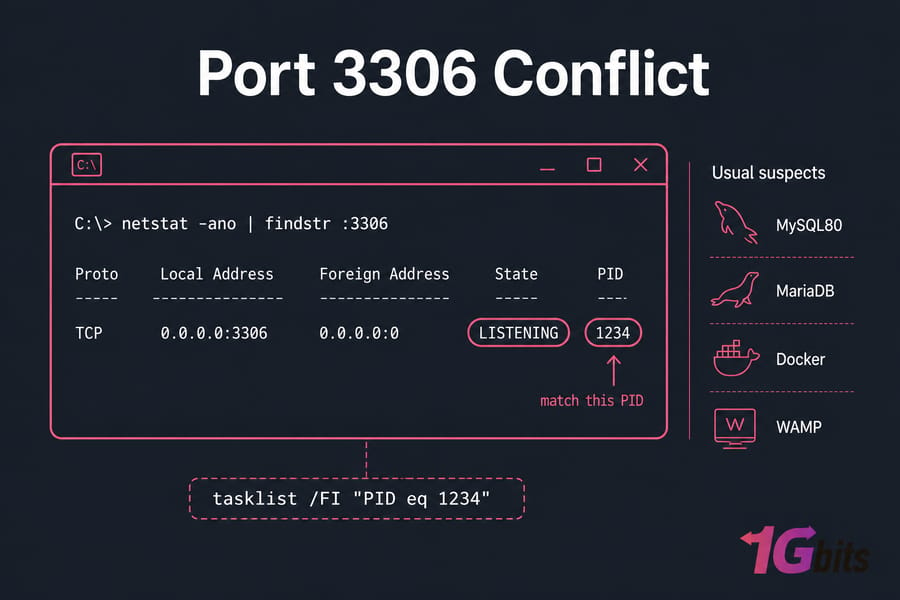
Sometimes, the error "MySQL shutdown unexpectedly" occurs because port 3306 is already being used by another application. Open Command Prompt and run:
netstat -ano | findstr :3306If you get a line ending in LISTENING plus a number, that last number is the PID. Match it in Task Manager (Details tab → PID column) or run tasklist /FI "PID eq 1234". Usual suspects: a standalone MySQL/MariaDB install, MySQL Workbench's bundled server, Docker, or an old WAMP stack. Open services.msc, find the service (often named MySQL80 or MariaDB), stop it, and set Startup type to Manual so it stays out of your way.
Can't stop the other service (some company machines lock it down)? Move XAMPP instead. Open XAMPP Control Panel, click Config next to MySQL → my.ini. Find this line: port=3306. Change it to another port, such as port=3307. Then open C:\xampp\phpMyAdmin\config.inc.php and set the host to include the new port:
$cfg['Servers'][$i]['host'] = '127.0.0.1:3307';Update your app's connection string too — Laravel .env, WordPress wp-config.php, whatever you're running. Then restart MySQL and visit http://localhost/phpmyadmin. If you are unsure which applications are using which ports, you can check how to check open ports in Windows for a comprehensive overview of your system's activity.
📂 Method 3: Replace the MySQL Data Folder (Clean Restore)
If renaming ibdata1 didn't help, try this approach to reset your environment:
- Stop MySQL and Apache in XAMPP.
- Backup your entire
mysql/datafolder. - Delete everything in
data. - Copy all contents from
mysql/backupto the now-emptydatafolder. - Restart MySQL.
This method works well when you're unsure what caused the corruption but want to restore a fresh database state. For users interested in comparing database technologies, it is helpful to understand the differences between MySQL vs MariaDB to determine if your current project requirements are met by your database engine choice.
🛡 Method 4: Run XAMPP as Administrator (Windows Permissions Issue)
On Windows 11, you might see "error mysql shutdown unexpectedly" if XAMPP doesn't have the right permissions to access protected system folders.
- Right-click the XAMPP Control Panel icon.
- Select Run as administrator.
- Try starting MySQL again.
🧠 Note: You may also need to grant permission through your Windows firewall or disable User Account Control (UAC) temporarily. If you are struggling with deeper server-side issues, you might find our guide on Linux server troubleshooting useful to see how professional hosting environments manage user privileges compared to local XAMPP setups.
🛑 Method 5: Check and Stop Conflicting Services
If another MySQL server is running on your system (e.g., installed via WAMP, MySQL Workbench, or as a standalone service), it can conflict with XAMPP.
- Open Task Manager (Ctrl + Shift + Esc).
- Look for
mysqld.exeor any active MySQL processes. - End the tasks.
- Return to XAMPP and attempt to restart the MySQL service.
Or, use Services (services.msc) to stop the MySQL service permanently if it is not needed.
⚙️ Method 6: Check Configuration Files
The configuration files might be misconfigured, especially after system updates. Verifying these files is essential for preventing startup failures.
Things to verify in my.ini:
- Ensure the port in
my.iniis not being blocked by other software. - Verify the data directory path:
datadir="C:/xampp/mysql/data"— it should use forward slashes.
Wrong paths, unsupported special characters, or a typo in the configuration path can prevent MySQL from starting correctly. Reverting to a known-good config backup beats guessing.
💾 Method 7: Restore a Recent Database Backup
If you've recently edited or imported a large SQL file and MySQL fails to start afterward, a corrupted database file may be to blame.
- Retrieve a recent, healthy backup of your database.
- Restore the data after performing the directory cleanup methods mentioned above.
If you don't have a backup, tools like phpMyAdmin or third-party recovery software might help. Remember that regular backups are the best defense against data loss. Large dumps often fail on limits rather than corruption — if you see #1153 Got a packet bigger than 'max_allowed_packet' bytes, raise it in my.ini:
max_allowed_packet=256MFor files over ~50 MB, skip the browser and use the command line: mysql -u root -p dbname < dump.sql. Faster and it won't hit PHP's execution timeout.
🔄 Method 8: Reinstall XAMPP (Last Resort)
If nothing else works:
- Uninstall XAMPP completely.
- Back up your
htdocsandmysql/datafolder to a safe location. - Reinstall XAMPP.
- Install fresh, confirm a clean MySQL start, then reintroduce your databases one at a time. Dragging the old broken
datafolder in wholesale just reimports the problem.
This is a more drastic solution, but it ensures all corrupted configuration files are fully reset to their default state.
📊 Which Fix Should You Try First?
| Method | Data-loss risk | Time | Best when |
| Stop conflicting service | None | 2 min | Log mentions port 3306 |
| Change port to 3307 | None | 5 min | Other service can't be stopped |
| Run as administrator | None | 1 min | Access denied / privilege errors |
Fix my.ini / datadir |
None | 5 min | Broke right after a config edit |
Restore from backup folder |
Medium | 10–20 min | InnoDB corruption after a crash |
Import a .sql export |
Low | 15 min | You have recent dumps |
| Reinstall XAMPP | High | 30–60 min | Everything else failed |
💡 Additional Tips for Different Scenarios
🖥 Fixing the Error on Windows
This issue is common on Windows, especially after OS updates. Here's a summary of quick checks:
| Check | Method |
| Permissions | Run XAMPP as Administrator. |
| Security | Check Firewall and Antivirus for mysqld.exe. |
| Port Status | Change MySQL port if 3306 is occupied. |
Use tools like the Windows command prompt to view system logs if you need to debug permission errors more deeply.
🌐 Fixing the Error When Using PHP
If you recently modified your PHP scripts, they might be causing the error indirectly. Try these steps:
- Comment Out New MySQL Code: Temporarily disable recent database connection logic in your PHP scripts.
- Test MySQL in Isolation: Start MySQL without running your PHP application. If it succeeds, the script logic is the culprit.
- Review Database Credentials: Check that your username, password, and hostname are correctly defined.
Need to confirm your environment details? Learn how to check the MySQL version currently installed.
✅ How to Verify the Fix Worked
- MySQL shows green with a PID and port in the XAMPP Control Panel
- No fresh
[ERROR]lines at the bottom ofmysql_error.log http://localhost/phpmyadminloads and lists your databases- A test query —
SELECT COUNT(*) FROM your_table;— returns real rows - Your local app connects without a connection-refused error
⚠️ Special Cases Worth Knowing
Windows 11 and after updates. Updates can re-enable a disabled MySQL service or reset firewall rules. Re-run the netstat check first.
Antivirus. Some scanners lock ibdata1 mid-write. If you can't delete or rename that file, that's usually the cause — stop MySQL, temporarily disable real-time scanning, or exclude C:\xampp.
Linux MariaDB isn't the same thing. If your error is "Job for mariadb.service failed because the control process exited with error code," you're on a package install, not XAMPP. Check journalctl -xe and /var/log/mysql/error.log instead.
🛡 Preventing This Next Time
- Always stop MySQL in the control panel before shutting down Windows
- Export your databases weekly — a scheduled
mysqldumptakes ten minutes to set up - Never run XAMPP alongside another MySQL stack
- Copy
my.inibefore editing it, every time - Write down custom port changes somewhere you'll actually find them
And remember XAMPP is a local development stack. It's not built for production traffic — move anything real to a proper server.
🎯 Conclusion: Fixing XAMPP MySQL Errors Doesn't Have to Be Hard
The "MySQL shutdown unexpectedly" error in XAMPP can feel like a roadblock, but with the detailed fixes in this guide, you now know exactly what to do. Whether you're dealing with a blocked port, data corruption, or a conflict, these practical solutions will help you get MySQL running again smoothly. For long-term stability, we recommend migrating your professional projects to a managed hosting environment. Explore our powerful Buy VPS plans at 1Gbits and scale your projects without limits. If you are specifically managing web content, our managed WordPress VPS is designed to handle these technical hurdles for you.

Leave A Comment