
If you're asking how do I set up my Android VPS hosting environment, you're likely a developer, tester, or gamer looking for a scalable and secure solution to run Android applications or emulators. Android VPS Hosting is gaining traction due to its ability to provide high-performance computing environments, remote accessibility, and excellent customizability—making it ideal for tasks such as app development, automation, or mobile gaming.
In this detailed guide, we'll walk you through how to set up Android VPS hosting environment, the benefits of VPS for Android, and why choosing a quality provider like 1Gbits Android Emulator VPS is crucial to your success.
So you want to run Android in the cloud. Maybe for app testing, maybe for a game farm, maybe to keep an automation script alive 24/7 without leaving your laptop on. Whatever the reason, an Android VPS is the answer — and setting one up isn't as scary as most tutorials make it sound.
This guide walks through the whole thing: picking the right OS, choosing between an emulator and Android-x86, installing tools like BlueStacks or LDPlayer, locking the server down, and fixing the stuff that breaks. I've set these environments up for QA teams and indie game grinders, so I'll point out the gotchas as we go.
Tested on Windows Server 2022, Ubuntu 22.04 LTS, BlueStacks 5, LDPlayer 9, and Android-x86 9.0 — current as of this writing.
What Is Android VPS Hosting?
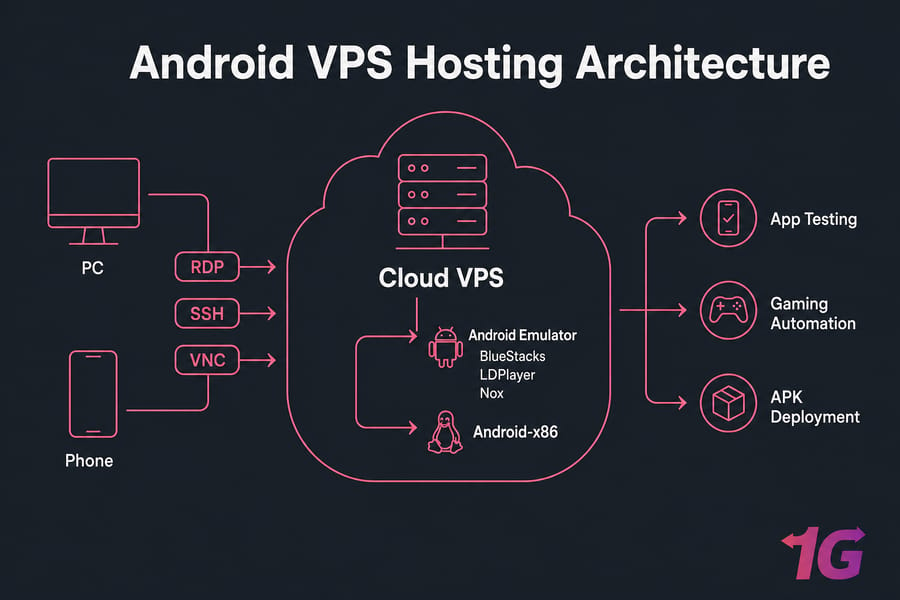
Android VPS Hosting refers to using a Virtual Private Server to install and run Android OS or Android emulators like BlueStacks, NoxPlayer, or LDPlayer. The VPS (Virtual Private Server) acts like a remote computer that gives you full control over a virtualized environment, including its resources like CPU, RAM, and storage.
Android VPS hosting is just a virtual private server configured to run Android — either through an emulator (BlueStacks, NoxPlayer, LDPlayer, MEmu) on top of Windows, or as a near-native install using Android-x86, Anbox, or Waydroid on Linux. The server stays online around the clock, so your Android instance is always reachable from anywhere. If you're wondering how this compares to other options, our guide on how Android VPS hosting differs from traditional hosting breaks it down in detail.
This setup is ideal for:
- Developers who want to test Android apps in various OS versions.
- Gamers who want to play Android games with more power and without lag.
- Businesses who want to manage automation tools or bots on Android.
People use it for a handful of practical things: hosting mobile game bots, running multi-account automation, doing remote APK testing, or simply having a "cloud phone" that doesn't drain a real device's battery. If you want a managed environment built for this exact workload, Android VPS hosting plans are tailored for it — but you can absolutely roll your own on any decent VPS too.
Who Should Actually Bother With This?
Not everyone needs an Android VPS. But if you fit one of these profiles, it'll save you real time:
- Mobile developers — spin up a clean Android environment for builds and CI without burning your local machine.
- QA testers — run regression suites on consistent hardware specs, repeatedly, without "works on my machine" excuses.
- Mobile gamers and grinders — keep Clash, AFK Arena, or whatever your poison is running 24/7. Multi-instance setups thrive here.
- Automation users — bots for social media, scrapers, account farming. A VPS doesn't sleep.
- Marketers and growth folks — manage multiple accounts on isolated environments without IP headaches.
- Beginners curious about cloud Android — honestly, it's a fun weekend project.
Why Set Up a VPS Hosting Environment for Android?
Before jumping into how to set up VPS on Android, it's essential to understand why a virtualized environment on a VPS Android can be so powerful—especially for developers, gamers, and automation professionals.
🔧 Performance:
Unlike regular mobile devices or low-end computers, a VPS provides dedicated high-performance resources (CPU, RAM, and SSD storage). This means smoother emulator operation, faster app execution, and the ability to handle multitasking without crashes or lags.
🌍 Remote Access:
An Android VPS can be accessed from anywhere in the world. Whether you're using a PC, tablet, or even another Android device, you can remotely log into your VPS and manage it. This is especially useful for managing background tasks or checking your environment on the go.
⚙️ Custom Setup:
A VPS gives you full control to create the environment you want. You can install multiple Android emulators, simulate different devices, adjust screen resolutions, configure root settings, and install third-party development or automation tools—all in a single, isolated server.
🕒 Always On:
Unlike physical devices that you need to keep powered on, a VPS operates 24/7. This makes it ideal for continuous tasks such as automated testing, running bots, cryptocurrency mining, or app performance monitoring—without the need for your personal device to stay active.
System Requirements for Android VPS Hosting
Here's where most people mess up: they grab the cheapest VPS, install BlueStacks, and wonder why everything feels like it's running underwater. Android emulators are heavy. They want CPU, RAM, and — ideally — virtualization extensions enabled at the hypervisor level.
Minimum CPU, RAM, and Storage
| Resource | Minimum (1 emulator) | Recommended (1–2 emulators) | Heavy use (3+ instances) |
|---|---|---|---|
| CPU | 2 vCPU | 4 vCPU | 8+ vCPU (dedicated cores) |
| RAM | 4 GB | 8 GB | 16–32 GB |
| Storage | 40 GB SSD | 80 GB SSD | 160 GB+ NVMe |
| Bandwidth | 1 TB | 2 TB | Unmetered preferred |
Always pick SSD or NVMe storage. Spinning disks will destroy emulator boot times. I learned that the hard way back in 2019.
When You Need More Resources
If you're running multiple emulator instances — say, 4 BlueStacks windows for a game farm — multiply your RAM and CPU expectations. Each instance roughly wants 2 GB RAM and 1–2 cores to behave. Skimp here and you'll see lag, dropped frames, and ANRs (Application Not Responding) galore.
Virtualization and Compatibility Requirements
This part trips up beginners constantly. Most Android emulators rely on hardware virtualization (Intel VT-x or AMD-V). On a VPS, that means your provider must support nested virtualization. Without it, BlueStacks and LDPlayer will either refuse to start or fall back to software rendering — which is painfully slow.
Before you buy, ask the provider directly: "Does your VPS support nested KVM or Hyper-V virtualization?" If they don't know the answer, that's a red flag. A good SSD VPS with KVM virtualization is your safest bet.
Android Emulator vs Android-x86 on a VPS
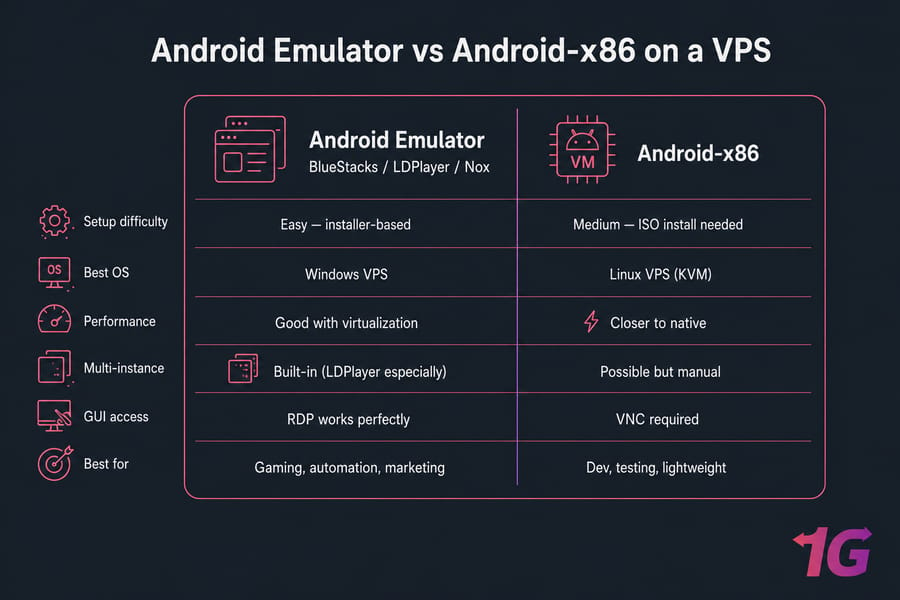
Two main paths. Pick wrong and you'll redo the whole thing.
| Factor | Emulator (BlueStacks/LDPlayer/Nox) | Android-x86 |
|---|---|---|
| Setup difficulty | Easy — installer-based | Medium — ISO install needed |
| Best OS | Windows VPS | Linux VPS (KVM) |
| Performance | Good with virtualization | Closer to native |
| Multi-instance | Built-in (LDPlayer especially) | Possible but manual |
| GUI access | RDP works perfectly | VNC required |
| Best for | Gaming, automation, marketing | Dev, testing, lightweight |
When to Use an Emulator
Emulators win if you want plug-and-play. BlueStacks and LDPlayer have polished installers, work on Windows, and handle Google Play out of the box. If you're gaming or running Instagram automation, this is your path.
When to Use Android-x86
Android-x86 (or its modern cousins Bliss OS, Waydroid) is for people who want closer-to-native performance and don't mind tinkering. It's a real Android OS running in a VM. Great for app testing where emulator quirks would skew results.
Best Option for Gaming, Testing, and Automation
Quick rule of thumb: gaming and bots → LDPlayer or BlueStacks on Windows. Pure dev testing → Android Studio's emulator on Linux, or Android-x86. Multi-account automation at scale → LDPlayer (its multi-instance manager is genuinely good).
Windows vs Linux for Android VPS Hosting
This is the other big fork in the road. Don't overthink it — match the OS to the tool.
When to Choose Windows VPS
Pick a Windows-based VPS if:
- You want to run BlueStacks, LDPlayer, NoxPlayer, or MEmu
- You prefer GUI-based admin via Remote Desktop
- You're not comfortable with the Linux command line
- Your automation scripts are AutoIt, AHK, or Windows-specific
When to Choose Ubuntu or Debian
Go Linux if:
- You're running Android-x86 or Anbox/Waydroid
- You want lower licensing costs (no Windows Server license)
- You're scripting with bash, Python, or running CI workflows
- You need ADB-over-network for headless app testing
Most of my long-running automation servers are Ubuntu. They're cheaper, lighter, and they don't restart for surprise updates. A solid Linux server running 22.04 LTS is my default for headless work.
Compatibility by Tool
| Tool | Windows | Linux |
|---|---|---|
| BlueStacks | Yes (primary) | No (deprecated) |
| LDPlayer | Yes | No |
| NoxPlayer | Yes | No |
| Android-x86 | Via VirtualBox | Yes (KVM) |
| Waydroid / Anbox | No | Yes |
| Android Studio Emulator | Yes | Yes |
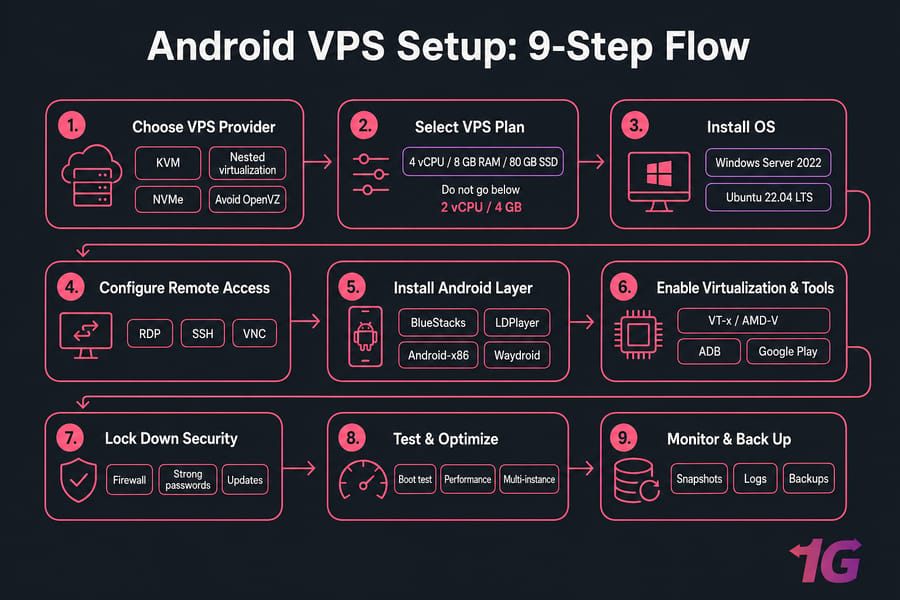
Step-by-Step: How Do I Set Up My Android VPS Hosting Environment?
Setting up an Android VPS environment might seem complex at first, but the process of "How do I set up my Android VPS Hosting environment" becomes manageable when broken down into clear steps.
Alright, the good stuff. Here's the actual procedure, end to end.
1. Choose a Reliable Android VPS Hosting Provider
Not all VPS services are the same. Look for KVM virtualization, nested virt support, NVMe storage, and at least 4 GB RAM on entry plans. Avoid OpenVZ — it can't run nested hypervisors properly. Read the fine print on bandwidth caps too; emulators can eat data if they auto-update apps. Key features to look for:
- High uptime guarantees
- Full root access
- SSD or NVMe storage
- Scalability
- 24/7 technical support
2. Select the Right VPS Plan for Android
Match the plan to your workload using the spec table. For a single emulator instance, 4 vCPU / 8 GB RAM / 80 GB SSD is the sweet spot. Cheap is fine — just don't go below 2 vCPU / 4 GB or you'll regret it within an hour. If budget matters, prioritize plans that still offer SSD storage and nested virtualization support.
| Use Case | Recommended CPU | RAM | Storage |
|---|---|---|---|
| Simple App Testing | 2 vCPU | 4 GB | 40 GB SSD |
| Game Emulation | 4 vCPU | 8 GB | 80 GB SSD |
| Multi-Emulator Setup | 6–8 vCPU | 16 GB+ | 160 GB+ NVMe |
Ensure the VPS supports virtualization technology needed to run Android OS or emulators.
3. Install the Operating System
Most providers let you pick the OS image at deployment. Choose Windows Server 2019 or 2022 for emulators, Ubuntu 22.04 LTS for Android-x86 or headless work. Wait for the provisioning email with your IP and root/admin credentials.
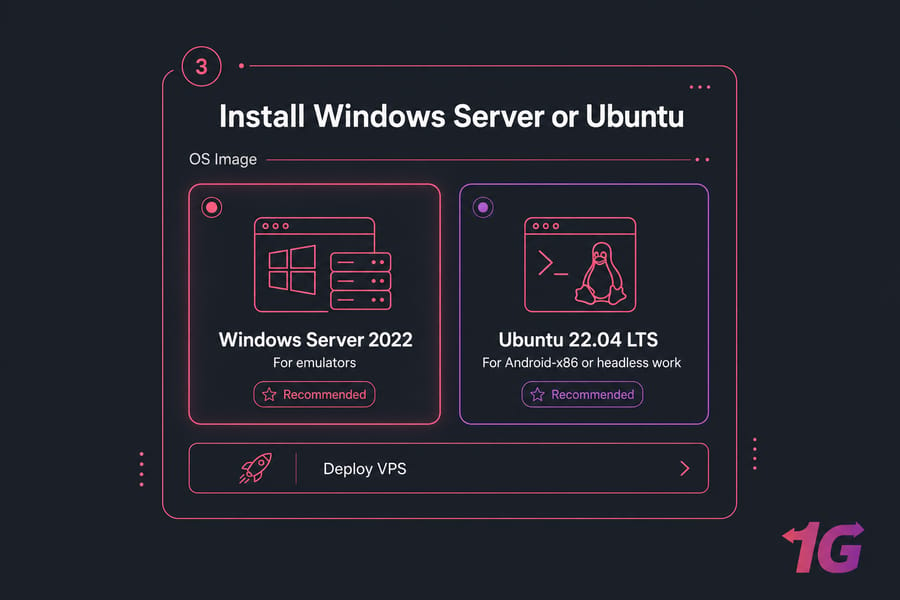
- BlueStacks VPS often runs best on Windows-based servers.
- Android-x86 or Anbox can run on Linux.
4. Establish Secure Remote Access
For Windows: enable Remote Desktop, then connect with the built-in mstsc client or any RDP app. For Linux: SSH in first, install a desktop environment (xfce is light), then VNC for GUI access if needed.
sudo apt update && sudo apt upgrade -y
sudo apt install xfce4 xfce4-goodies tightvncserver -y
vncserver :1 -geometry 1280x800 -depth 24
This step is essential to access VPS from Android or other devices.
5. Install Android Emulator or Android OS
On Windows, just download the installer from the official vendor site and run it. Disable Windows Defender real-time scanning during install (re-enable after) — it can choke the installer. For Android-x86 on Linux, you'll create a KVM VM and boot from the Android-x86 ISO. If you need a complete guide focused specifically on emulator setup across different operating systems, see our step-by-step article on how to run Android emulator on VPS.
sudo apt install qemu-kvm virt-manager cpu-checker -ykvm-ok
If kvm-ok reports "KVM acceleration can be used" — you're good. If not, your provider hasn't enabled nested virtualization and you'll need to switch.
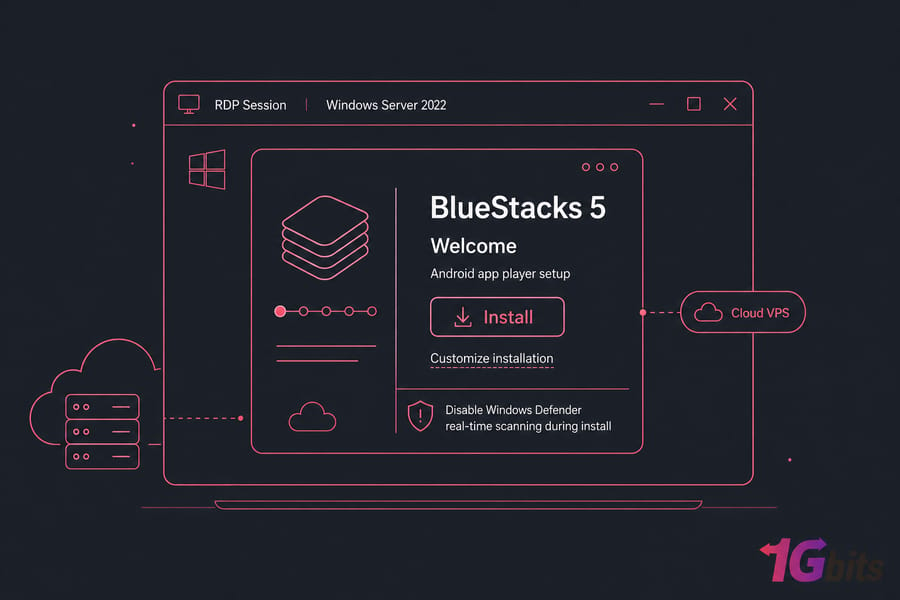
- BlueStacks VPS is perfect for running games or testing apps.
- Use Android-x86 to install Android OS directly onto your VPS.
- NoxPlayer/LDPlayer are alternatives with good performance for emulation.
6. Configure Emulator and System Settings
Open the emulator's settings panel. Allocate at least 2 CPU cores and 2–4 GB RAM per instance. Set rendering mode to OpenGL (not DirectX — DirectX often breaks over RDP). Resolution: 1280×720 is plenty; higher just wastes resources.
- Allocate virtual memory and graphics acceleration settings
- Set display resolution for your target device
- Enable developer options and USB debugging if required
If you're planning to run multiple emulators, set different ports and user profiles.
7. Install App Development Tools
If you're testing apps, grab Android Studio or just the standalone ADB platform tools. ADB connects to your emulator over loopback or even over the network if you enable it.
adb devices
adb connect 127.0.0.1:5555
adb install myapp.apk
- Android Studio (for app development)
- ADB (Android Debug Bridge) for debugging
- Java Development Kit (JDK)
These tools are essential for building and testing Android applications on a VPS.
8. Implement Security Measures
This step is non-negotiable. Skip it and you'll find your VPS mining crypto for someone else within a week. More on hardening below.
- Set up a firewall
- Disable unused ports
- Use SSH key authentication (Linux) or strong RDP credentials (Windows)
- Enable automatic software updates
Security is key when running a VPS server Android environment that's always online.
9. Enable Backups and Monitoring
Take a snapshot once everything works. Then schedule weekly snapshots. If your provider charges extra for this, it's still worth it — rebuilding an emulator setup from scratch takes hours.
Use built-in VPS tools or third-party applications to schedule regular backups and monitor:
- Emulator uptime
- Resource usage
- Server temperature
This protects your data and ensures smooth performance.
Example Commands and Tools for Android VPS Setup
A handful of commands you'll use constantly. Exact syntax varies by distro, but these cover Ubuntu/Debian.
Linux Setup Commands
sudo apt update && sudo apt upgrade -y
sudo apt install qemu-kvm virt-manager cpu-checker -y
kvm-ok
sudo ufw allow OpenSSH
sudo ufw allow 5900/tcp
sudo ufw enable
ADB Commands
adb devices
adb connect 192.168.1.100:5555
adb install /path/to/app.apk
adb shell pm list packages
adb logcat
Monitoring and Resource Checks
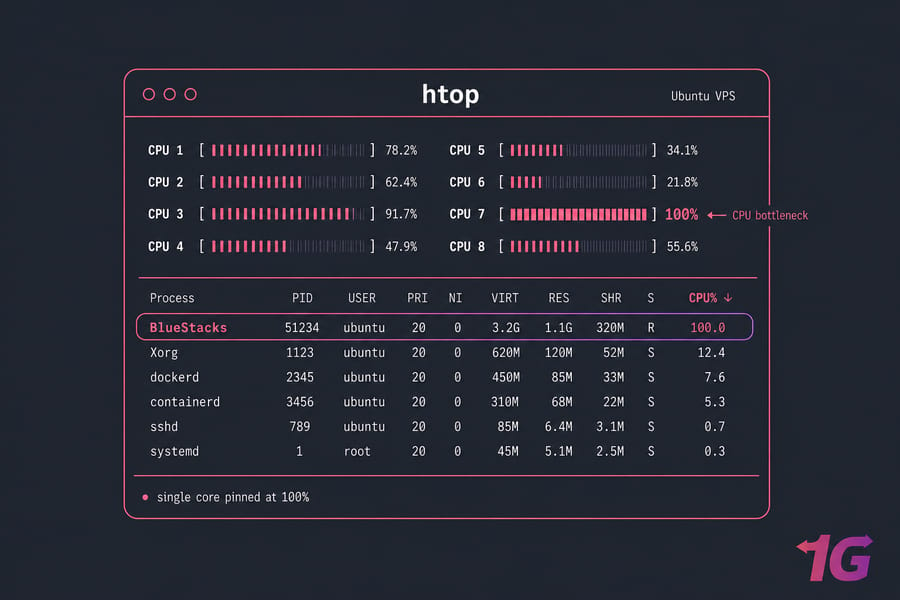
htop
df -h
free -m
vmstat 5
iostat -x 2
Run htop while your emulator is loading a game. If a single core is pinned at 100% the whole time, you've hit a CPU bottleneck — bump up the plan or reduce instance count.
VPS Setup in Mobile: Can You Set Up VPS from an Android Device?
Yes, setting up and managing a VPS from an Android device is not only possible it's increasingly common. While the initial configuration is usually done via a PC, many tasks can be handled entirely from your phone.
Once the server's running, you'll want to reach it from anywhere including from your actual phone, which is the whole point for some folks.
Using Remote Desktop (RDP)
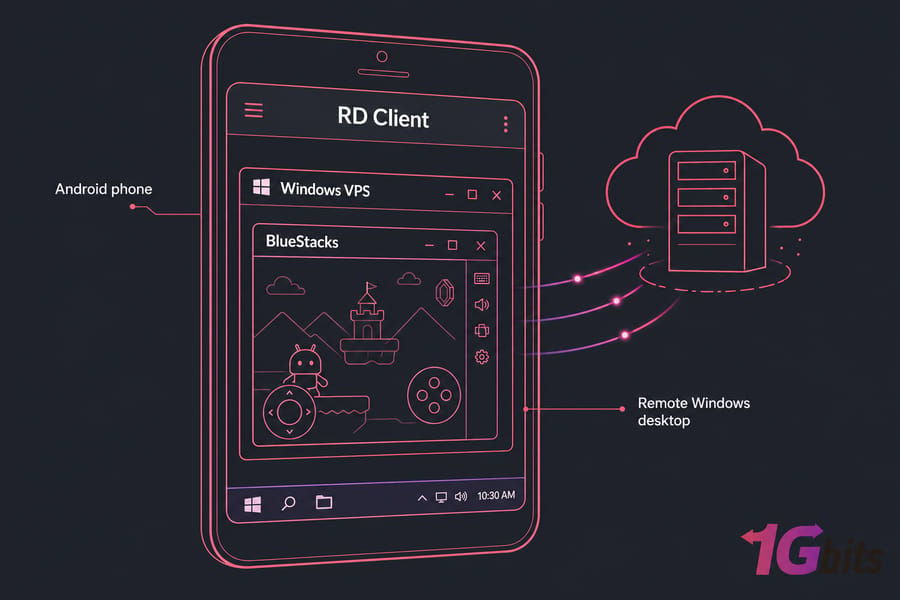
From Windows, hit Win+R and type mstsc. From macOS, use Microsoft Remote Desktop. From Android or iOS, install the RD Client app from Microsoft. Enter the IP, username, password — done. You'll see your full Windows desktop with the emulator running.
Using SSH Clients Like Termius
For Linux VPS access, Termius on Android/iOS is excellent. Save your SSH key once, connect with one tap. JuiceSSH is another solid option. From desktop, OpenSSH (built into Windows 11 and macOS) or PuTTY works fine.
Using VNC
For Linux GUI access, install RealVNC or TightVNC server-side, then connect with bVNC on Android or RealVNC Viewer on desktop. Tunnel VNC through SSH for security — never expose port 5900 to the open internet without a firewall rule limiting source IPs. For a more detailed walkthrough on all connection methods and troubleshooting, check out our full guide on connecting to your VPS from Android.
What About a Free Android VPS?
While there are Android VPS free options out there, they often come with limitations:
| Factor | Free Android VPS | Paid Android VPS |
|---|---|---|
| Resources | Severely limited (1 vCPU, 1 GB RAM) | Scalable from 2 vCPU upward |
| Uptime | Often interrupted, time-limited trials | 99.9%+ SLA |
| Performance | Often shared/oversold | Dedicated allocations |
| Virtualization | Usually no nested support | KVM with nested virt |
| Support | None or community only | 24/7 ticket support |
| Real cost | Your time, mostly | $5–$80/month depending on tier |
Honestly? Free Android VPS offerings are mostly trials or honeypots for upselling. They're fine for kicking the tires, useless for anything serious. If you're running a bot or testing rig, the $10–$20/month tier pays for itself the first week.
For reliable performance especially in professional environments it's better to invest in a paid VPS provider like 1Gbits that offers flexible pricing and enterprise-level performance.
Recommended VPS Specs by Use Case
| Use Case | CPU | RAM | Storage | OS | Notes |
|---|---|---|---|---|---|
| App testing (1 emulator) | 2 vCPU | 4 GB | 40 GB SSD | Linux or Windows | Android Studio emulator works fine |
| Single emulator gaming | 4 vCPU | 8 GB | 80 GB SSD | Windows | BlueStacks or LDPlayer; OpenGL mode |
| Multi-instance automation (3–5) | 8 vCPU | 16 GB | 160 GB NVMe | Windows | LDPlayer Multi Manager preferred |
| Heavy bot farm (6+) | 12+ vCPU | 32 GB+ | 240 GB+ NVMe | Windows | Dedicated CPU cores, low-latency network |
| Streaming / content creation | 6 vCPU | 12 GB | 120 GB SSD | Windows | GPU-accelerated VPS preferred |
Common Android VPS Problems and How to Fix Them
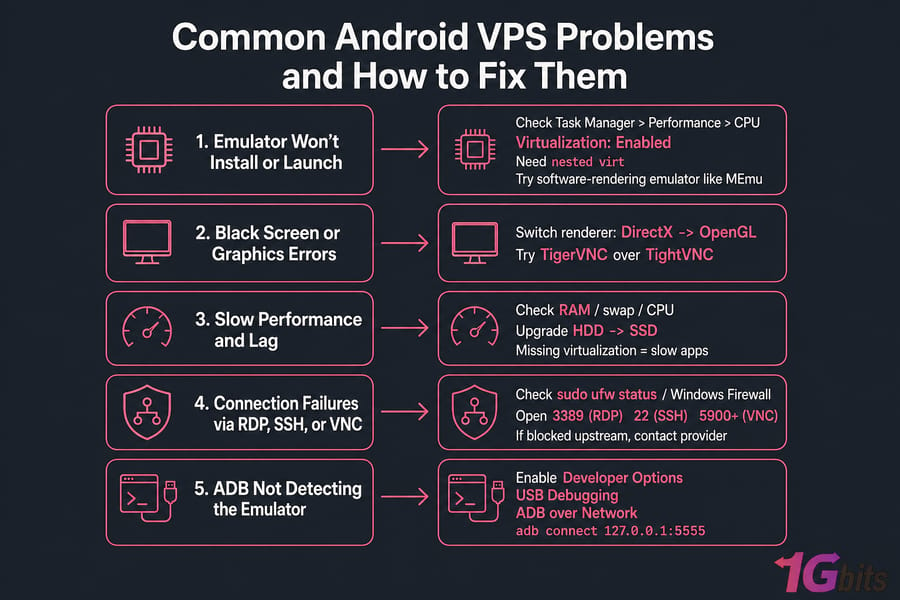
Emulator Won't Install or Launch
Almost always a virtualization issue. Open Task Manager → Performance → CPU and check if "Virtualization: Enabled" appears. If not, your provider doesn't support nested virt. Either switch providers or use a software-rendering emulator like MEmu (slower but more forgiving).
Black Screen or Graphics Errors
Switch the emulator's graphics renderer from DirectX to OpenGL. RDP doesn't pass DirectX through cleanly. If you're on Linux + VNC, try a different VNC server (TigerVNC over TightVNC, in my experience, handles 3D better).
Slow Performance and Lag
Three usual suspects: too little RAM, no virtualization acceleration, or HDD instead of SSD storage. Run htop or Task Manager during a slow moment — if RAM is maxed and swap is active, upgrade. If CPU is fine but apps still crawl, virtualization is missing.
Connection Failures via RDP, SSH, or VNC
Check the firewall first. sudo ufw status on Linux, or Windows Firewall on Windows. Make sure ports 3389 (RDP), 22 (SSH), and 5900+ (VNC) are open from your IP. If they are and you still can't connect, your provider may be blocking them upstream — open a support ticket.
ADB Not Detecting the Emulator
Inside the emulator, enable Developer Options → USB Debugging → ADB over Network. Then on the host, run adb connect 127.0.0.1:5555. If that fails, kill the ADB server with adb kill-server and try again. LDPlayer has its own ADB binary in its install folder use that one for LDPlayer instances.
Security Best Practices for Android VPS
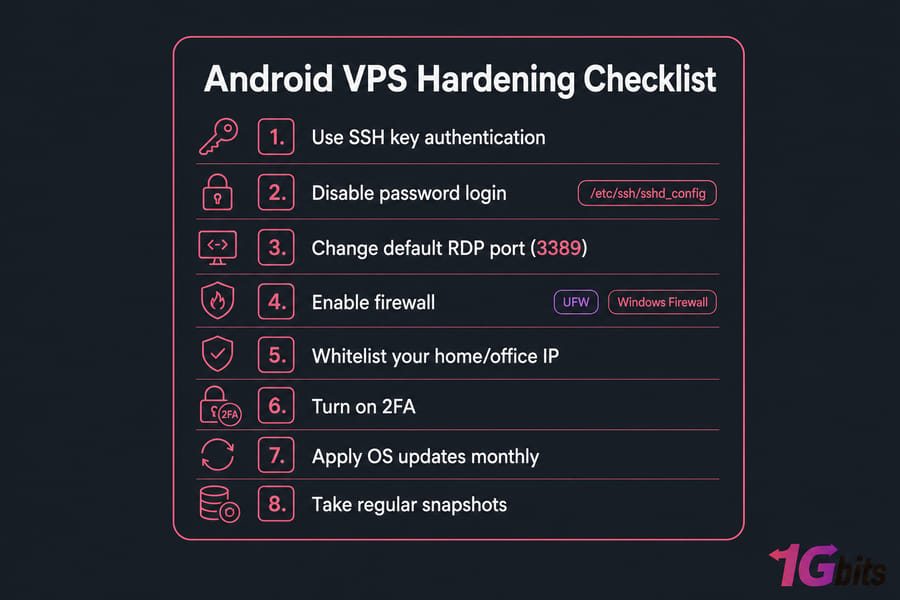
Don't skip this. A VPS facing the internet is constantly being scanned for weak credentials.
- Use SSH key authentication instead of passwords. Disable password login in
/etc/ssh/sshd_config. - Change the default RDP port (3389) if your provider's policy allows it. Reduces brute-force noise massively.
- Enable a firewall — UFW on Linux, Windows Firewall with custom inbound rules on Windows. Whitelist your home/office IP if it's static.
- Turn on 2FA for your hosting control panel.
- Apply OS updates monthly. I know it's tedious. Do it anyway.
- Take regular snapshots before risky changes.
- Run a malware scan if you're installing third-party emulator builds — pirated installers are a known vector.
- Least-privilege accounts for team members. Don't share the admin login.
How Much Does Android VPS Hosting Cost?
Rough monthly ranges based on what I've seen across providers in 2024–2025:
- Entry tier (1 emulator, light use): $5–$15/month
- Mid tier (1–2 instances, gaming): $15–$35/month
- Power tier (multi-instance, automation): $40–$80/month
- Heavy/dedicated: $100+/month
Hidden costs to watch: Windows Server license (often $5–$15 extra), backup storage, bandwidth overages, and managed support add-ons. Always check whether the listed price includes the OS license.
Real Use Cases for Android VPS Hosting
Setting up an Android VPS server environment opens doors to a wide variety of practical applications. Now that you learned how do I set up my Android VPS hosting environment, here are some of the most common—and powerful—ways it's used today:
🎮 Mobile Game Automation:
Gamers often learn how to use VPS on Android setups to run botting software or macros around the clock. Tasks like farming in RPGs or automating clicks in strategy games can continue even when you're offline, thanks to the 24/7 uptime and reliable infrastructure of a VPS. Choosing the right emulator is critical for automation performance—our roundup of the best Android emulators can help you pick the ideal one for your needs.
💻 App Development:
Developers benefit from being able to run multiple Android versions in one environment. This allows for efficient cross-version testing, bug replication, and debugging without needing a fleet of physical devices. You can also simulate various screen sizes, hardware specs, and network conditions.
📱 Social Media Management:
Marketers and automation specialists use Android VPS hosting to run social media apps—like Instagram, Facebook, or TikTok—along with automation tools. Whether it's scheduling posts, managing multiple accounts, or using bots, an Android VPS ensures stability and security for extended use.
📹 Streaming & Content Creation:
Content creators can install Android emulators on a VPS to stream games live to platforms like YouTube or Twitch. This method frees up your local hardware and provides a lag-free, always-online streaming solution that can run emulators in high resolution with minimal latency.
- Mobile game farming: running auto-clickers and bots on games like Clash of Clans, Lords Mobile, Mafia City
- App QA testing: consistent test environments for CI pipelines
- Multi-account management: social media, marketplaces, dating apps
- APK deployment testing: validate builds on a clean Android instance before releasing
- Cloud phone replacement: always-on Android instance accessible from any device
- 24/7 monitoring scripts: apps that need to stay logged in indefinitely
Final Thoughts
If you need Android running 24/7 — for gaming automation, app testing, multi-account management, or just a cloud-based phone a VPS is genuinely the cleanest solution. It's cheaper than a dedicated Android device farm, more flexible than a local emulator that dies when your laptop sleeps, and scales as your needs grow.
If you only need Android occasionally and you've got a decent PC, just run an emulator locally. No need to overcomplicate it.
For everyone in between, start small. Grab a 4 vCPU / 8 GB plan, try BlueStacks or Android-x86 for a week, and see how it fits your workflow. Worst case, you've spent $15 and learned something. Best case, you've got a 24/7 Android environment that just works and you'll wonder why you didn't set it up sooner.
Don't settle for unreliable hardware or laggy performance. Power up your Android emulator experience today with 1Gbits Android VPS Hosting, and enjoy smooth, scalable performance from anywhere in the world.
Ready to try it? Compare Android VPS plans sized for emulator workloads, or check the Windows VPS and Linux VPS options if you already know which OS you want.

Leave A Comment