

The sleep command in Bash is a little one, but still a very effective tool that simply pauses the running script for a period of time that the user has defined. It gives the power to control the timing of commands and processes. If you would like to have a better understanding of sleep command in Bash, whether during a direct interaction with the Linux terminal or inside a shell script, it will be a great help to you in controlling the flow of execution, reducing the spikes of resource usage, and coordinating the tasks with more reliability.
The use of the sleep command in Linux Bash spans from putting short delays between commands to managing retries, scheduling checks, or even spanning API requests; thus, it is indeed a vital part of practical shell scripting. In the end, you will get to know the usage of the sleep command in Linux, its behavior in the Bash and sh environments, how to sleep in a Bash script in seconds, minutes, hours, and milliseconds, and finally, the application of the sleep command in shell scripting with real-life examples that are beyond just basic usage.
👍 What is the sleep Command in Bash?
The sleep command in Bash is a built-in timing utility that temporarily pauses the execution of a command, script, or process for a specified duration before continuing. Its main purpose is to control execution flow, introduce intentional delays, and prevent commands from running too quickly or overwhelming system resources.
The sleep command is part of GNU coreutils and works consistently across most Unix-like systems, making it reliable for automation and scripting tasks. While commonly associated with Bash, the sleep command in sh is also fully supported, meaning scripts written for the Bourne shell or POSIX-compatible shells can use it without modification. This cross-shell compatibility makes sleep a foundational tool in portable shell scripting, from simple delays to more structured timing logic.
If you’re unfamiliar with the shell environment itself, understanding What is Bash provides helpful context before working with timing commands like sleep.
⏱️ How to Use the sleep Command in Bash
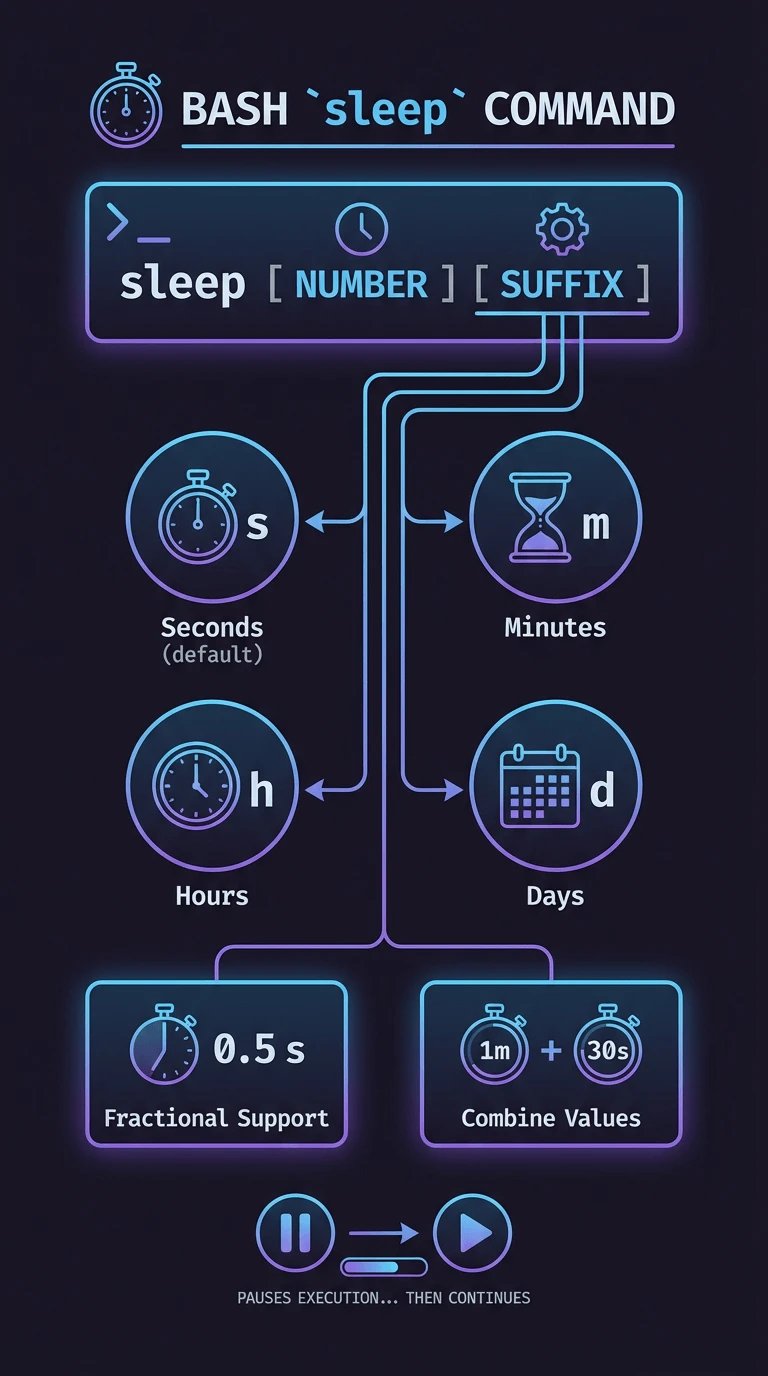
To understand how to use the sleep command in Bash, you first need to know its basic syntax and how time values are interpreted by the shell. The sleep command pauses execution for a defined duration, then automatically continues with the next command.
-
Basic syntax: sleep NUMBER [SUFFIX]
-
NUMBER defines the amount of time to pause execution
-
SUFFIX specifies the time unit:
-
s for seconds (default if omitted)
-
m for minutes
-
h for hours
-
d for days
-
Fractional values are supported on most Linux systems (e.g., sleep 0.5)
-
Multiple time values can be combined in GNU sleep (e.g., sleep 1m 30s)
In real scripts, sleep is often combined with conditional logic, and mastering the Bash If Statement allows you to pause execution only when specific conditions are met.
💻 How to Use the sleep Command in Bash Command Line
Knowing how to use the sleep command in Bash command line is useful when you need quick, temporary delays during interactive terminal work. It allows you to pause execution between commands without writing a full script.
-
Run sleep 5 to pause the terminal for 5 seconds before returning control
-
Use time units directly, such as sleep 10s, sleep 2m, or sleep 1h
-
Chain commands with sleep using && or; for controlled execution order
-
Avoid typing sleep without a time value, which causes an error
-
Remember that sleep blocks the current shell session until it completes
Used correctly, the sleep command in the Bash command line provides a fast and predictable way to introduce delays while testing commands or managing short workflows interactively.
🧩 How to Sleep in a Bash Script
Understanding how to sleep in a Bash script is essential when you need to control execution timing between commands or processes. The sleep command bash script approach ensures each step runs in a predictable order with intentional pauses.
-
Add sleep between commands to pause script execution
-
Use clear time values like sleep 3 to avoid confusion
-
Combine sleep with loops to create timed repetitions
-
Place sleep after resource-heavy commands to reduce load spikes
-
Comment sleep lines to explain timing logic for future maintenance
When used thoughtfully, adding sleep to a Bash script improves readability, reliability, and control over how and when commands are executed.
🛠️ Sleep Command in Shell Scripting
The sleep command in shell scripting is commonly used to control timing between commands and to prevent scripts from executing actions too quickly. It is especially useful when interacting with external systems, APIs, or services that enforce request limits.
|
Use Case |
Example Scenario |
Why to use |
|
Delay between commands |
Running backup tasks step by step |
Allows one task to finish cleanly before the next starts |
|
API rate limiting |
Sending requests to a REST API |
Prevents hitting rate limits or temporary bans |
|
Log monitoring |
Checking log files in intervals |
Reduces unnecessary CPU and disk usage |
|
Service polling |
Waiting for a service to become available |
Avoids aggressive retry loops |
By applying the sleep command in shell scripting with clear intent, scripts remain stable, polite to external services, and easier to scale or automate safely.
⏰ Bash Sleep Minutes and Hours
The sleep command in Bash supports human-readable time units, making it easy to pause execution for minutes or hours without manual conversion. This capability is useful in long-running scripts where clarity and timing accuracy matter. Using explicit units helps maintain readable and maintainable shell scripts.
🕒 Bash Sleep Minutes
The bash sleep minutes feature lets you delay execution using minute-based values such as sleep 5m. This is practical for scripts that check system status, rotate logs, or retry tasks at fixed intervals. Using minutes instead of seconds keeps timing logic simple and easier to understand at a glance.
🕰️ Bash Sleep Hours
Sleeping for hours with commands like sleep 2h is designed for workflows that require extended pauses between operations. Common use cases include scheduled maintenance, long-interval monitoring, or staged automation pipelines. Hour-based sleep values make scripts clearer when dealing with multi-hour delays.
🐧 How to Use the Sleep Command in Bash on Ubuntu
Understanding how to use the sleep command in Bash Ubuntu is straightforward because Ubuntu ships with GNU coreutils by default. This ensures consistent behavior across desktop and server installations.
-
Ubuntu uses GNU sleep, supporting suffixes like s, m, h, and d
-
Fractional seconds are fully supported
-
Behavior is identical in terminal and Bash scripts
-
Works the same in interactive shells and cron jobs
-
No additional packages are required on standard Ubuntu systems
As a result, sleep scripts written on Ubuntu remain portable across most Linux distributions.
⚖️ Bash Sleep vs Wait
The bash sleep vs wait distinction matters when deciding how scripts pause execution. While both pause behaviors they solve very different problems in shell scripting.
|
Feature |
sleep |
wait |
|
Purpose |
Fixed delay |
Process synchronization |
|
Time-based |
Yes |
No |
|
Process-aware |
No |
Yes |
|
Common use |
Delays, retries, and pacing |
Background jobs |
|
Risk if misused |
Wasted time |
Deadlocks |
Choosing correctly between sleep and wait leads to more reliable, predictable, and efficient Bash scripts.
🚫 Common Mistakes When Using sleep
Using the sleep command incorrectly can lead to inefficient scripts and unexpected behavior. Many issues arise when sleep is used as a shortcut instead of proper logic or process control.
|
Mistake |
Why It’s a Problem |
Better Approach |
|
Blocking critical processes |
Freezes important execution paths |
Use background jobs or event-driven triggers |
|
Using sleep instead of event-based logic |
Causes unnecessary waiting |
Use wait, signals, or condition checks |
|
Overusing long delays |
Makes scripts slow and unresponsive |
Break delays into checks or shorter intervals |
|
Hard-coded sleep values |
Fails under changing conditions |
Use variables or dynamic timing |
|
Sleeping in infinite loops |
Wastes CPU and time |
Add exit conditions or monitoring logic |
Avoiding these mistakes ensures sleep remains a control tool, not a source of hidden performance issues.
🔁 Practical Use Cases for sleep in Bash Scripts
The sleep command becomes powerful when applied to real automation scenarios rather than isolated delays. It helps scripts behave predictably in repetitive or timed workflows.
|
Use Case |
Example Scenario |
How Sleep Helps |
|
Retry logic |
Reconnecting to a failed service |
Adds a controlled pause between retries |
|
Monitoring loops |
Checking server health |
Reduces CPU usage between checks |
|
Startup delays |
Waiting for dependencies |
Prevents premature execution |
|
Automation scripts |
Batch processing tasks |
Spreads execution load evenly |
|
API interaction |
Scheduled data pulls |
Prevents rate-limit violations |
When used with intention, sleep improves stability, efficiency, and clarity across Bash automation scripts.
For users who rely heavily on terminal automation, optimizing your environment through Bashrc Brilliance can make working with commands like sleep faster and more efficient.
Conclusion
The sleep command is nevertheless a fundamental command that, when used correctly, can become an essential tool among the reliable Bash and shell scripting ones. It enables you to manage, control, and distinguish the system load, as well as converse with the various processes running simultaneously in a straightforward manner. Sleep is the function that comes first to mind for not just the simple delaying, but even the advanced cases of rate limiting and monitoring loops. The scripts' unpredictability is significantly reduced and their reliability improved by the knowledge of the proper sleep application.
It is crucial in the production environment, especially when timing, uptime, and automation reliability are concerned, to have a fast and stable infrastructure for these scripts to run. If you are at the stage of expanding your Bash-based automation to larger amounts and operations, checking high-performance VPS and server solutions from 1Gbits is a good idea. They are known for offering instant setups, global data centers, and 24/7 professional assistance.
