
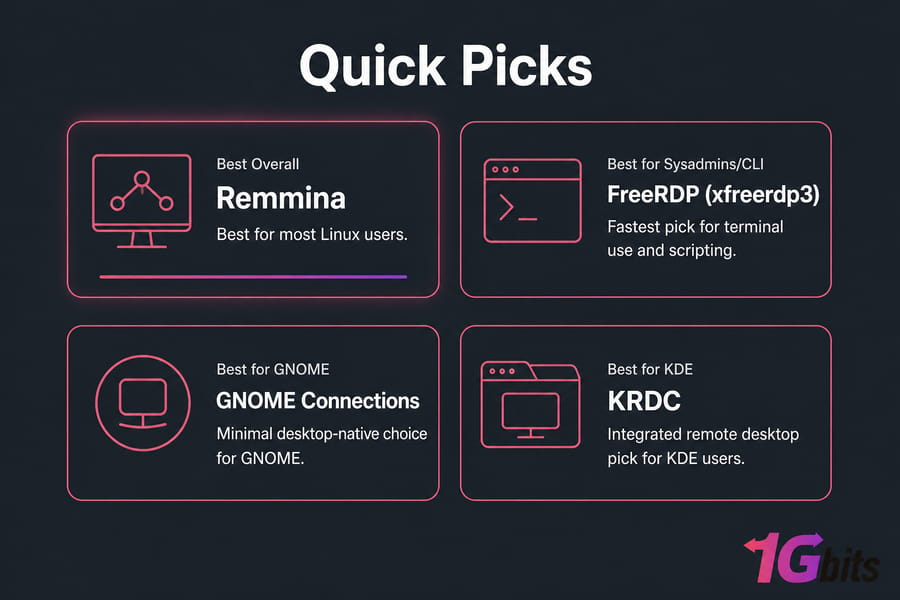
Short version, because that's probably why you're here: Remmina is the best RDP client for Linux for most people. FreeRDP (specifically xfreerdp3) wins if you live in a terminal or script your connections. KRDC is the pick for KDE users, GNOME Connections replaced the old Vinagre for GNOME desktops, and rdesktop is legacy — I don't recommend it in 2026 unless you're stuck on ancient hardware.
Remote Desktop Protocol (RDP) is a staple for IT professionals, developers, and sysadmins who need to access Windows machines remotely. With more businesses embracing Linux for servers and workstations, finding the right RDP client for Linux is crucial for smooth cross-platform remote access. In this guide, you'll discover the top options, learn how to install and configure them step-by-step, compare their features, get expert security tips, and troubleshoot common issues.
📌 What Is an RDP Client on Linux (and How Is xrdp Different)?
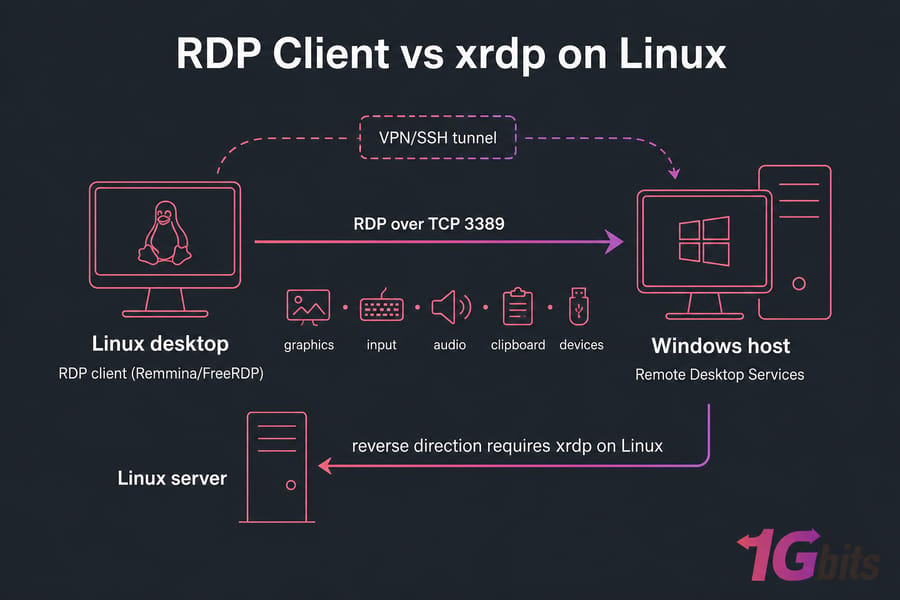
Three terms get mashed together constantly, and that confusion is why half the "RDP doesn't work on Linux" forum threads exist. Let's separate them:
- RDP is Microsoft's Remote Desktop Protocol. It ships graphics, input, audio, clipboard, and redirected devices over TCP 3389. If you're weighing up the broader picture, we also break down RDS vs RDP and VDI vs RDP in separate guides.
- An RDP client is the software you run on Linux to connect out to a Windows box. Remmina, FreeRDP, KRDC. Here's a broader look at what RDP client software includes, plus the difference between RDP and MSTSC for Windows users.
- xrdp is an RDP server for Linux. You install it when you want to connect into a Linux desktop using RDP.
So: connecting from Ubuntu to Windows 11? You need a client. Letting a Windows laptop reach your Linux workstation? You need xrdp on the Linux side. Doing both directions? Install both. That's it — no, xrdp is not "the same as RDP."
🔍 How We Evaluated These Clients
No fake benchmarks here. The picks below reflect hands-on use across Ubuntu 24.04, Debian 12, and Arch, connecting to Windows 11 Pro and Windows Server 2022 hosts, plus these editorial criteria:
- Ease of use — how fast can a first-timer get a working session?
- Security support — NLA, TLS, certificate validation, SSH tunnelling.
- Performance — responsiveness on a 20 Mbps link, CPU and RAM footprint.
- Features — multi-monitor, dynamic resolution, clipboard, drive and printer redirection, smart card auth, sound forwarding.
- Maintenance status — is anyone still shipping patches in 2026?
🏆 Top RDP Clients for Linux
1️⃣ Remmina — Best Overall
Remmina is a GUI connection manager that handles RDP, VNC, SPICE, SSH, and X2Go from one window. Saved profiles, folders, per-connection settings, and a built-in SSH tunnel option. It uses FreeRDP under the hood, so you get NLA and TLS without touching a flag. Ideal for system admins and power users alike.
Pros: actively maintained, great profile management, multi-monitor and dynamic resolution, clipboard and drive redirection, packaged everywhere, tabbed connections.
Cons: the plugin split trips people up (you need remmina-plugin-rdp), and it's occasionally quirky under Wayland.
2️⃣ FreeRDP — Best for Sysadmins and Scripting
FreeRDP is the reference open-source RDP implementation and the engine most GUI clients wrap. Version 3.x ships the xfreerdp3 binary. It supports RDP 8.x features, gateway connections, smart cards, RemoteFX, and just about every redirection option Microsoft ever documented.
xfreerdp3 /v:192.168.1.50 /u:admin /d:WORKGROUP /dynamic-resolution /clipboard /sound /drive:home,/home/mePros: fastest, most complete feature coverage, trivially scriptable, excellent NLA/TLS handling. Cons: no session manager, and the flag syntax is a lot at first.
3️⃣ rdesktop — Legacy Only
rdesktop was the original Linux RDP client. Development effectively stalled, it maxes out at older protocol versions, and NLA support is weak. Honestly? Skip it. Keep it in your back pocket for connecting to a Windows Server 2003 relic that nobody will let you decommission. Works well on older systems with minimal footprint.
4️⃣ GNOME Connections / Vinagre and KRDC — Desktop-Native Picks
Vinagre was GNOME's old remote desktop viewer and has been superseded by GNOME Connections, which speaks RDP and VNC with a deliberately minimal UI. On KDE, KRDC gives you the same integrated feel with tabbed sessions. Both are fine for a handful of machines and not much more.
Other Tools Worth a Mention
NoMachine, RustDesk, and AnyDesk get recommended constantly — but they use their own protocols, not RDP, so they're alternatives rather than RDP clients. Reach for them when you need unattended cross-platform support and don't care about native Windows RDS.
📊 Comparison Table: Linux RDP Clients in 2026
| Client | Type | Best for | Multi-monitor | Clipboard / Drive | NLA + TLS | SSH tunnel | Maintained | Difficulty |
| Remmina | GUI | Most users, mixed protocols | Yes | Yes / Yes | Yes | Built in | Active | Easy |
| FreeRDP (xfreerdp3) | CLI | Sysadmins, automation | Yes | Yes / Yes | Yes | Manual | Active | Moderate |
| KRDC | GUI | KDE Plasma users | Limited | Yes / No | Yes | No | Active | Easy |
| GNOME Connections | GUI | GNOME users, simple setups | No | Yes / No | Yes | No | Active | Very easy |
| rdesktop | CLI | Legacy Windows hosts | No | Partial / Partial | Weak | Manual | Stalled | Moderate |
🛠️ Install Commands by Distro
Package names differ just enough to be annoying, so here they are:
# Ubuntu / Debian / Kali
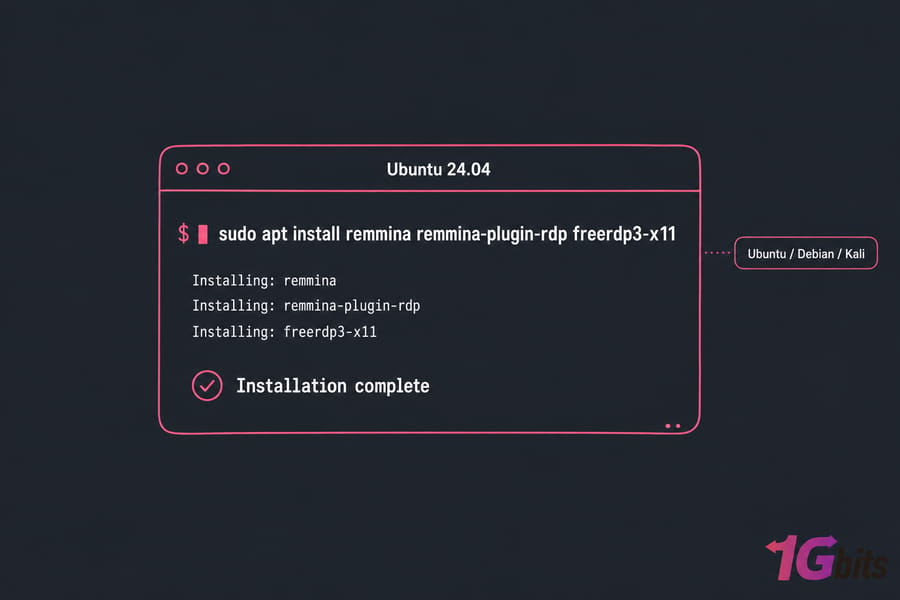
sudo apt install remmina remmina-plugin-rdp freerdp3-x11

# Fedora / RHEL / Rocky
sudo dnf install remmina remmina-plugins-rdp freerdp

# Arch / Manjaro / CachyOS
sudo pacman -S remmina freerdp libvncserver
Kali ships Remmina in the default metapackages on most images. Arch and CachyOS users: Remmina needs libvncserver and freerdp pulled in as optional deps, otherwise the RDP tab simply won't appear. That one cost me twenty minutes once. Looking for RDP options specific to Ubuntu? Check out our guide to RDP clients for Ubuntu.
🔌 How to Connect from Linux to Windows via RDP
- Enable Remote Desktop on Windows: Settings → System → Remote Desktop → toggle on. Keep "Require Network Level Authentication" checked. Home editions don't include the RDP server — you'll need Pro or Server.
- Get the target address: run
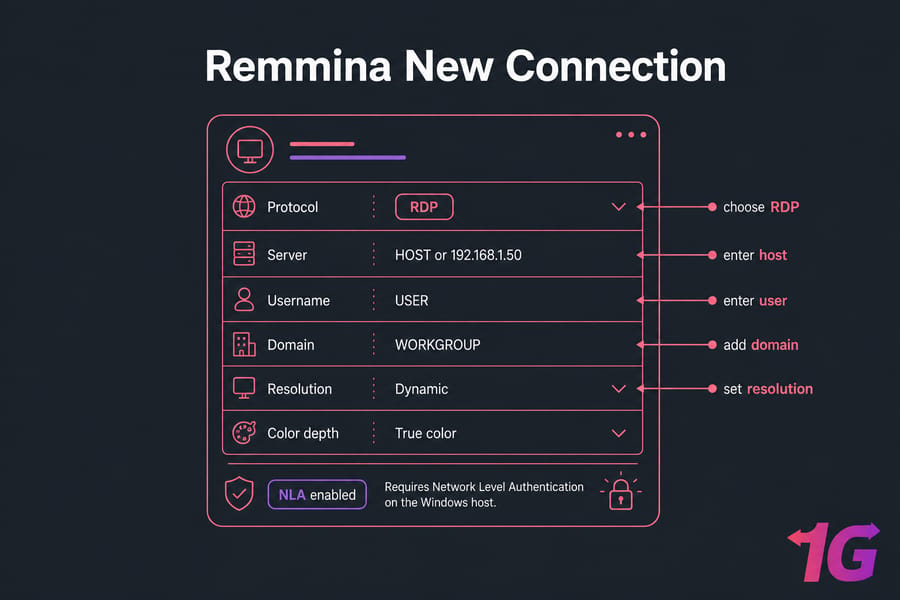
ipconfigon the Windows box, or use its hostname if DNS resolves. - Connect with Remmina: click the + button, choose the RDP protocol, enter the server, username, and domain, set colour depth and resolution, then save and double-click the profile.
- Connect with FreeRDP: one line —
xfreerdp3 /v:HOST /u:USER /dynamic-resolution /clipboard.
🖥️ Connecting Into a Linux Machine with RDP
Yes, you can RDP into Linux — install xrdp on the target and it exposes your desktop session over 3389. Rough version: sudo apt install xrdp, then sudo systemctl enable --now xrdp, then add the xrdp user to the ssl-cert group and pick a session backend (XFCE behaves best; GNOME under Wayland does not).
Which protocol should you actually use? SSH for anything terminal-based — lighter and safer. VNC when you need to share an existing physical session. RDP when you want the best graphics compression, redirection, and per-user sessions. For pure server administration, SSH plus a properly sized Linux VPS beats a graphical desktop every time. Still deciding between the two approaches? Our comparison of RDP vs VPS walks through the trade-offs.
🔒 Securing Linux RDP Connections
Never expose 3389 to the open internet. Bots find it in hours, and RDP brute-force is one of the top ransomware entry vectors. Do this instead:
- Put RDP behind a VPN (WireGuard works great) or a bastion host, and allowlist source IPs at the firewall.
- Keep NLA enabled — it authenticates before a session is spun up, which kills most pre-auth attacks.
- Validate certificates. Using
/cert-ignoreis fine on a lab LAN; in production it hands you a silent MITM. Import the host cert once and be done. - Tunnel over SSH when a VPN isn't available:
ssh -L 3389:target:3389 user@bastion, then connect tolocalhost. - Enforce least privilege, disable unused admin accounts, and run fail2ban plus log monitoring on anything genuinely exposed. Use tools like fail2ban to block brute-force login attempts.
🧩 Advanced Features and Tips for Better Remote Access
Modern Linux RDP clients include features that make remote desktop work smooth and productive:
- Multi-monitor Support: Spread your remote session across multiple screens.
- Clipboard Sharing: Copy/paste text between local and remote desktops.
- File Sharing: Mount local drives to your remote session.
- Sound Forwarding: Listen to audio from your Windows machine.
- Smart Card Authentication: Extra layer of security for enterprise environments.
How to Enable:
- In Remmina: Open your connection profile → Advanced → Enable features like clipboard or drive redirection.
- In FreeRDP: Use flags like
/drive:share,/pathor/clipboard.
✅ Performance Tip: Reduce color depth or disable desktop backgrounds for faster connections over slow networks. For a deeper dive into tuning your sessions, see our full RDP performance optimization guide.
⚙️ Common Problems and Fixes
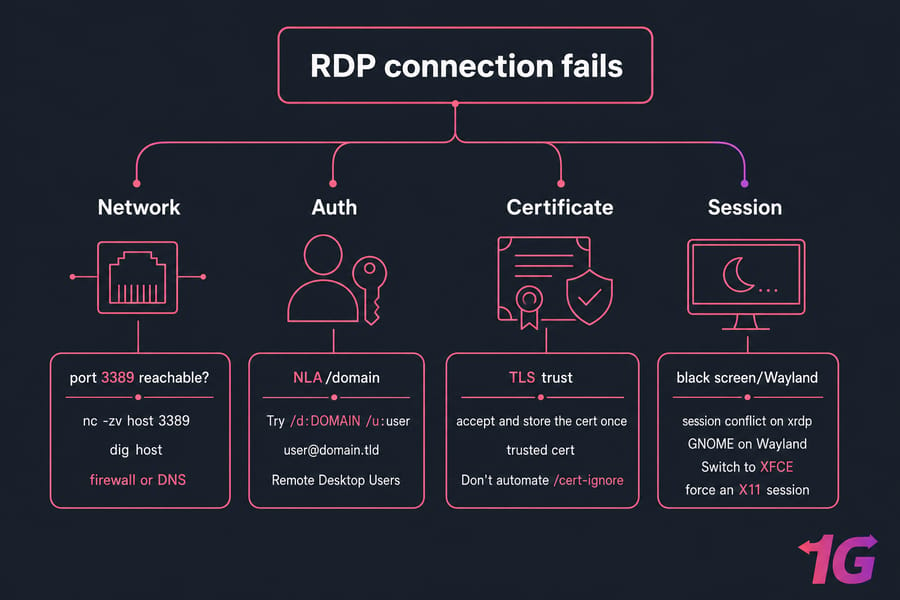
- Authentication or NLA failure: wrong domain format. Try
/d:DOMAIN /u:useroruser@domain.tld. Also confirm the account has "Remote Desktop Users" membership. - Certificate warning every session: accept and store the cert once, or deploy a trusted cert on the host. Don't automate
/cert-ignore. - Black screen or login loop: almost always a session conflict on xrdp, or GNOME on Wayland. Switch the target to XFCE or force an X11 session.
- Clipboard, sound, or drive redirection dead: the feature must be enabled on both ends —
/clipboard /sound /drive:on FreeRDP, and Group Policy may block redirection server-side. - Laggy sessions: drop colour depth to 16-bit, disable wallpaper and font smoothing, and enable bandwidth optimisation in Remmina's advanced tab. Use
/network:lanor/network:modemflags in FreeRDP. - Nothing connects at all: test the basics —
nc -zv host 3389anddig host. It's a firewall or DNS problem more often than a client one.
📌 Use Case Scenarios: Which Client is Right for You?
💼 System Administrators: Remmina — for tabbed sessions, protocol flexibility, and SSH tunnel support.
👨💻 Developers & Power Users: FreeRDP — for scripting, automation, and CLI integration.
💻 Minimal/Old Hardware: rdesktop — lightweight and no-frills.
🏡 KDE Plasma Users: KRDC — integrated, tabbed sessions.
🏠 GNOME Users: GNOME Connections — simple, integrated, and easy to use.
🔁 Remmina vs FreeRDP: Which Should You Pick?
This isn't really either/or, since Remmina uses FreeRDP as its RDP engine. The real question is interface. Managing 30 saved hosts across RDP, VNC, and SSH? Remmina. Firing off a scripted session, a kiosk launcher, or a one-off connection from a shell? xfreerdp3, every time. I keep both installed and use each for what it's good at.
🎯 Final Verdict
Install Remmina first — it covers 90% of Linux remote desktop needs and it's easy to hand to a non-technical colleague. Add FreeRDP if you automate anything. Use xrdp when traffic needs to flow into Linux. And leave rdesktop alone unless the remote host predates Windows 7.
If you're chasing a Windows desktop rather than a client to reach one, a hosted option like an RDP server plan saves you from maintaining hardware. Running the workloads behind it? Pair that with a dedicated server sized for concurrent sessions. Before committing, it's worth understanding private RDP vs shared RDP. For a secure, high-performance server to pair with your Linux RDP client, don't miss our list of Best RDP Hosting Providers.

Leave A Comment