
![How to Change VPS Password 🔑 [Windows & Linux]](https://1gbits.com/cdn-cgi/image/width=1200,quality=80,format=auto/https://s3.1gbits.com/blog/2025/12/how-to-change-your-vps-password-1200xAuto.webp "How to Change VPS Password 🔑 [Windows & Linux]")
It is very easy and effective to change the password for your VPS, and that is the first step to secure your server. Whether you are using a Buy Windows VPS or a Buy Linux VPS Hosting, knowing how to manage your credentials correctly is crucial. Understanding proper password management can also help you optimize your VPS pricing choices by ensuring you select a plan that matches your security and operational needs.
This guide will teach you safe, correct ways to change the password of your VPS across all platforms, including CMD-based methods, provider console resets, Linux commands, and VM recovery options.
🔐 What Is a VPS Password and Why Changing It Matters?
A VPS password plays a huge role in determining the level of access you have over your virtual server. Thus, any unauthorized access could lead to the entire environment being compromised. Regular changes of VPS passwords guarantee, to a large extent, that your system will not be vulnerable to brute-force attacks, credential leaks, or unauthorized logins.
This is particularly relevant for users managing business, trading, or forex VPS change password scenarios, where uptime and security have been established as critical factors. In case you see any suspicious login attempts, or if you are using a device that might have been compromised, or if you are switching to a new hosting provider, you should immediately change your VPS password: this way, you keep your system secure and fully under your control.
🖥️ How to Change VPS Password on Windows VPS
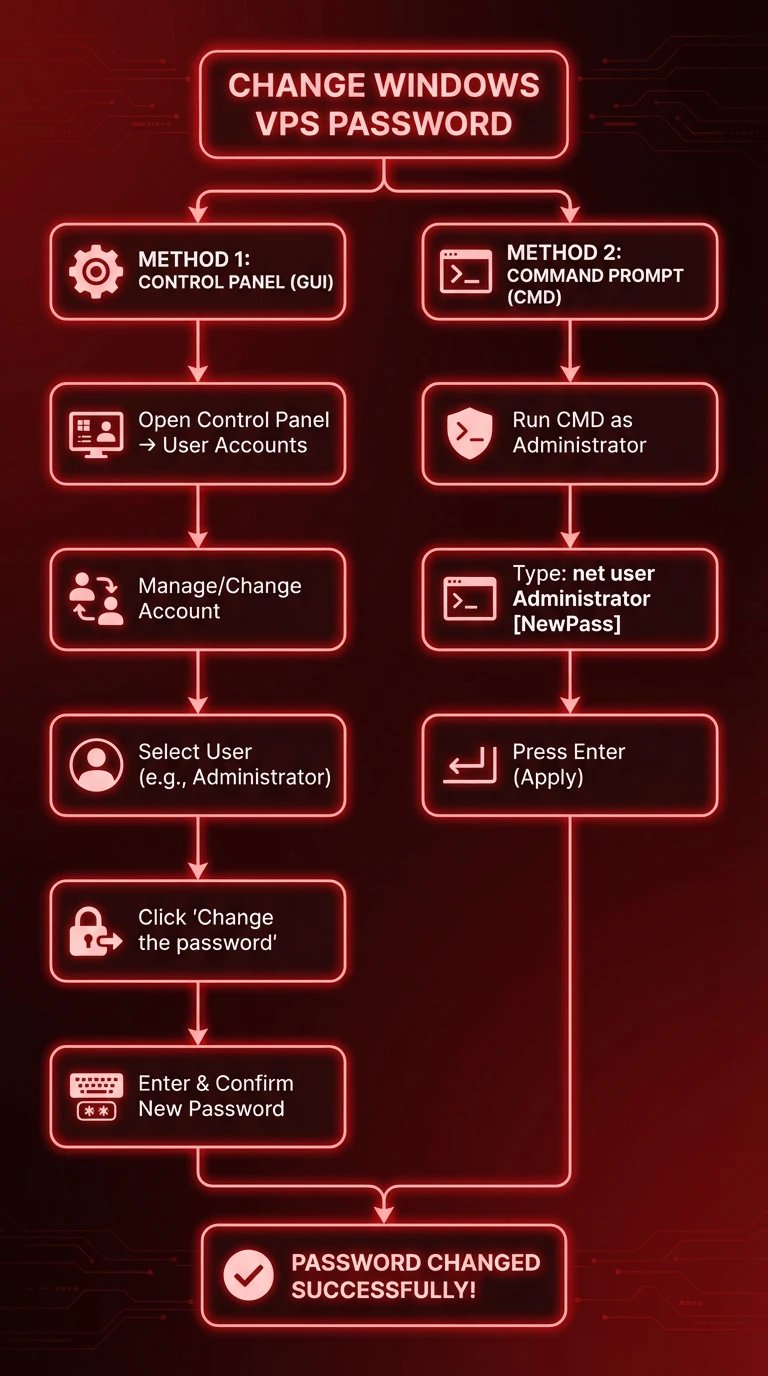
Changing your Windows VPS password is straightforward, whether you're updating it from inside the server or using external recovery tools. These methods help you perform a VPS password change safely, even if you’ve forgotten your credentials.
Each option gives you flexibility depending on your login status and administrative level. With the right method, you can perform how to change Windows VPS password updates quickly while keeping your server secure.
For more detailed Windows-specific instructions, you can also refer to How to change the Windows Server password.
🧭 Change Windows VPS Password via Control Panel
Changing your password through the Windows Control Panel is the most beginner-friendly way to handle a VPS password change and works well for users already logged into their VPS. The steps are simple and screenshot-friendly, making this method ideal if you want a clear, visual workflow.
-
Open Control Panel → select User Accounts.
-
Click Manage another account or Change your account (depending on Windows version).
-
Select the Administrator or desired user.
-
Click Change the password.
-
Enter the new password → confirm changes.
This clean interface makes it easy to change VPS password without using commands, ideal for users who prefer a graphical environment.
🖥️ Change Windows VPS Password via Command Prompt (CMD)
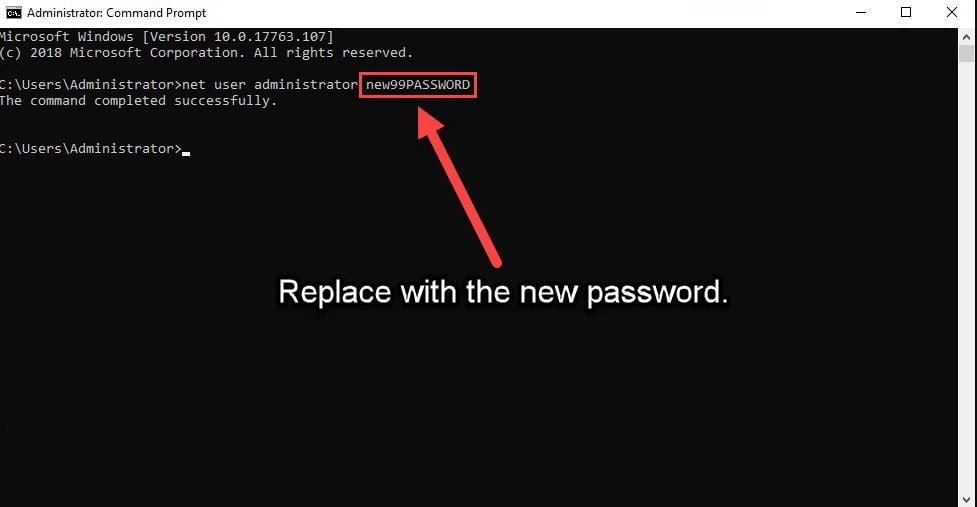
If you want to know how to change vps password with CMD, the Command Prompt method is the fastest and most direct option. It’s especially useful for automation, scripting, or when working on servers without a GUI.
-
Open Command Prompt as Administrator.
-
Run the following VPS password change CMD:
-
net user Administrator NewPassword
-
Press Enter to immediately apply the new password.
This command works on nearly all Windows VPS versions and is the preferred method for users needing a quick, reliable VPS password change command.
🛠️ Reset Forgotten Windows VPS Password (Using VPS Provider Console)
If you're locked out entirely, the provider's emergency console (VNC/KVM) is the safest way to handle how to change Windows VPS password when you cannot log in normally. This bypasses RDP and gives direct access to your virtual machine environment.
-
Log in to your VPS provider dashboard.
-
Open the VNC / KVM / Emergency Console.
-
Access Windows login → select Reset Password or open CMD through troubleshooting mode.
-
Change the password manually using the GUI or the how to change VPS server password command (net user).
-
Reboot the VPS.
This method works even if RDP is disabled, the firewall is misconfigured, or the password is completely forgotten, making it essential for full recovery cases.
🐧 How to Change VPS Password on Linux VPS (Ubuntu / CentOS / Debian)
Changing a VPS password on Linux is fast, reliable, and works the same across major distributions like Ubuntu, CentOS, and Debian. Whether you're updating a normal user, the root account, or recovering a lost password, Linux gives you multiple command-based and console-based tools.
These methods ensure you can perform a change VPS password operation, even if you’re locked out or handling a compromised environment.
If you're unsure how to access your server before starting, review How to Login to VPS for step-by-step guidance.
🖥️ Change Password Using Terminal
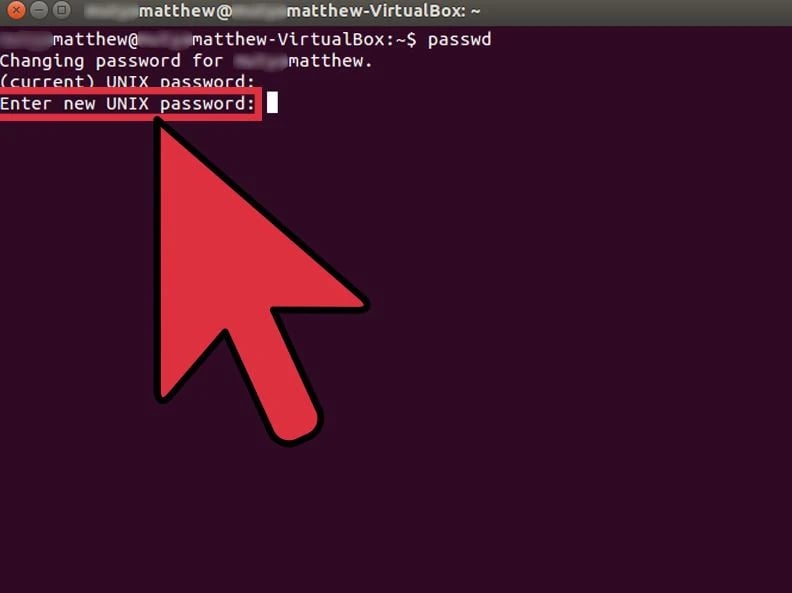
Changing a user password through Terminal is the most common method and relies on the VPS password change command used across almost all Unix-based systems. This method works whether you’re connected through SSH or using a local console.
-
Run: passwd username
-
Enter the new password when prompted
-
Confirm the password
-
Supports both standard users and sudo-level users
This is the most direct way to manage VPS password change operations. It’s simple, consistent, and works across every major Linux VPS provider.
For a broader Linux-focused walkthrough, see How to Change Password Linux for additional command options.
🔑 Change Root Password on Linux VPS
The root account has full control over your VPS, so knowing how to update it safely is essential. Using sudo passwd root ensures you're changing the most critical credentials on your system.
-
Use: sudo passwd root
-
Set the new root password
-
Confirm the password
-
Works even if normal user passwords remain unchanged
Updating the root password adds a powerful layer of security. Competitors often forget to mention that you should rotate the root password more frequently than standard accounts.
Ubuntu users can also follow the dedicated guide in How to Change Password in Ubuntu for distribution-specific examples.
🛠️ Reset VPS Password from Recovery Mode (Provider Console)
If you lose access to SSH or forget the root password entirely, recovery mode helps restore control. This provider-level console method is crucial and widely overlooked by competitors.
-
Access your provider panel → open Rescue/Recovery mode
-
Boot the VPS into the recovery or rescue environment
-
Mount the system disk
-
Run passwd or chroot into the OS to reset the password
This approach is ideal for full lockouts, system corruption, or firewall misconfiguration cases. Once complete, reboot normally and log in using your new credentials.
👥 How to Change VPS User Password (Create / Modify Multiple Users)
Managing multiple users on a VPS often requires adding new accounts or updating existing ones, especially for teams, developers, or managed environments. Linux and Windows both provide simple commands and panels to perform a VPS change user password or any general change password VPS task.
-
Create a new user with system tools (Windows or Linux)
-
Update any user password using the control panels or the Terminal
-
Remove or disable accounts when no longer needed
-
Use role-based access to limit exposure
Proper user management improves security and reduces the risks of password sharing. Updating individual passwords ensures only authorized users maintain server access.
🖥️ How to Change VPS Password from a VM (VMware / Hyper-V / Proxmox)
If your VPS is running inside a virtual machine environment, you can still perform a full password reset using the virtualization console. Most competitors skip this section, but knowing how to change password from VM is crucial when GUI access or SSH fails.
-
Open VM console (VMware, Hyper-V, Proxmox)
-
Access local login or troubleshooting mode
-
Run OS-level password commands
-
Reboot the VM after applying the new credentials
This method works even when remote access breaks due to firewall changes or networking errors. VM consoles act as a direct lifeline to recover your server credentials.
🚨 How to Reset Your VPS When You Can’t Access It
If you're locked out of your server, several recovery options allow you to perform to reset your VPS. These methods restore access without data loss and are essential for password failures, misconfigurations, or system errors.
-
Reboot the VPS into rescue or recovery mode
-
Use the provider VNC or KVM console to access the system
-
Reset the password from the hosting panel’s built-in tools
-
Restore network settings if blocked by a firewall
These recovery tools ensure you never permanently lose access to your VPS. Once the reset is complete, log in with your new password and verify your services are running correctly.
⚠️ Common Problems When Changing VPS Password (And How to Fix Them)
Even when you know how to perform a change VPS password, several issues can interrupt the process, especially on hardened or misconfigured servers. Understanding these common errors helps you troubleshoot quickly and avoid getting locked out of your system.
|
Issue |
Cause |
Fix |
|
Permission denied |
User lacks admin/root privileges |
Elevate to Administrator or use sudo |
|
User locked |
Account disabled or security policy triggered |
Unlock via control panel or provider console |
|
SSH disabled |
Network block or SSH misconfiguration |
Re-enable SSH via VNC/KVM console |
|
Wrong keyboard layout |
Console using a non-English layout |
Switch to the EN layout before typing the password |
|
Password complexity fails |
The password doesn’t meet system policy |
Use symbols, uppercase, lowercase, numbers, and longer lengths |
These issues happen frequently across both Windows and Linux VPS setups. Fixing them ensures your VPS password change process completes smoothly and securely.
🔐 Best Practices for a Secure VPS Password
To maintain strong server security, you need more than just knowing how to change a VPS password; you must follow proper password hygiene. Strong passwords reduce the chances of brute-force attacks, unauthorized access, and automated bot intrusions.
|
Best Practice |
Description |
|
Follow strong password rules |
Use long, unique passwords with mixed characters |
|
Rotate passwords regularly |
Set a password-change schedule (monthly or quarterly) |
|
Avoid common mistakes |
Never reuse passwords or share login details with multiple users |
Best Practices Table
Following these guidelines significantly improves VPS resilience against attacks. Combined with regular monitoring, these steps help ensure your server stays protected around the clock.
If you suspect unauthorized access, review What to Do if Your VPS Gets Hacked to secure your server immediately.
Conclusion
Regardless of the operating system you are running (Windows, Linux, or a virtual machine), one of the most efficient measures to protect your server is to change your VPS password on a regular basis.
This guide provides the recommended methods for securely updating, resetting, or accessing even in extreme situations. If you require a hosting environment that is speedy, dependable, and comes with expert support, the services of 1Gbits might be an option. Our round-the-clock support, worldwide data centers, and immediate setup simplify and secure server management.

Leave A Comment