
What Is Secondary Storage?
Secondary storage is the non-volatile memory that holds your data when the power is off. It's where files, programs, the operating system, photos, and backups actually live — the CPU can't touch any of it directly until that data gets shuffled into RAM first. People sometimes call it auxiliary storage or secondary memory. Same idea. The defining trait? It keeps your data permanently until you delete or overwrite it.
Unlike primary storage, which offers quick, temporary access to data for processing, secondary storage ensures that information is preserved even when the power is turned off. This characteristic of retaining data permanently, without requiring a constant power supply, distinguishes it from primary storage. Secondary storage devices are not directly accessible by the CPU; instead, data must be transferred to primary storage (RAM) for processing, making secondary storage an essential part of the data hierarchy in computer systems. For a deeper understanding of how secondary storage integrates with various systems, check out our article on what is a storage server.
How Secondary Storage Works
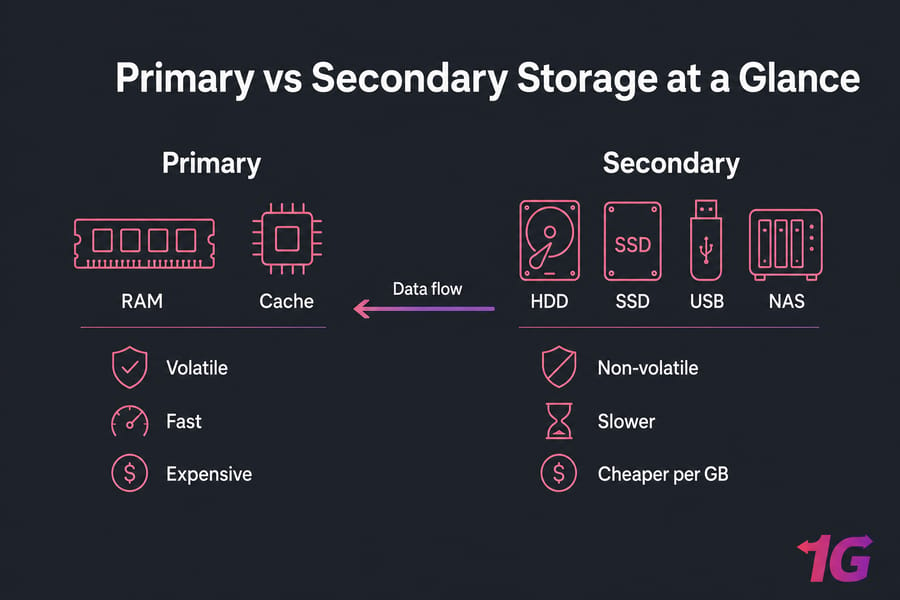
Here's the part most beginner guides gloss over. Your CPU doesn't read directly from an SSD or HDD. It can't. The access speeds are way too slow compared to what a modern processor needs. Instead, the operating system pulls the bytes you need off secondary storage, dumps them into RAM, and the CPU works from there.
When you save a file, the reverse happens. RAM contents get written back to your drive. That's why an unsaved document evaporates the moment your laptop loses power — RAM is volatile, secondary storage isn't.
Secondary Storage vs Primary Storage
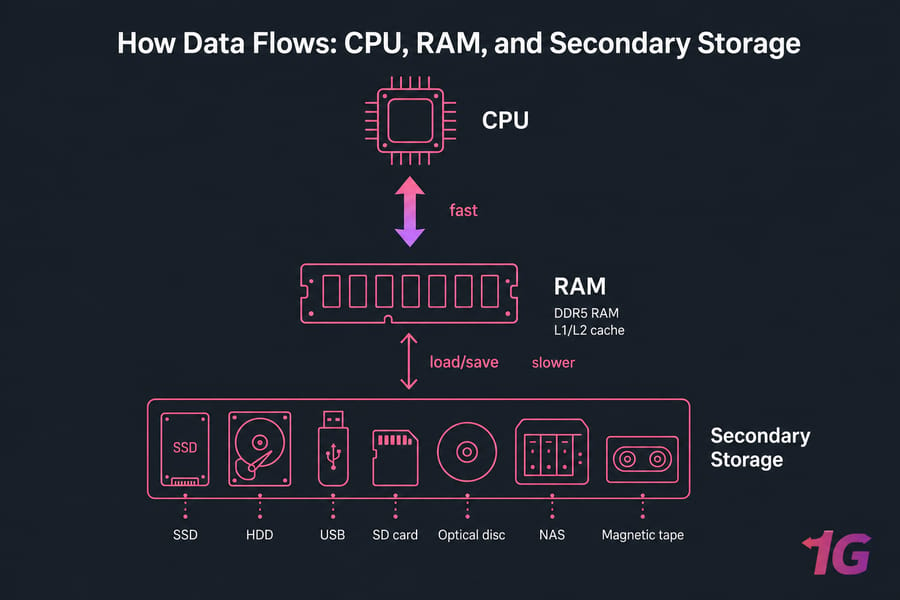
This is the question most people ask: what's the actual difference between primary and secondary storage? Short answer — primary is the working memory the CPU uses right now; secondary is long-term storage.
| Feature | Primary Storage (RAM, Cache) | Secondary Storage (HDD, SSD, NAS) |
| Volatility | Volatile — wiped on power loss | Non-volatile — persists |
| Speed | Nanoseconds | Microseconds to milliseconds |
| CPU access | Direct | Indirect (via RAM) |
| Capacity | 8–128 GB typical | 250 GB – 100+ TB |
| Cost per GB | High | Low |
| Examples | DDR5 RAM, L1/L2 cache | SSD, HDD, USB, tape, NAS |
And no — RAM is not secondary storage. It loses everything when the power cuts out. One key advantage of secondary storage is its capacity to store large volumes of data at a relatively low cost compared to primary storage. Hard disk drives can store terabytes of data, making them ideal for extensive data archives. For more on how RAM fits into the bigger picture, see our guide on how much RAM you need for your PC.
Characteristics of Secondary Storage
- Non-volatility — data sticks around without power. That's the whole point.
- Capacity — far bigger than RAM. Modern consumer SSDs hit 8 TB; enterprise HDDs push past 24 TB.
- Cost per GB — dramatically cheaper than RAM. An HDD might run you 1.5 cents per GB. DDR5? Considerably more.
- Access speed — slower than primary memory, but the gap has narrowed a lot with NVMe. Access speeds are significantly slower than primary storage, which can affect overall system performance when large files need to be retrieved.
- Portability — some devices are removable (USB sticks, SD cards), others are fixed inside the case.
- Durability — varies wildly. SSDs handle shock well. The mechanical nature of some secondary storage devices, like HDDs, makes them susceptible to physical damage and data loss.
Main Types of Secondary Storage
Magnetic storage
Magnetic storage, one of the oldest types of secondary storage, uses magnetic fields to record data. The most common example is the hard disk drive (HDD). An HDD consists of one or more platters coated with a magnetic material. Data is written to and read from the platters by a read/write head that moves across the disk's surface.
Advantages: High capacity at a relatively low cost, making them ideal for storing vast amounts of data. Due to their mature technology, HDDs provide a cost-efficient solution for extensive data storage needs.
Disadvantages: Slower data access speeds compared to newer technologies like SSDs. The presence of moving parts makes HDDs more prone to mechanical failure and physical damage.
Use cases: HDDs are commonly used in desktops, servers, and for backup solutions where high capacity and low cost are prioritized over speed. They are also widely deployed in servers for storage due to their affordability at scale.
Optical storage
Optical storage uses lasers to read and write data on discs made of plastic with a reflective coating. Common types include CDs (Compact Discs), DVDs (Digital Versatile Discs), and Blu-ray discs. Data is encoded in the form of tiny pits and lands on the surface of the disc, which are interpreted by the laser.
Advantages: Optical discs are resistant to environmental factors like dust, water, and temperature changes, making them suitable for long-term data archiving. They are lightweight and easy to transport, which is useful for sharing data and media.
Disadvantages: Limited capacity compared to magnetic and solid-state storage. Reading and writing data on optical discs is generally slower than other types of secondary storage.
Use cases: Optical storage is frequently used for distributing software, movies, and music, as well as for creating backup copies of important data. They are also used in video game consoles and for archival purposes.
Solid-state storage
Solid-state storage, such as solid-state drives (SSDs) and USB flash drives, uses flash memory to store data. This technology relies on electrically programmable memory cells, which retain data even when the device is powered off. SSDs do not have moving parts, which distinguishes them from HDDs.
Advantages: SSDs offer significantly faster data access and transfer speeds compared to HDDs, resulting in quicker boot times and improved overall system performance. The absence of moving parts makes SSDs more resistant to physical shock and vibration, reducing the risk of mechanical failure.
Disadvantages: SSDs are more expensive per gigabyte than HDDs, though prices have been decreasing over time. Flash memory cells have a limited number of write cycles, although this limitation is continually being mitigated by advancements in technology.
Use cases: SSDs are ideal for laptops, desktops, and high-performance systems where speed and reliability are critical. They are also used in gaming consoles and for applications requiring fast read/write speeds.
Examples of Secondary Storage Devices
Hard Disk Drives (HDDs)
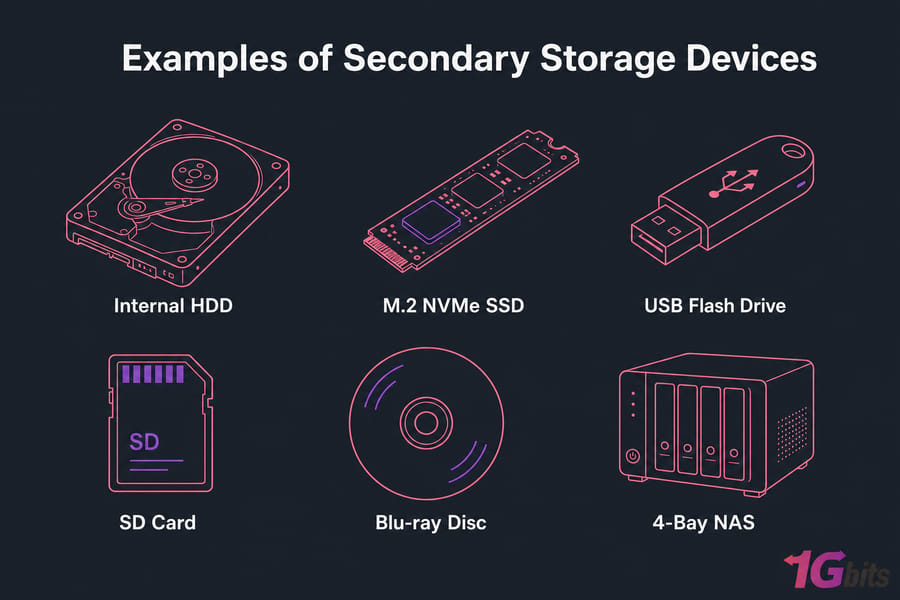
Spinning platters, magnetic heads, decades of refinement. Best value for sheer capacity. HDDs are commonly used for large-scale data storage in desktops and servers due to their high capacity and affordability. Drawback: slow random reads and they break if you drop them.
Solid-State Drives (SSDs)
Flash-based, no moving parts, dramatically faster than HDDs. SATA SSDs cap around 550 MB/s; NVMe drives push past 7,000 MB/s. SSDs are favored for their speed and reliability in laptops and high-performance systems. The trade-off used to be price — that's largely gone for consumer-tier capacities.
USB flash drives
Pocketable flash storage with a USB connector. Convenient for moving files between computers, popular for personal data transfer and creating portable backups. Terrible for long-term archival — cheap thumb drives can fail after a couple of years sitting in a drawer.
Memory cards (SD and microSD)
Same flash tech, smaller form factor. Cameras, phones, Raspberry Pis, dashcams. Speed classes (UHS-I, V30, V60) matter if you're shooting 4K video.
External HDDs and SSDs
An internal drive in a USB or Thunderbolt enclosure. Easy backup target. External NVMe over USB 3.2 Gen 2 can sustain 1,000 MB/s — fast enough to edit video off.
Network Attached Storage (NAS)
A small server with multiple drives that lives on your network. NAS provides a centralized storage solution, making data management and backup more efficient. Data stored on NAS can be accessed remotely, facilitating collaboration and file sharing. Synology and QNAP dominate this space. Great for shared family storage, business file servers, or a Plex library. However, accessing data depends on network availability and performance.
Magnetic tape
Still alive in 2025, believe it or not. LTO-9 cartridges hold 18 TB native. Hyperscalers and enterprises use tape for cold archives because it's cheap and lasts 30+ years in proper conditions. See cold data storage for more on that workflow.
Hybrid drives (SSHD)
An HDD with a small flash cache. Honestly, these have mostly faded — separate SSDs got cheap enough that the hybrid compromise stopped making sense.
Interfaces and File Systems
SATA, NVMe, PCIe, USB, SAS
The interface decides how fast data moves between the drive and the rest of the system. SATA III tops out at 600 MB/s — fine for HDDs, a bottleneck for modern flash. NVMe rides on PCIe lanes (Gen 4 or Gen 5), unlocking the real speed of solid-state. USB 3.2 covers external drives. SAS is the enterprise sibling of SATA — dual-port, better error handling, used in storage arrays.
File systems
The format the drive is structured in. NTFS on Windows, APFS on macOS, ext4 on most Linux systems, exFAT for cross-platform external drives, FAT32 for legacy compatibility (with a brutal 4 GB single-file limit). Pick wrong and you'll hit walls — like discovering your external drive won't take a 10 GB video file because it's still FAT32.
How to Choose the Right Secondary Storage Device
| Use case | Recommended device | Why |
| Speed (gaming, video editing) | NVMe SSD | 5,000+ MB/s, lowest latency |
| Bulk capacity (media library) | HDD or NAS | Cheapest per TB |
| Backups | External HDD + cloud | 3-2-1 rule |
| Portability | USB SSD or microSD | Pocket-sized, no moving parts |
| Long-term archive | LTO tape or M-DISC | 30+ year retention |
| Servers / VPS | NVMe SSD (RAID 10) | IOPS + redundancy |
The 3-2-1 backup rule is worth memorizing: three copies of your data, on two different media types, with one copy offsite. RAID isn't backup — a RAID 1 mirror won't save you from rm -rf or ransomware.
Secondary Storage for Servers, NAS, and Cloud Workloads
This is where storage choices stop being academic. For a database VPS with heavy random IOPS, NVMe is non-negotiable. For a backup target or media server, spinning HDDs in a RAID 6 array still make the most economic sense.
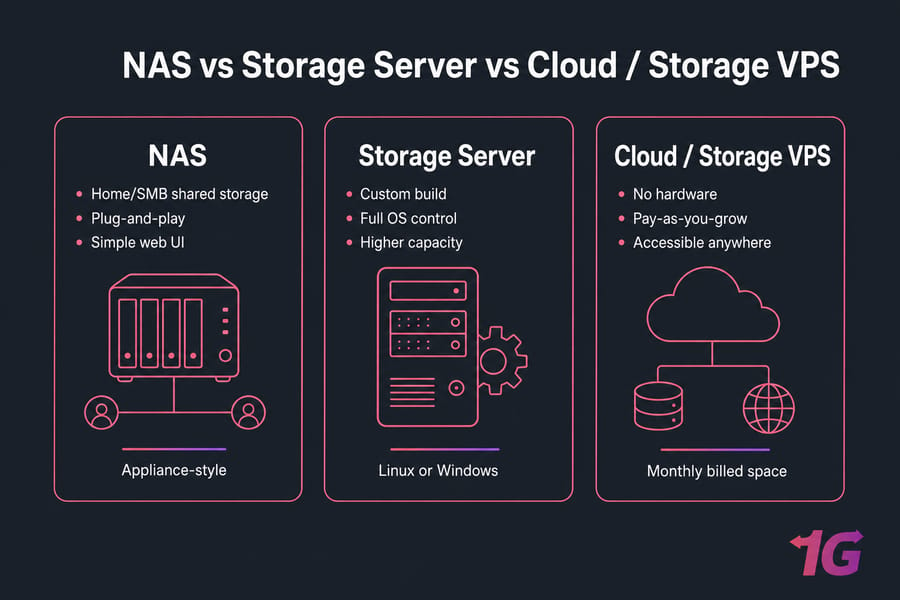
NAS vs storage server — the line blurs, but a NAS is appliance-style (Synology DSM, simple web UI), while a storage server is a full Linux or Windows machine you build out yourself. More flexibility, more responsibility. For those who need scalable capacity without owning hardware, Storage VPS plans hand you provisioned space billed monthly, providing an efficient way to leverage secondary storage capabilities in a virtualized environment for data-heavy applications.
Quick RAID primer: RAID 0 stripes for speed (no redundancy — one drive dies, everything dies). RAID 1 mirrors. RAID 5 uses parity across three or more drives. RAID 10 combines mirroring and striping for the best speed-and-safety balance in production servers.
Conclusion
Secondary storage is a vital element of any computer system, offering durable and reliable data storage solutions that persist long after the power is off. Understanding the difference between primary and secondary storage where primary provides quick, temporary data access for processing and secondary offers a permanent solution for data retention is fundamental to grasping how computers manage and organize data efficiently.
There are several types of secondary storage, each offering unique advantages. Magnetic storage, such as HDDs, is known for high capacity and cost-effectiveness. Optical storage, including CDs, DVDs, and Blu-ray discs, provides durable and portable options for media distribution and archiving. Solid-state storage, like SSDs and USB flash drives, offers superior speed and reliability compared to magnetic storage. Network Attached Storage (NAS) provides centralized storage with remote access capabilities, ideal for home offices and businesses.
With a variety of secondary storage devices available, each suited to specific needs — from the high-capacity HDDs in desktops and servers for storage to the fast NVMe SSDs in high-performance systems and gaming consoles secondary storage remains a cornerstone of effective data management and preservation. Whether you're a personal user, a business owner, or managing enterprise infrastructure, choosing the right secondary storage solution ensures your data remains safe, accessible, and well-organized. For scalable virtualized environments, Storage VPS solutions offer the flexibility to grow alongside your data needs.

Leave A Comment