
Your browser fetched the site's SSL/TLS certificate, tried to trace it back to a root certificate in its trust store, and failed. No trusted issuer, no verified site identity, no secure connection. So Chrome blocks the page instead of loading it. It hits visitors and site owners alike — and the fix depends entirely on which one you are.
Whether you're on Edge encountering "edge net err_cert_authority_invalid," or grappling with it specifically in Chrome, the frustration remains palpable. Understanding the core of web security, specifically what is SSL, is the first step in demystifying why these barriers appear in our browsers. This guide covers everything: root causes, platform-specific fixes, server-side solutions, and prevention.
🛡️ What Is NET::ERR_CERT_AUTHORITY_INVALID?
The "NET::ERR_CERT_AUTHORITY_INVALID" error is a common issue encountered while browsing the web, typically in Google Chrome or other web browsers. It occurs when the browser detects a problem with the SSL certificate of a website, indicating that the certificate authority (CA) issuing the certificate is not recognized or trusted. Essentially, the "Chain of Trust" that links the website to a verified root provider has been broken. SSL certificates are issued by trusted certificate authorities, which verify the authenticity of the website. Without a valid certificate, your data is vulnerable to "man-in-the-middle" attacks.
⚠️ Why You're Seeing This Error
| Cause | What it means | Who fixes it |
| Expired certificate | Validation fails outright; some browsers report it as an authority problem | Site owner |
| Self-signed certificate | No public CA vouched for it, so no trust store contains the issuer | Site owner |
| Missing intermediate certificate | The chain has a gap between server cert and root CA — the classic cause | Site owner |
| Wrong system clock | A valid cert looks "not yet valid" or expired to your device | Visitor |
| Antivirus or VPN SSL inspection | Software re-signs traffic with its own local CA your browser doesn't trust | Visitor / IT admin |
| Public Wi-Fi or captive portal | The network intercepts HTTPS before you've logged in | Visitor |
| Outdated browser or OS trust store | Newer root certificates aren't present on old Android/Windows builds | Visitor |
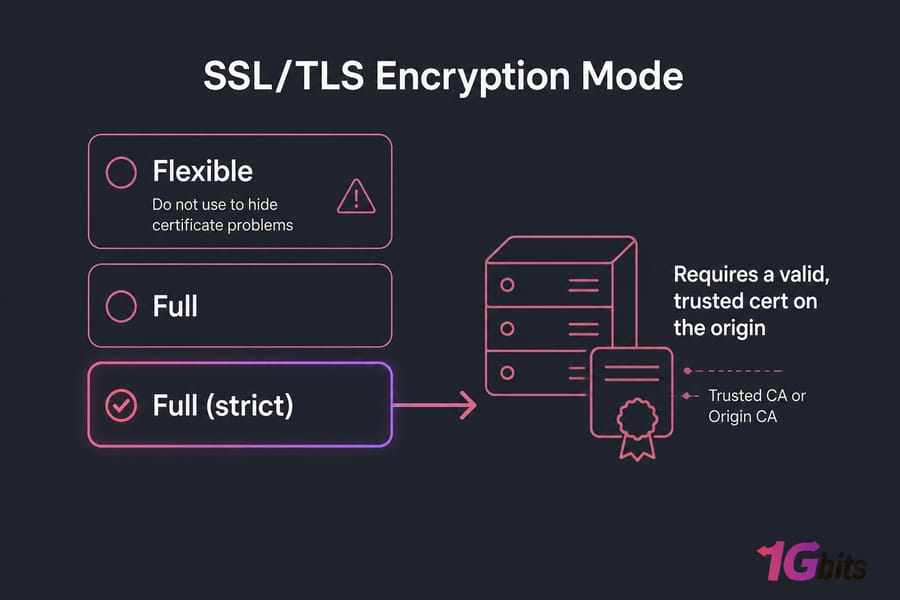
| CDN or reverse proxy misconfiguration | Cloudflare Full (strict) hitting an untrusted origin certificate | Site owner |
🔍 Is the Problem Your Device or the Website?
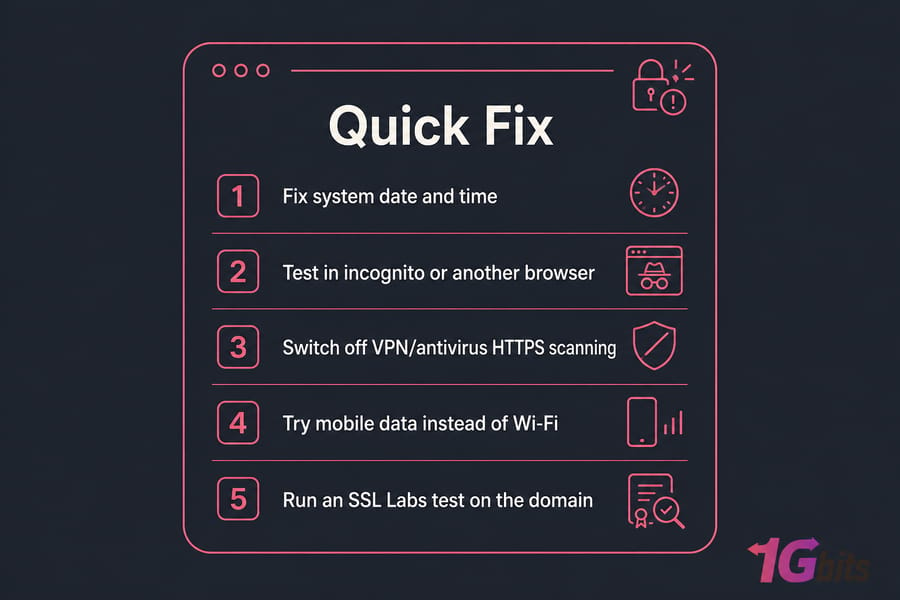
Two minutes of triage saves an hour of guessing. Run through this:
- Open the same URL in a second browser. Broken everywhere? Suspect the server.
- Test on a phone using mobile data, not Wi-Fi. Works there? Your network or local software is intercepting traffic.
- Click the padlock (or "Not secure") and view the certificate. Check the issuer and the expiry date.
- Run the SSL Labs server test. If it flags "chain issues: incomplete," you've found your answer.
- Seeing
failed to load resource: net::err_cert_authority_invalidin DevTools but the page mostly renders? A third-party asset — CDN, font host, tracking script — has the bad cert, not your main domain. Test that asset's hostname directly.
🌐 Platform-Specific Error Variations
🔵 Chrome / Edge
When Chrome displays the error, it means the browser has detected an issue with the SSL certificate. Chrome specifically indicates that it doesn't recognize the certificate authority that issued the SSL certificate for the website you're trying to visit. This could happen due to:
- The certificate is self-signed or issued by an unknown or untrusted certificate authority.
- The certificate might be expired or revoked by the CA.
- There could be a misconfiguration on the server side, such as a missing intermediate certificate chain.
To resolve this issue, try:
- Check the URL: Ensure you're visiting the correct website and there are no typos in the URL.
- Try Another Browser: Sometimes the issue might be specific to Chrome's local cache or settings.
- Contact Website Owner: If you're confident the website is legitimate, contacting the website owner to address the certificate issue might be necessary.
🍎 Safari / macOS
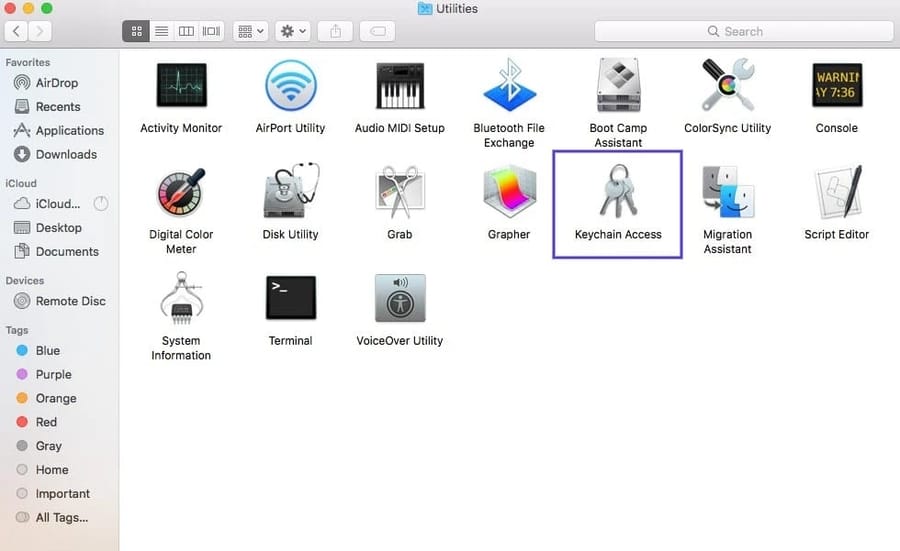
When Safari throws this error, it typically indicates a problem with the SSL certificate validation process. On macOS, this is often tied to the "Keychain Access" settings. There are a few potential causes:
- An expired or incorrectly configured SSL certificate on the website's server.
- Your browser doesn't recognize the certificate authority responsible for signing the SSL certificate.
- Stale trust settings in Keychain Access.
To resolve this issue, ensure that your device's date and time settings are accurate, as an incorrect date or time can cause certificate validation errors. You can also try accessing the website from a different browser or device to see if the issue persists.
🤖 Android
When encountering this error on Android, it typically indicates a problem with the SSL certificate authority. This error arises when the SSL certificate presented by the website you're trying to access is not recognized or trusted by your device's operating system.
To resolve this issue:
- Ensure that your device's date and time settings are correct. Go to Settings > System > Date & Time and toggle on "Use network-provided time."
- Clear your browser's cache and cookies, as sometimes outdated or corrupted data can interfere with certificate validation. Learn how to clear cache from browsers.
- On Android 7 and older, check Settings for any user-installed CA certificates and remove ones you do not recognise.
- Update Android System WebView and Chrome from the Play Store.
📱 iOS
When you encounter this error on iOS, it typically means that your device is having trouble verifying the authenticity of the SSL certificate. This can occur due to expired certificates, incorrect certificates, or mismatched domains. On iPhone/iPad, check General → About → Certificate Trust Settings for any manual overrides, and update iOS if pending.
💻 Windows 10 / 11
When encountering this error on Windows, it typically means that the SSL certificate presented by the website is not recognized or trusted by your system. Common triggers include:
- Expired certificate — the SSL certificate might have expired, rendering it invalid.
- Incorrectly configured certificate — the certificate might be misconfigured or not issued by a recognized CA.
- Missing intermediate certificate — the website's SSL certificate is not properly chained to an intermediate certificate.
To troubleshoot:
- Check System Date and Time: Ensure that the date and time settings on your computer are correct.
- Clear Browser Cache: Clearing your browser's cache and cookies can sometimes resolve certificate errors.
- Update Browser: Ensure your browser is up to date.
- Check Antivirus or Firewall Settings: Some antivirus or firewall settings may interfere with SSL certificate validation. Temporarily disabling them or adjusting their settings might help.
- Contact Website Administrator: If the issue persists, contact the website administrator to ensure their SSL certificate is valid and properly configured.
If you are a server admin on Windows, you might want to check out how to install IIS server on Windows Server to properly manage your own SSL deployments.
🛠️ How to Fix It as a Visitor
Safe steps only, in the order I'd actually try them.
1. Try Reloading the Page (or Using Incognito Mode)
When you try to reload the page, the error usually disappears on its own. It only takes a moment. If the error persists over multiple reloads, try accessing the website in incognito mode. If the website loads fine there, it is likely because your browser is trying to load an outdated cached version of the page.
2. Clear Your Browser's Cache and Cookies
You will probably need to clear your browser's cache if switching to incognito mode solved the error. This is one of the most common fixes. The alternative is to force refresh your website (Ctrl + F5 on Windows), so you don't have to delete the entire cache.
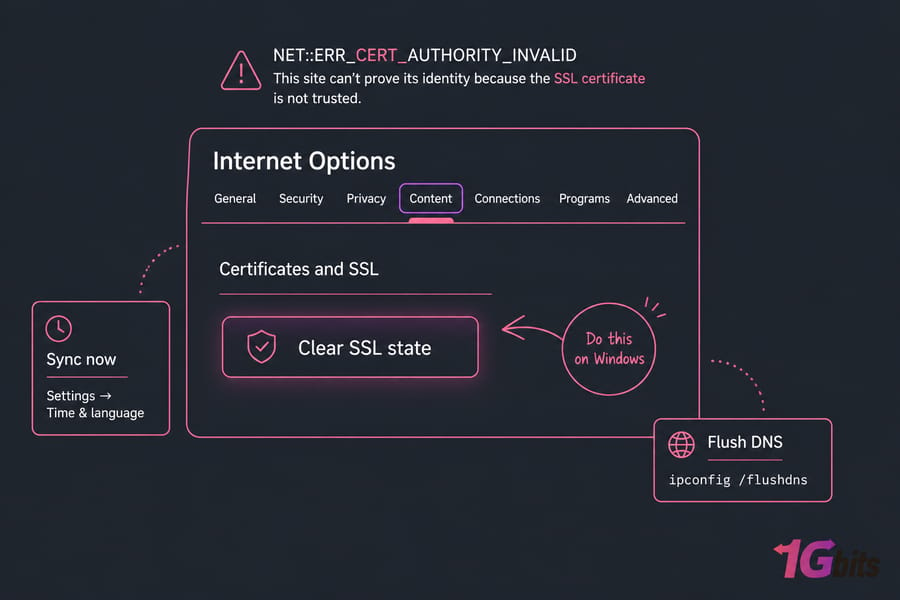
3. Sync Your Computer's Clock
This error occurs when your computer's clock is set incorrectly. To clarify, this error occurs when your browser cannot verify a website's certificate because your device's clock is outside the certificate's "valid from" or "valid to" dates.
Windows
Right-click the time on your computer's system tray, then select Adjust date/time:
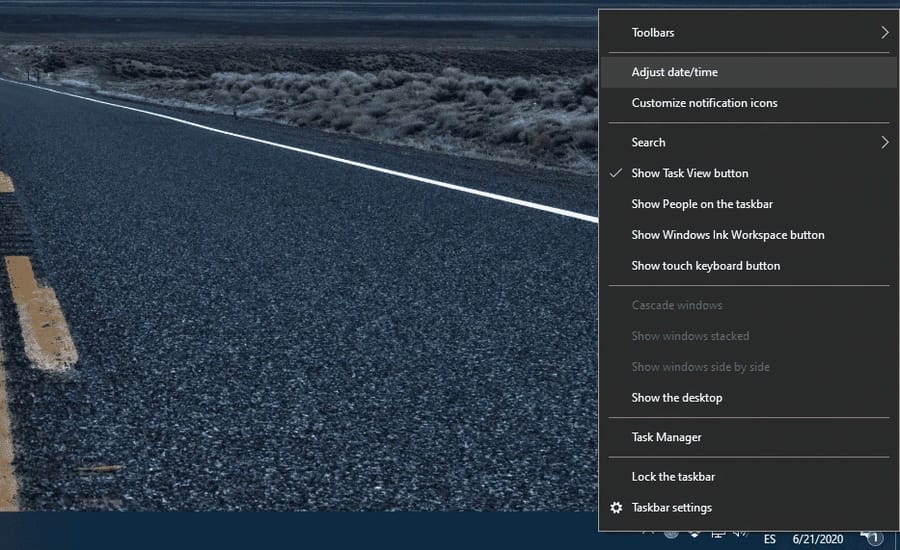
Find the Sync now option under Synchronize your clock under the Settings window, and click on it. This ensures your local time matches the global atomic clock.

It's recommended that you enable the Set time automatically option in order to avoid this issue in the future. If you are managing a server, you should also know how to set the date and time on Linux to prevent server-side validation issues.
Mac
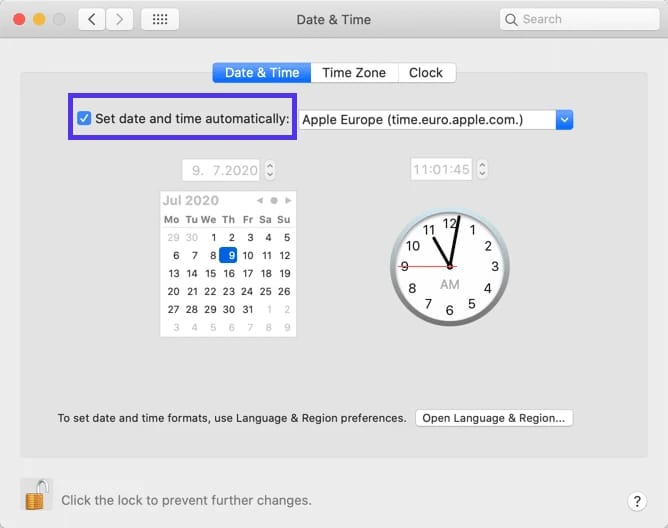
- Within the Apple menu, select System Preferences.
- Click the Date & Time icon.
- Set the date and time automatically by turning it on.
4. Try Using a Different Network
There are times when the error pops up when you're using a public network, such as in coffee shops or tourist spots. These networks often do not route traffic securely or require a "Portal" login that intercepts your connection, causing SSL issues. You should try to access your website through your smartphone using its mobile data. If the error goes away, you might need to change DNS server settings to a more reliable provider like Google or Cloudflare.
5. Disable Your VPN or Antivirus Software
This error may be triggered by the service itself if you're already using a VPN. The most common culprit is antivirus software with "HTTPS Scanning" or "Web Protection" features. These tools act as a proxy and use their own certificates, which browsers may reject. Temporarily disable your VPN and antivirus software, then try accessing your site again. If you find your VPN is the cause, consider using a v2ray server for a more secure and customized proxy experience.
6. Wipe Your Computer's SSL State
Whenever you access a certificate from a website, your computer caches it so you don't have to run through the entire verification process each time. However, if the cached certificate is corrupt or outdated, the error will persist. In Windows, go to Control Panel > Internet Options > Content and click Clear SSL State. Then flush DNS with ipconfig /flushdns.
On macOS, open Keychain Access, find stale entries for the domain, and delete any manual trust overrides:

7. Update Your Browser and OS
Old trust stores miss modern roots. On Windows, run Windows Update to refresh the certificate store. On Android, update System WebView and Chrome. On macOS, install pending OS updates.
8. Open the Captive Portal Login on Public Wi-Fi
If it only happens on café or hotel Wi-Fi, open http:// anything first to trigger the captive portal login, or switch to mobile data.
🔧 How to Fix It as a Website Owner
Here's where most guides go quiet. Start by checking what you're actually serving:
openssl s_client -connect example.com:443 -servername example.com -showcertsCount the certificates returned. If only one comes back, you installed the leaf cert without the intermediate — and that's your bug. Browsers on desktop sometimes cache intermediates from previous visits, which is exactly why the site "works for you" and breaks for everyone else.
Install the Full Chain, Not Just the Certificate
With Let's Encrypt you get both cert.pem and fullchain.pem. Always point Nginx at the fullchain:
server {
    listen 443 ssl;
    server_name example.com www.example.com;

    ssl_certificate     /etc/letsencrypt/live/example.com/fullchain.pem;
    ssl_certificate_key /etc/letsencrypt/live/example.com/privkey.pem;
    ssl_stapling on;
    ssl_stapling_verify on;
}
Apache keeps them separate — the chain file matters just as much:
SSLCertificateFile      /etc/ssl/certs/example.com.crt
SSLCertificateKeyFile   /etc/ssl/private/example.com.key
SSLCertificateChainFile /etc/ssl/certs/intermediate-ca.crt
Reload, don't restart blindly: nginx -t && systemctl reload nginx. For those using Nginx, you can learn how to configure SSL with Nginx to avoid these common pitfalls.
Other Server-Side Checks
- Trusted CA only on public endpoints. Replace self-signed certs — they'll never validate in a browser.
- Renew and automate. Certbot's timer or a cPanel/Plesk AutoSSL job. Then monitor expiry externally so a silent renewal failure doesn't take you down at 3 a.m. If you need a replacement, follow our guide on how to reissue a RapidSSL Certificate.
- SNI and hostname. Multiple vhosts on one IP? Make sure the default server isn't answering with someone else's certificate.
- Cloudflare. Full (strict) requires a valid, trusted cert on the origin. Either install a real one or use a Cloudflare Origin CA cert — and never leave it on Flexible to paper over the problem.
Run an SSL Server Test
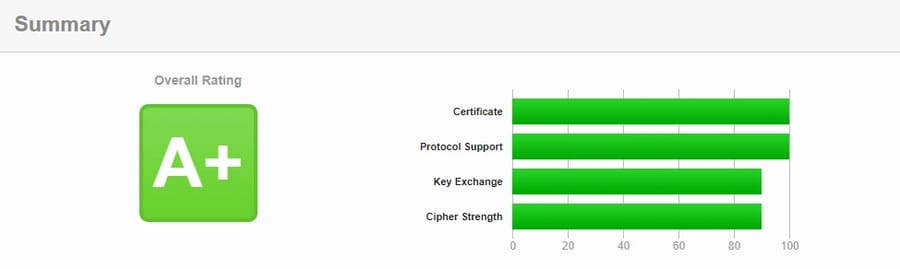
The setup process may have gone wrong if you installed your SSL certificate manually, instead of through your web host, shortly before you started seeing the error. Checking your certificate's installation is easy by using an SSL check tool, such as Qualys SSL Labs'. This particular tool is free to use:

Wait a couple of minutes while the results appear. If all of your certificates are perfect, you should get an A+:
Get a Certificate from a Valid Authority
Today, there's no reason to use a self-signed certificate for public-facing websites. You can get free certificates from providers like Let's Encrypt that are recognized by all popular browsers. We offer free SSL certificates for customers through automated integrations! SSL starts working automatically without any additional configuration thanks to modern cloud platforms.
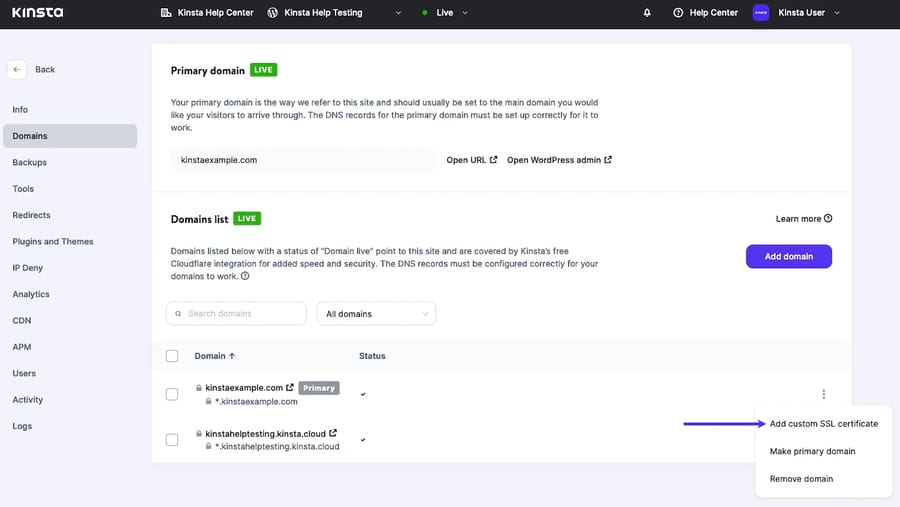
It is possible that some website owners will require features not available from free certificate providers, such as Organization Validation (OV) or Extended Validation (EV). If you are looking to buy dedicated server hosting, ensure your provider supports easy SSL installation via the control panel.
🛡️ Fortinet and FortiGate: A Special Case
If you're on a corporate network and every HTTPS site throws this, deep SSL inspection is almost certainly the reason. FortiGate terminates the TLS session, re-signs it with its own CA, and hands your browser a certificate signed by "Fortinet" or your company's internal CA. Perfectly legitimate — as long as that CA is trusted by the endpoint.
To confirm: view the certificate. If the issuer says FortiGate or your firewall's hostname instead of a public CA, that's it.
The fix belongs to the admin, not the user. Push the inspection CA to every managed device via Group Policy, Intune, or MDM, and add banking and health domains to the inspection exemption list. Don't ask staff to click through warnings — that trains people to ignore real attacks.
📊 How This Error Differs From Other SSL Errors
| Error | Meaning | Common cause | First fix |
| ERR_CERT_AUTHORITY_INVALID | Issuer isn't trusted | Missing intermediate, self-signed cert, SSL inspection | Install full chain |
| ERR_CERT_COMMON_NAME_INVALID | Hostname doesn't match the cert | Missing www or subdomain in SAN |
Reissue with correct SANs |
| ERR_CERT_DATE_INVALID | Cert expired or clock is wrong | Failed renewal, bad device time | Renew cert / sync clock |
| ERR_SSL_PROTOCOL_ERROR | Handshake failed entirely | Old TLS versions, cipher mismatch | Enable TLS 1.2/1.3 |
| ERR_BAD_SSL_CLIENT_AUTH_CERT | Client certificate rejected | Expired or wrong mTLS cert | Reinstall client cert |
📋 Browser and Device Quick Reference
| Platform | Typical symptom | First fix |
| Chrome / Edge | "Your connection is not private" | Incognito test, clear cache, check clock |
| Firefox | "Secure Connection Failed" (own trust store) | Check security.enterprise_roots.enabled if corporate proxy is in play |
| Safari | "This Connection Is Not Private" | Remove stale trust settings in Keychain Access |
| Android | Error on one app or browser only | Update System WebView, Chrome, and date/time |
| iPhone / iPad | Error across all apps | Certificate Trust Settings; update iOS |
| Windows | Fails in Chrome and Edge together | Clear SSL state, run Windows Update |
| macOS | System-wide failures | Delete manual overrides in Keychain |
⚠️ Should You Just Click "Proceed Anyway"?
On a public website? No. You've got no way to know whether the certificate is misconfigured or someone is sitting between you and the server. Never log in, never enter card details, never submit anything after bypassing a warning.
On a lab box or internal staging server whose certificate you installed yourself — sure, bypass it. You know what's on the other end. That's the only situation where I'd do it, and I still fix the cert afterwards.
🛡 Preventing Certificate Errors Long-Term
- Automate renewals and alert on failure, not just on expiry.
- Monitor expiry dates externally — a 30-day and 7-day warning is plenty.
- Validate the chain with SSL Labs immediately after every install or migration.
- Use publicly trusted CAs on anything internet-facing. No exceptions.
- Be careful with HSTS: it removes the option to click through, so test before enabling long max-age.
- Keep operating systems and browsers patched so trust stores stay current.
- Document any proxy or inspection CA your organisation deploys, and who owns it.
🎯 Conclusion
It can take time to troubleshoot this error if you don't know what's causing it, plus it can harm your reputation if your visitors are experiencing it as well. In most cases, the fix is easy to implement. First, ensure that your SSL certificate is valid and up to date, then perform some basic troubleshooting steps, such as reloading the page and clearing your browser's cache. To learn how to configure SSL with Nginx, you can refer to How To Configure SSL with Nginx.
Then, you can perform more involved fixes, such as wiping your SSL state and testing your SSL server. For enterprise-grade security and reliability, always consider hosting your projects on a managed dedicated server to ensure experts are monitoring your security certificates 24/7. If you are managing your own infrastructure, using a managed VPS can often prevent these issues as the provider handles certificate renewals for you.

Leave A Comment