

Ubuntu's Go installation for developers has opened up new possibilities for them to create modern and high-performance applications in 2025. If the user is acquainted with the basic commands, then the installation of Go (Golang) on Ubuntu 20.04, 22.04, and 24.04 or WSL is going to be a seamless and trouble-free task. Google created the Go programming language, which is fast, dependable, and efficient; thus, it is perfect for APIs, cloud services, and DevOps tools.
The tutorial will take you through the installation of Go on Ubuntu with APT, Snap, or the manual methods; setting the environment variables; and also solving the common problems that might arise during the process.
💡 What Is Go and Why Install It on Ubuntu?

Go (or Golang) is an open-source programming language developed by Google, known for its simplicity, concurrency support, and impressive speed. It’s widely used in cloud infrastructure, DevOps automation, and scalable backend systems, making it a favorite among developers and system administrators.
Installing Go on Ubuntu gives you a stable, secure, and developer-friendly environment to build and deploy Go applications efficiently. Ubuntu’s lightweight nature, strong community support, and compatibility with major Go tools make it one of the best Linux distributions for Golang development.
⚙️ Requirements Before You Install Go on Ubuntu
Before installing Go on Ubuntu, make sure your system meets the basic requirements. Verifying your Ubuntu version, CPU architecture, and required permissions helps prevent installation errors and ensure a smoother setup.
🧾 Check Ubuntu Version (20.04 / 22.04 / 24.04 / WSL)
Run the command
lsb_release -a or cat /etc/os-release
to check which Ubuntu version you’re running. Go installation commands can slightly differ between Ubuntu 20.04, 22.04, 24.04, or when using Ubuntu via WSL on Windows.
Before you install Go, it’s wise to confirm you’re running one of the Best Ubuntu Versions for stability and performance.
🖥️ System Architecture (x86_64, ARM, ARM64)
Determine your CPU architecture using uname -m before downloading Go. This ensures you choose the correct package.
🔐 Required Packages & Permissions
Make sure you have sudo privileges and essential tools like curl, wget, and tar installed. These are needed to download, extract, and configure Go properly on your Ubuntu system.
📦 Install Go Ubuntu via APT (Recommended for Most Users)
The easiest and most stable way to install Go on Ubuntu is through the official APT package manager. This method automatically handles dependencies, keeps Go updated, and works seamlessly across Ubuntu 20.04, 22.04, and 24.04.
If you’re new to Linux package management, check out our guide on How to install packages in Linux to better understand APT and command-line installations.
💻 apt install go ubuntu
You can quickly install Go using the command
sudo apt update && sudo apt install golang-go -y
This pulls the latest stable version of Go available in Ubuntu’s repositories and sets it up system-wide.
🧩 install golang ubuntu apt get (Legacy Commands)
Older Ubuntu versions or scripts may still use the apt-get syntax instead of apt. If you’re maintaining legacy systems, run
sudo apt-get update && sudo apt-get install golang-go -y
to achieve the same result.
✅ Verify Your Installation
After installation, check if Go is working correctly by typing go version in the terminal. You should see the installed version number, confirming that Go is properly set up on your Ubuntu system.
🧰 Install Go Ubuntu via Snap
Snap provides an easy and containerized way to install Go on Ubuntu with automatic updates and isolation from system dependencies. It’s ideal for users who prefer a modern package management system that keeps Go up to date without manual intervention.
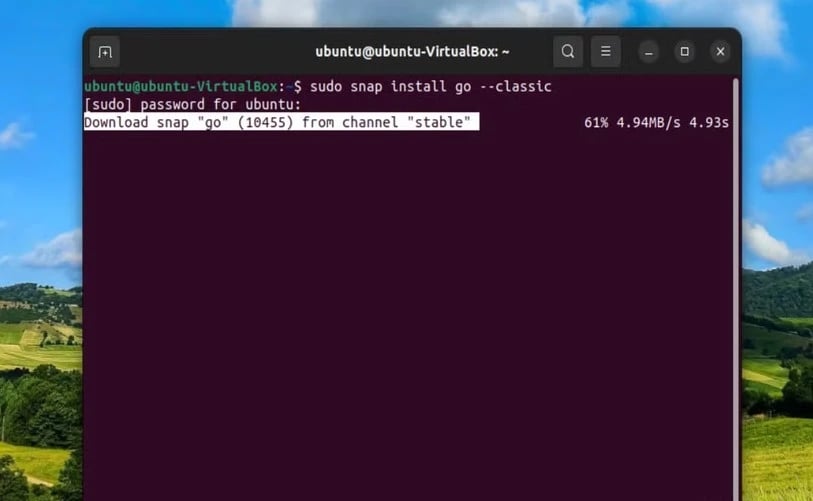
📦 install go ubuntu snap package
To install Go via Snap, run the command
sudo snap install go --classic
This installs the latest Go release directly from the Snap store and works across all supported Ubuntu versions, including WSL.
⚖️ pros & cons of Snap vs APT
The Snap method offers newer Go versions and easier updates, but it consumes more disk space and may load slightly slower than APT installations. On the other hand, APT provides a lighter, more integrated experience within the Ubuntu ecosystem, especially for servers.
Many developers choose Ubuntu because of its simplicity, stability, and open-source flexibility, learn more about the Pros and Cons of Ubuntu before setting up your Go environment.
🧭 Manual Method: download and install go ubuntu (Latest Version)
If you want the latest Go release instead of the one in Ubuntu’s repositories, the manual installation method is your best choice. This approach gives you full control over version management and environment configuration. It’s especially useful for developers who need cutting-edge features or multiple Go versions on the same machine.
📥 Get the Official Go Tarball
Start by downloading the official Go tarball from golang.org/dl. Use wget or curl to fetch the correct file based on your system architecture, for example: wget https://go.dev/dl/go1.xx.linux-amd64.tar.gz. Always verify the checksum to ensure the downloaded archive is authentic and uncorrupted.
🗜️ Extract Go and Configure PATH
Extract the tarball to /usr/local using
sudo tar -C /usr/local -xzf go1.xx.linux-amd64.tar.gz.
Then, add Go’s binary path to your shell configuration by editing ~/.profile or ~/.bashrc and appending export PATH=$PATH:/usr/local/go/bin.
After saving changes, run
source ~/.profile
to apply the updated environment settings.
⚙️ Set GOROOT and GOPATH Properly
GOROOT defines where Go is installed, while GOPATH specifies where your Go projects and packages will be stored. Set them using:
export GOROOT=/usr/local/go
export GOPATH=$HOME/go
export PATH=$PATH:$GOROOT/bin:$GOPATH/bin
These variables help Go locate its tools and workspace directories correctly across all projects.
💻 install go ubuntu WSL (Windows Subsystem for Linux)
For Windows users who prefer developing in a Linux-like environment, installing Go on Ubuntu via WSL is a great option. It allows seamless access to Linux commands, paths, and Go modules without running a full virtual machine. The setup process mirrors native Ubuntu installation steps but may require minor WSL-specific tweaks.
Installation Steps for WSL
Open your WSL terminal and update your system with sudo apt update && sudo apt upgrade. Then, install Go using either APT (sudo apt install golang-go -y) or the manual method for the latest version. Once installed, verify Go’s setup with go version to ensure it’s working correctly inside your WSL environment.
🧩 Common WSL-Specific Fixes
If go commands don’t work after installation, check that your PATH includes /usr/local/go/bin or /snap/bin. Also, ensure file permissions are correct, sometimes Windows file sharing causes permission conflicts. Restarting the WSL instance or reloading the shell configuration usually resolves most environment issues.
🔋 Install go ubuntu on ARM / ARM64
Installing Go on ARM or ARM64 systems (like Raspberry Pi or cloud ARM instances) requires architecture-compatible binaries. Ubuntu provides native ARM repositories, but you can also use Go’s official tarballs for optimal performance. The process is similar to standard installations, with just a few adjustments for hardware compatibility.
🧠 Install Using APT (ARM Repos)
Run sudo apt update && sudo apt install golang-go -y to install Go directly from Ubuntu’s ARM repositories. This ensures automatic updates and dependency handling specific to your ARM architecture. However, note that these repositories might not always include the most recent Go release.
⚡ Install Using Official ARM64 Tarball
To get the latest version, download the ARM64 tarball from Go’s official website using wget https://go.dev/dl/go1.xx.linux-arm64.tar.gz.
Extract it to /usr/local and update your PATH just like in the manual x86_64 installation. This method gives you full control over versioning and often provides better performance on ARM-based systems.
🚀 The Best Way to install go ubuntu in 2025
In 2025, the best way to install Go on Ubuntu depends on your needs—whether you prioritize stability, speed, or the latest updates. Each method (APT, Snap, or Manual) offers unique advantages in terms of simplicity, control, and compatibility across Ubuntu 20.04, 22.04, 24.04, and WSL.
|
Method |
Installation Type |
Update Frequency |
Speed |
Stability |
Version Freshness |
Best For |
|
APT |
Ubuntu Repository |
Moderate (via system updates) |
Fast |
Very Stable |
Slightly Older |
Beginners & servers |
|
Snap |
Snap Store (containerized) |
Automatic |
Moderate |
Stable |
Newer |
Cross-platform users |
|
Manual |
Official Go Tarball |
Manual |
Fastest |
Depends on setup |
Latest |
Advanced developers |
If you want the latest Go version and full control, go with the manual method. For general use or production servers, APT remains the most reliable and maintenance-free way to install Go on Ubuntu in 2025.
🔄 Update, Upgrade, or Uninstall Go on Ubuntu
Keeping Go up to date ensures you have access to the latest features, security patches, and performance improvements. Depending on how you installed Go, via APT, Snap, or manually, the upgrade process may differ slightly. You can also easily uninstall old or conflicting versions to keep your development environment clean and stable.
⬆️ Upgrade Go to the Latest Version
If you installed Go using APT, run sudo apt update && sudo apt upgrade -y to upgrade to the latest repository version. For manual installations, simply download the newest tarball from the official Go website, remove the old folder, and extract the new one in /usr/local. Always verify the new version with go version to confirm the upgrade was successful.
🧹 Uninstall Go Installed via APT
To remove Go that was installed using APT, use sudo apt purge golang-go -y followed by sudo apt autoremove. This command deletes Go packages and their unused dependencies. Once uninstalled, check with which go to confirm all related files have been removed.
🗑️ Uninstall Go Installed Manually
If you installed Go manually, remove it by deleting the /usr/local/go directory using sudo rm -rf /usr/local/go.
Then, edit your shell configuration files (like ~/.bashrc or ~/.profile) to remove Go-related PATH entries.
Reload your terminal, and confirm removal by running go version—it should show “command not found.”
🧩 Troubleshooting install go ubuntu Errors
Even though installing Go on Ubuntu is straightforward, you might run into a few common issues such as PATH errors or version conflicts. Most of these problems stem from overlapping installations or misconfigured environment variables. Fortunately, they’re easy to fix with a few terminal commands and checks.
If Go fails to run due to dependency issues or missing libraries, you can easily Fix Ubuntu Broken Packages using APT repair commands before reinstalling.
🛠️ PATH Issues
If running go version shows “command not found,” your PATH variable likely doesn’t include Go’s binary directory.
Open ~/.bashrc or ~/.profile and add export PATH=$PATH:/usr/local/go/bin, then reload the shell with source ~/.profile.
This will make the Go command globally accessible from any directory.
⚔️ Version Conflicts
Having multiple Go versions installed (for example, via both APT and manual methods) can cause confusion when running commands. Use which go to see which version your system is using, then uninstall or adjust PATH priorities accordingly. Keeping only one Go installation method active avoids most conflicts and ensures predictable results.
🧠 WSL or ARM Compatibility Problems
On WSL, file permissions and Windows path mapping sometimes interfere with Go commands, restart WSL or reapply environment variables to fix this. On ARM or ARM64 systems, always download the correct binary that matches your hardware. If Go fails to build or run, reinstall from the official ARM-compatible tarball to ensure full functionality.
🏁 Conclusion
Installing Go on Ubuntu in 2025 has become so easy and flexible that it allows users to choose the easiest way by using APT, the automated way through Snap, or the manual way for the full control. With Go, Ubuntu transforms into a powerful platform for developing scalable web applications, APIs, and even system tools.
In case of any difficulties during the setup, you can always rely on our guides such as Fixing Ubuntu Broken Packages or How to Install Software in Linux. For developers seeking optimized performance and reliability, consider running Go projects on a high-speed Ubuntu VPS from 1Gbits, featuring instant setup, global data centers, and 24/7 expert support.





![What Is Cold Data Storage? ❄️ [2026 Guide]](https://1gbits.com/cdn-cgi/image//https://s3.1gbits.com/blog/2026/02/what-is-cold-data-storage-750xAuto.webp "What Is Cold Data Storage? ❄️ [2026 Guide]")