
The Server IP Address Could Not Be Found error is one of the most common and confusing problems users face when trying to access a website. Whether you see it as a server ip address could not be found error message in Chrome, on Windows 10, macOS, Android, or iPhone, the result is the same: the browser cannot locate the server responsible for the website you are trying to visit.
This issue affects both everyday users and website owners. From a user perspective, it blocks access to important content. From a technical perspective, it usually indicates a breakdown in DNS resolution, network configuration, or server availability. Understanding what is server ip address could not be found, why it happens, and how to fix it correctly is essential for avoiding repeated downtime and misdiagnosis.
This guide explains How To Fix the Server IP Address Could Not Be Found Error step by step. It approaches the problem from browser, operating system, network, and server infrastructure layers, using real-world hosting and DNS scenarios. Whether you are troubleshooting Server IP address could not be found Chrome, Server IP address could not be found Windows 10, Server IP address could not be found on Mac, or Server IP address could not be found Android, this guide walks you through a systematic and reliable fix process.
What Does “Server IP Address Could Not Be Found” Mean?
When you see the message server ip address could not be found, it means your device failed to translate a domain name like example.com into an IP address such as 192.0.2.1. Browsers cannot connect to websites using domain names alone. They require IP addresses to establish a network connection.
In plain terms, your browser asked, “Where is this website located?” and did not get a valid answer.
This failure usually occurs during the DNS lookup stage of the request lifecycle. The browser sends a request to the operating system, which asks a DNS resolver to locate the IP address associated with the domain. If that resolver cannot find a valid record, the browser displays the server ip address could not be found error message.
It is important to understand that this error does not always mean the website itself is broken. There are several distinct scenarios that can trigger it:
|
Scenario |
What Happens |
Typical Cause |
|
DNS lookup failure |
No IP address returned for the domain |
DNS server outage, missing records |
|
Server offline |
DNS resolves but server does not respond |
Hosting downtime, suspended account |
|
Network blockage |
Request never reaches DNS resolver |
VPN, firewall, ISP filtering |
|
Local device issue |
DNS cache or IP config corrupted |
OS or browser misconfiguration |
Understanding this distinction prevents wasted time applying browser fixes when the real issue is server-side, or contacting hosting support when the problem is local.
How DNS Resolution Works? (Why This Error Happens)
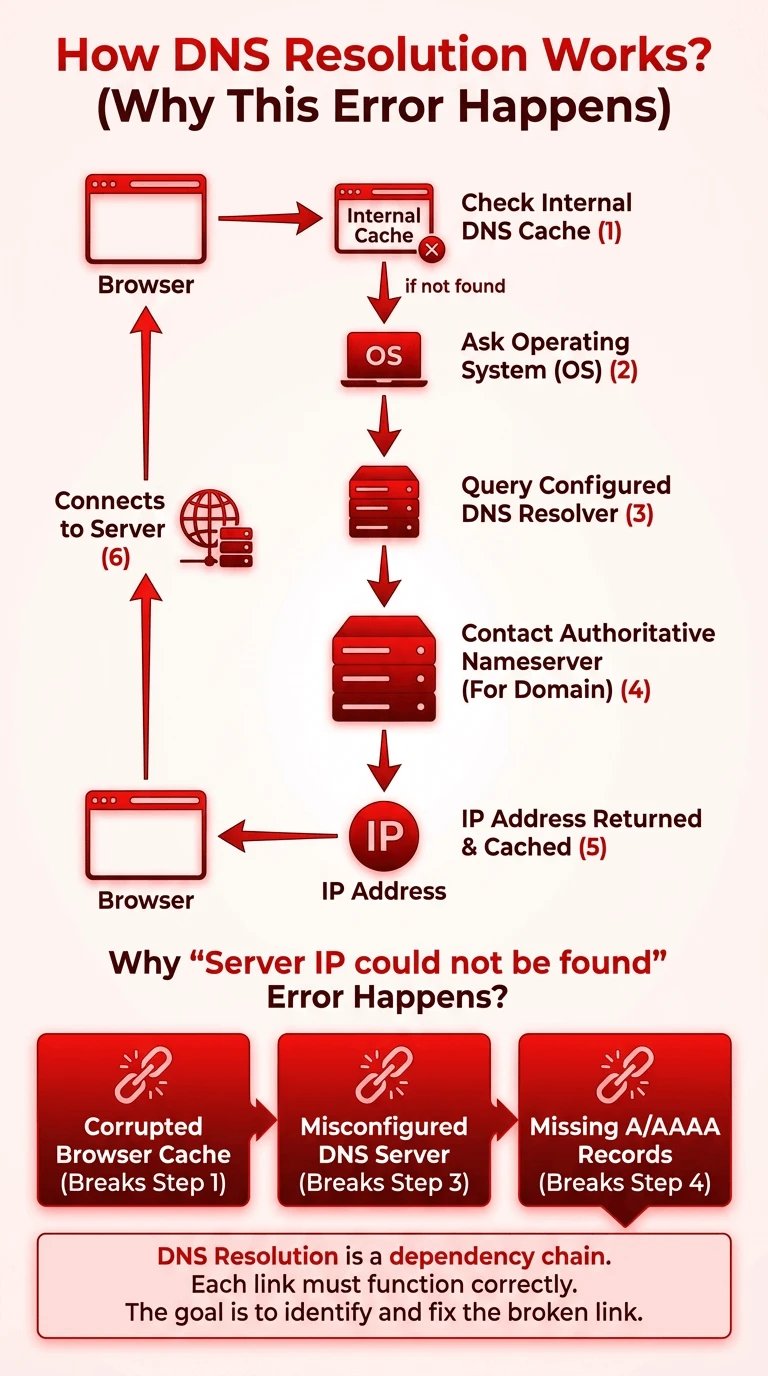
To fix the server ip address could not be found error, it helps to understand how DNS resolution actually works behind the scenes.
When you enter a URL into your browser, the following process occurs:
-
The browser checks its internal DNS cache.
-
If not found, it asks the operating system.
-
The operating system queries the configured DNS resolver.
-
The resolver contacts authoritative nameservers for the domain.
-
The IP address is returned and cached.
-
The browser connects to the server using that IP.
This process can fail at multiple points. A corrupted browser cache can break step one. A misconfigured DNS server can break step three. Missing A or AAAA records can break step four. If any step fails, the browser reports ip server address could not be found.
This is why quick fixes sometimes work and sometimes do nothing. Without knowing where the failure occurs, troubleshooting becomes guesswork.
From an infrastructure standpoint, DNS resolution is a dependency chain. Each link must function correctly. The goal of proper diagnosis is to identify which link is broken and fix only that layer.
Common Causes of the Error (Root-Cause Analysis)
DNS Server Issues
DNS problems are the most common cause of the server ip address could not be found error.
Your device relies on DNS servers provided by your ISP, workplace network, or manually configured public resolvers. If these servers fail to respond, return incorrect data, or cache outdated records, your browser cannot resolve domains.
Typical DNS-related causes include ISP DNS outages, misconfigured custom DNS settings, temporary DNS propagation delays, and cached incorrect responses. Switching DNS servers sometimes helps, but it is not a universal solution.
Browser-Level Problems
Browsers like Chrome maintain their own DNS cache in addition to the operating system cache. Corrupted cache entries can cause persistent errors even when DNS is functioning correctly.
This is especially common with Server IP address could not be found Chrome errors. Chrome also uses DNS prefetching and speculative resolution, which can amplify stale data issues.
Extensions that block scripts, modify requests, or enforce custom proxy settings can also interfere with DNS resolution and produce misleading errors.
Operating System Network Issues
Operating systems manage IP addressing, routing tables, and TCP/IP stacks. When these components become misconfigured, DNS requests may never leave the device.
Broken network adapters, incorrect IP assignments, corrupted Winsock catalogs, or aggressive firewall rules can all trigger server ip address could not be found windows 10 or macOS equivalents.
Mobile devices experience similar issues when switching between Wi-Fi and cellular networks, leading to Server IP address could not be found in mobile scenarios.
Server-Side Causes Often Ignored
Many guides stop at browser and device fixes, but a significant number of cases are caused by server-side issues.
Expired domain registrations immediately break DNS resolution. Missing A or AAAA records prevent resolvers from returning IP addresses. Incorrect nameserver configurations cause lookup failures across all networks. Hosting suspensions or infrastructure outages also trigger this error even when DNS resolves correctly.
For website owners, these are the most critical causes to verify first, especially if multiple users report the issue from different locations.
Quick Fix Checklist (For Impatient Users)
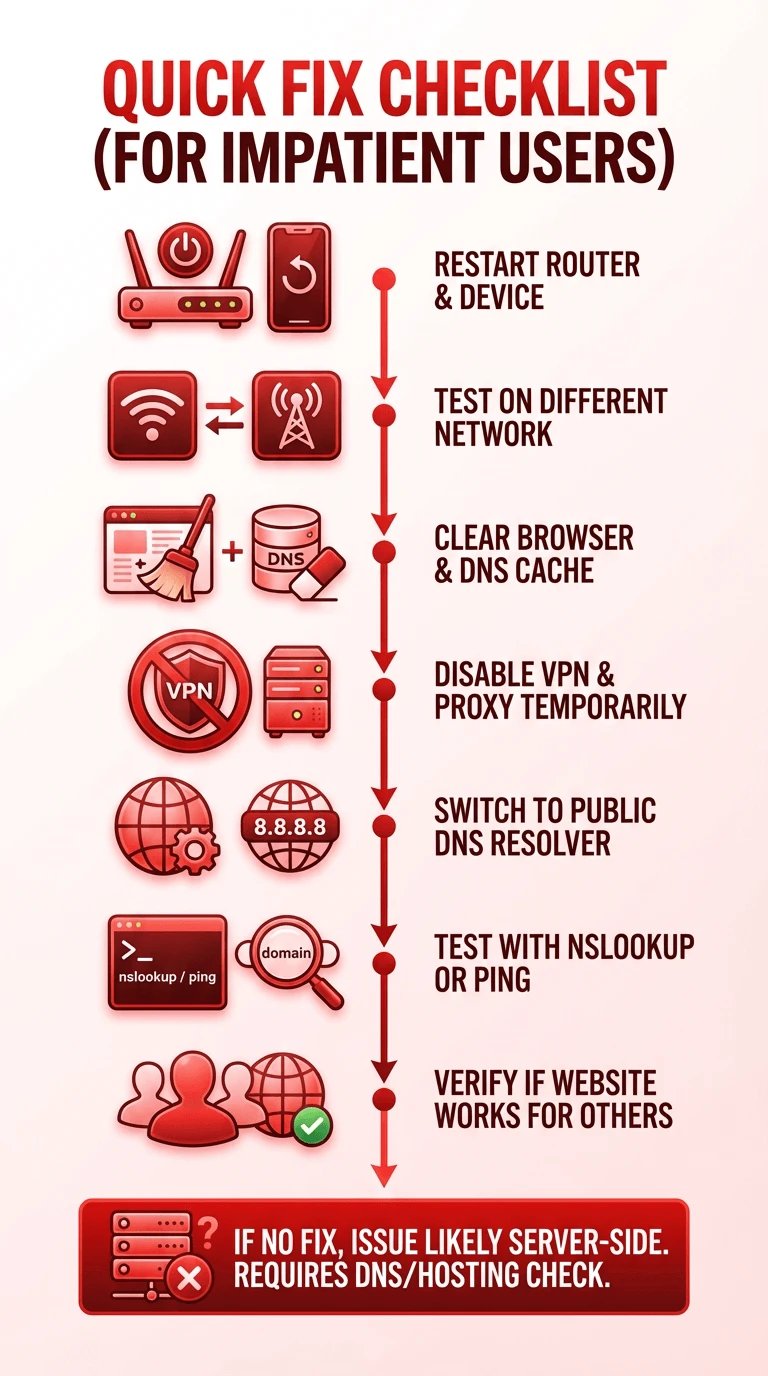
If you need a fast answer before deeper diagnosis, try these steps in order:
-
Restart your router and device
-
Check if the website loads on another network
-
Clear browser cache and DNS cache
-
Disable VPN or proxy temporarily
-
Change DNS servers to a known public resolver
-
Test the domain using nslookup or ping
-
Verify the website works for other users
If none of these work, the issue is likely server-side and requires DNS or hosting verification.
How To Fix the Error in Google Chrome?
Chrome has unique DNS behavior that often causes confusion. If you see chrome error server ip address could not be found or Server IP address could not be found Chrome, follow these steps carefully.
First, clear Chrome’s internal DNS cache by navigating to chrome://net-internals/#dns and clicking “Clear host cache”. This resets Chrome’s resolver without affecting system settings.
Next, clear browser cache and cookies. Cached redirects or stale site data can block proper resolution.
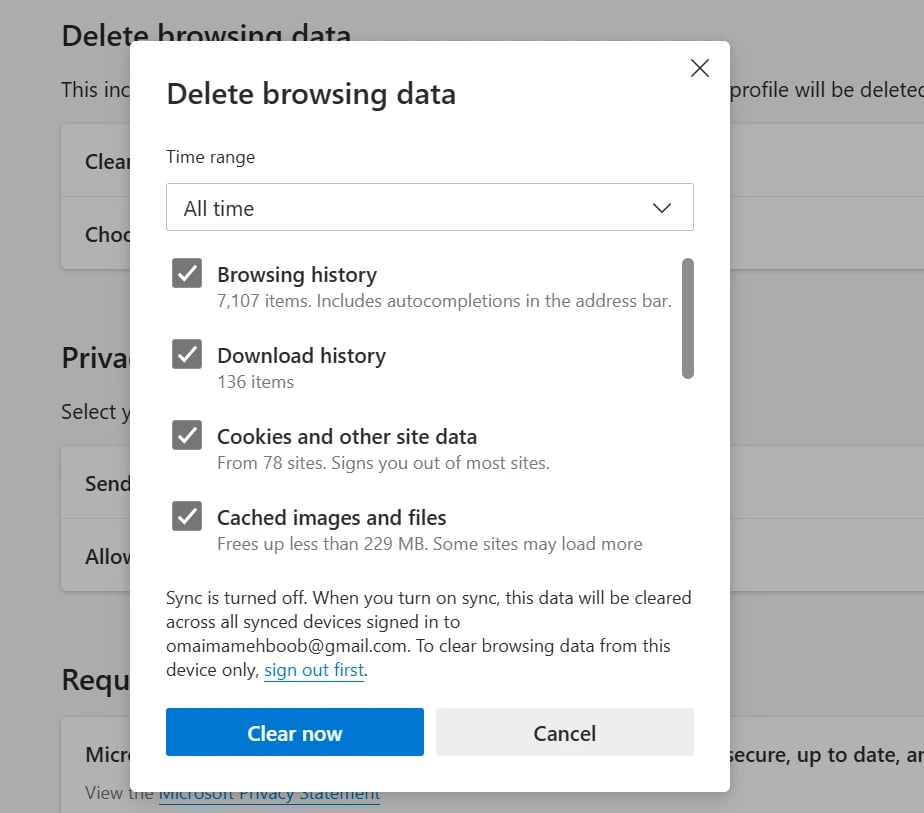
Disable extensions temporarily, especially ad blockers, VPN plugins, or privacy tools. Restart Chrome and test again.
Chrome sometimes ignores system DNS settings when secure DNS is enabled. Check Chrome settings and temporarily disable secure DNS to ensure it uses your configured resolver.
At this stage, most Chrome-specific DNS issues are resolved. If the error persists, the problem likely exists at the operating system or network layer.
How To Fix the Error on Windows (10 and 11)
For users encountering Server IP address could not be found Windows 10, Windows networking tools provide reliable fixes.
Start by flushing the DNS cache:
Open Command Prompt as administrator and run:
ipconfig /flushdns

Next, reset the network stack:
netsh winsock resetnetsh int ip reset
Restart the system after running these commands.
If the error continues, change DNS servers to a public resolver. This step often resolves How to fix the server ip address could not be found error windows scenarios caused by ISP DNS issues.
Finally, check the hosts file for blocked domains. A single incorrect entry can override DNS entirely.
Windows issues are often layered. Completing all steps ensures both DNS cache and TCP/IP configuration are clean.
How To Fix the Error on macOS?
If you are seeing Server IP address could not be found on mac, the issue usually stems from cached DNS entries, network service misbehavior, or incorrect DNS overrides.
Start by flushing the DNS cache. macOS uses different commands depending on version, but on modern systems the following works in most cases:
Open Terminal and run:
sudo dscacheutil -flushcachesudo killall -HUP mDNSResponder
This clears cached DNS responses and restarts the DNS resolver service. You may be prompted for your administrator password.
Next, renew the DHCP lease:
-
Open System Settings
-
Go to Network
-
Select your active network interface
-
Click TCP/IP
-
Choose Renew DHCP Lease
If the error persists, temporarily disable and re-enable the network service or remove custom DNS servers and revert to automatic configuration.
These steps address the majority of How to fix the server ip address could not be found error mac cases without requiring deeper system changes.
How To Fix the Error on Android and iPhone?
Mobile devices frequently encounter DNS resolution issues when switching networks, enabling private DNS, or using VPNs. This leads to Server IP address could not be found in mobile situations that appear random but follow predictable patterns.
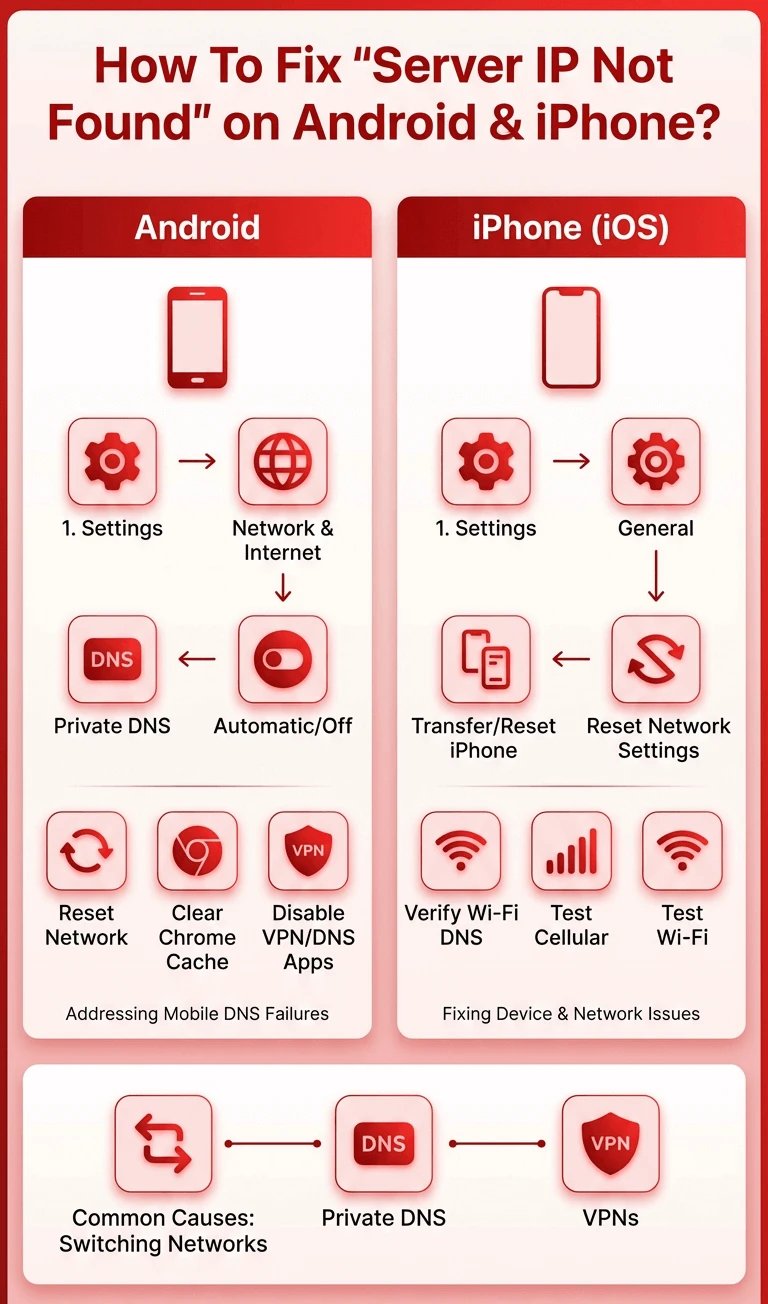
Android
For Server IP address could not be found Android, start by checking Private DNS settings:
-
Open Settings
-
Go to Network and Internet
-
Tap Private DNS
-
Set it to Automatic or Off
Incorrect private DNS configurations are one of the most common causes of mobile DNS failures.
Next, reset network settings or toggle airplane mode to force a network reinitialization. If you use Chrome, clear its cache and disable any VPN or DNS-based filtering apps.
These steps address most cases of How to fix the server ip address could not be found error android effectively.
iPhone and iOS
If you encounter Server IP address could not be found on iphone, begin by resetting network settings:
-
Open Settings
-
Go to General
-
Tap Transfer or Reset iPhone
-
Choose Reset Network Settings
This removes saved Wi-Fi networks, VPNs, and DNS overrides.
Also verify that no manual DNS servers are configured for your Wi-Fi network. Test the website on both Wi-Fi and cellular data. If it works on one but not the other, the issue is network-specific rather than device-related.
Changing DNS Servers (When and When Not To)
Changing DNS servers is often recommended, but it should be done with purpose.
Public DNS providers like Google DNS (8.8.8.8) and Cloudflare (1.1.1.1) offer reliable infrastructure and global availability. They can resolve issues caused by ISP DNS outages or filtering.
However, switching DNS does not fix missing DNS records, expired domains, or hosting downtime. It also does not guarantee faster performance in all regions.
Use public DNS when diagnosing resolution failures. Do not treat it as a permanent fix unless it demonstrably improves stability for your location and network.
Understanding this distinction helps avoid repeating the server ip address could not be found error under different conditions.
How to Check If the Problem Is the Website or Your Device
Before continuing troubleshooting, determine where the failure exists.
Use ping to test basic connectivity:
ping example.com
If ping fails with a name resolution error, DNS is not resolving.
Use nslookup or dig to test DNS directly:
nslookup example.com
If no IP address is returned, the issue is DNS-related. If an IP is returned but the site does not load, the problem is server-side or network-level.
If multiple devices and networks fail to resolve the same domain, the issue is almost certainly not local.
This diagnostic step prevents unnecessary device resets when the real problem lies with the website itself.
Server-Side Fixes (For Website Owners)
Website owners encountering reports of server ip address could not be found error must verify server-side configuration first.
Start by checking domain registration status. An expired domain immediately breaks DNS resolution.
Next, verify DNS records. Ensure valid A or AAAA records exist and point to the correct server IP. Check that nameservers are correct and active.
Confirm hosting account status. Suspended accounts, unpaid invoices, or infrastructure outages can all cause this error even when DNS is configured properly.
For a deeper understanding of IP addressing fundamentals, refer to What is a IP Address to understand how DNS and IP resolution work together.
“Server IP Address Could Not Be Found” vs Similar Errors
Not all errors that look similar share the same cause.
- DNS_PROBE_FINISHED_NXDOMAIN indicates a non-existent domain.
- ERR_NAME_NOT_RESOLVED points to a DNS resolution failure.
- 404 errors mean the server exists but the requested resource does not.
- Connection timed out errors indicate network reachability issues, not DNS failures.
Understanding these differences prevents applying the wrong fix to the wrong problem.
If your issue is related to server access permissions rather than DNS, you may want to review Fix the 403 Forbidden Error for proper diagnosis.
When the Error Indicates a Hosting or Infrastructure Issue
If the server ip address could not be found error message occurs across multiple networks, devices, and geographic locations, hosting infrastructure becomes the primary suspect.
DNS resolving correctly but the site remaining unreachable often indicates server downtime or misconfigured services. Repeated intermittent failures can indicate unstable DNS hosting or overloaded resolvers.
Reliable hosting infrastructure minimizes these risks by providing redundant DNS, stable IP assignments, and rapid issue response.
For businesses and developers, choosing infrastructure with consistent DNS reliability is not optional. It is foundational.
Final Summary
The Server IP Address Could Not Be Found error is fundamentally a DNS resolution failure, but its causes span browser behavior, operating system networking, ISP DNS infrastructure, and server-side configuration.
Fixing it correctly requires diagnosis before action. Blindly applying quick fixes may temporarily mask the problem but rarely resolves root causes.
By understanding how DNS works and where it fails, users and administrators can restore access quickly and prevent recurring issues.
Conclusion
If you frequently encounter DNS-related errors or manage websites that require consistent uptime, infrastructure quality matters.
Stable DNS resolution, reliable IP allocation, and responsive support significantly reduce the risk of recurring connectivity issues. For scalable and dependable solutions, consider VPS Hosting from 1Gbits, offering global data centers, instant setup, and 24/7 technical support designed for real-world production environments.
For projects requiring dedicated addressing and advanced routing control, understanding and managing your VPS IP correctly can eliminate many resolution failures before they ever reach users.
Choosing infrastructure built for reliability is not just a performance decision. It is a stability decision.





![What Is Cold Data Storage? ❄️ [2026 Guide]](https://1gbits.com/cdn-cgi/image//https://s3.1gbits.com/blog/2026/02/what-is-cold-data-storage-750xAuto.webp "What Is Cold Data Storage? ❄️ [2026 Guide]")