
You may have encountered the “403 Forbidden error” before. This error means the server understands your request but refuses to allow access to the requested resource. In simple terms, the page exists and your browser can find it, but the server responds: “I know what you want, but you’re not allowed to access it.” This error can occur on any browser or device and is usually caused by incorrect access permissions or security restrictions. In this guide, we’ll explain what a 403 Forbidden error is and how to fix it in different scenarios..
Quick Checklist to Fix a 403 Forbidden Error
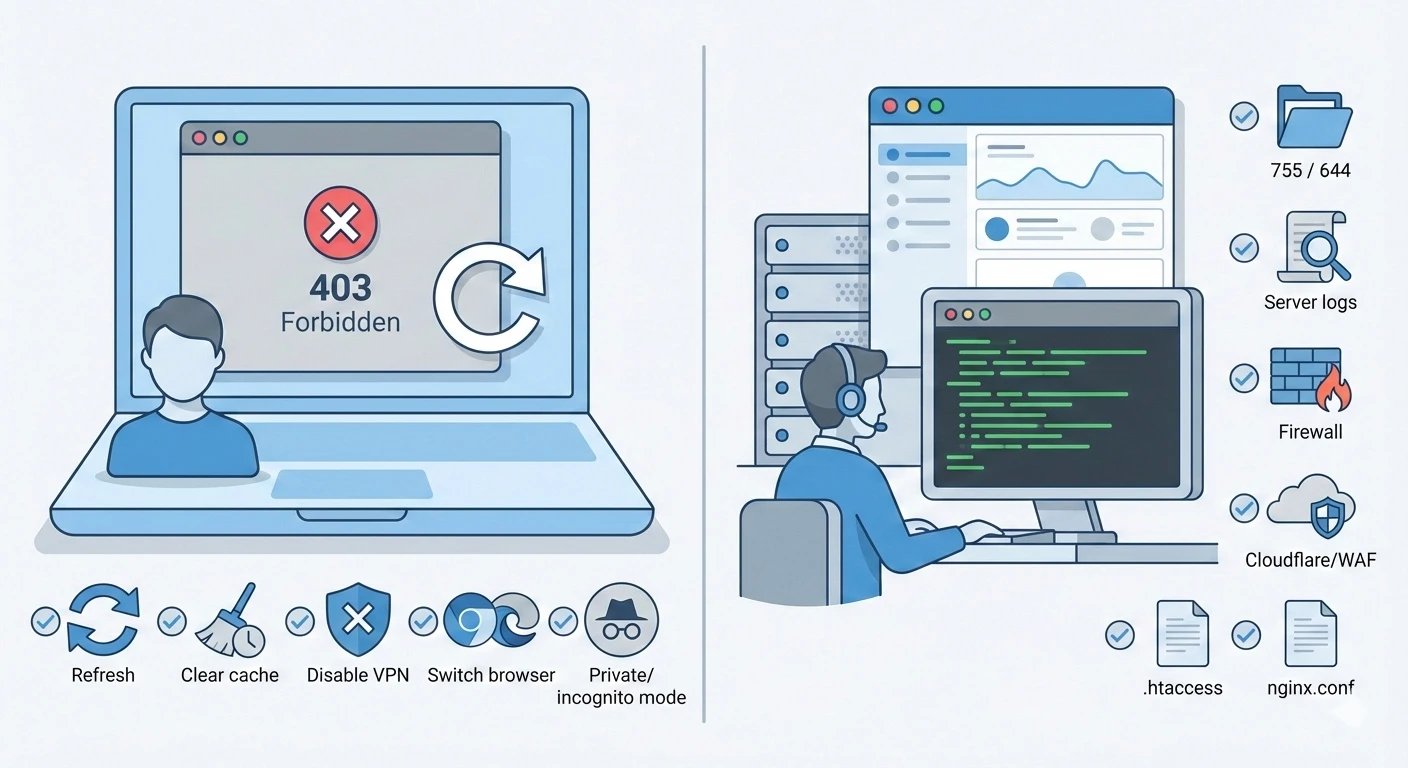
If you’re in a hurry and want to fix the issue right away, follow this quick checklist. We’ve ordered the steps from the simplest to the most advanced so you don’t waste time.
If you are a website visitor
If you’re a visitor, it means you’re considered the client. Try the following steps:
-
Refresh the page.
-
Check the website URL and make sure it’s typed correctly.
-
Clear your browser cache and cookies (from Chrome settings or any other browser).
-
Close and reopen your browser, or try using Incognito/Private mode.
-
If you’re using a VPN or proxy, disable it; sometimes the new IP address is blocked.
-
Disable browser extensions (such as ad blockers) and try again.
-
Test the site using another browser or device; the issue might be browser-specific.
If the problem still persists, contact the website administrator or support team.
If you are the website owner or administrator
If you manage or own the website, you need to check the issue from the server side. Review the following steps:
-
Make sure folders are typically set to 755 and files to 644. The content directory must be readable by the web server user (such as www-data or apache).
-
Set proper ownership using a command like:
chown -R www-data:www-data /path/to/website (or the appropriate user). -
Check files like .htaccess, nginx.conf, and similar. Look for rules such as deny, allow, or missing require all granted directives that might be blocking access.
-
Check server log files (for example, /var/log/apache2/error.log or /var/log/nginx/error.log) for related error messages; they usually reveal the exact reason for access denial.
-
Ensure the server firewall (such as iptables or CSF) is not blocking your IP address or required ports.
-
If you’re using Cloudflare or another Web Application Firewall, review recent Firewall Events and make sure legitimate requests aren’t being blocked by mistake.
-
In your hosting control panel (such as cPanel or DirectAdmin), check file management and security sections. Sometimes folder access is accidentally restricted in hosting settings.
-
If you’ve recently modified website files (for example, installing a new CMS), review those changes or temporarily disable them.
By following this checklist, you can identify the root cause of a 403 error much faster. In the next section, we’ll go through different ways to fix a 403 error in various scenarios.
What does the 403 Forbidden error actually mean?
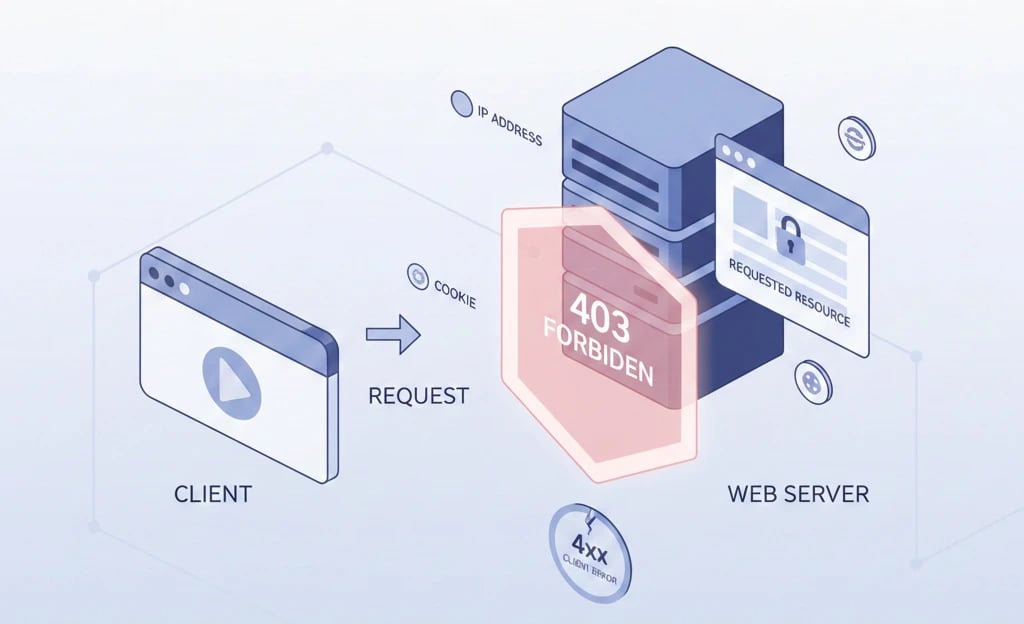
Before anything else, you need to understand that HTTP status codes are a standardized language between the browser (client) and the server. Each code is a three-digit number, and each one conveys a specific meaning and message. The 403 error falls into the 4xx class of codes, which generally indicates a client-side issue or a problem with how the request is sent, but there is a subtle distinction here.
Unlike a 404 error, which essentially says “I can’t find it,” a 403 error confirms that the requested resource is indeed present on the server. However, due to security rules or configuration settings, the server refuses to provide access to it.
In essence, this error acts as a defensive barrier. The server fully understands your request, has identified you, typically via cookies or your IP address, but according to its internal rules, it does not consider you authorized to view that specific resource.
For a deeper understanding of how servers communicate responses, check out our guide on What are HTTP Status Codes.
Common Causes of the 403 Forbidden Error
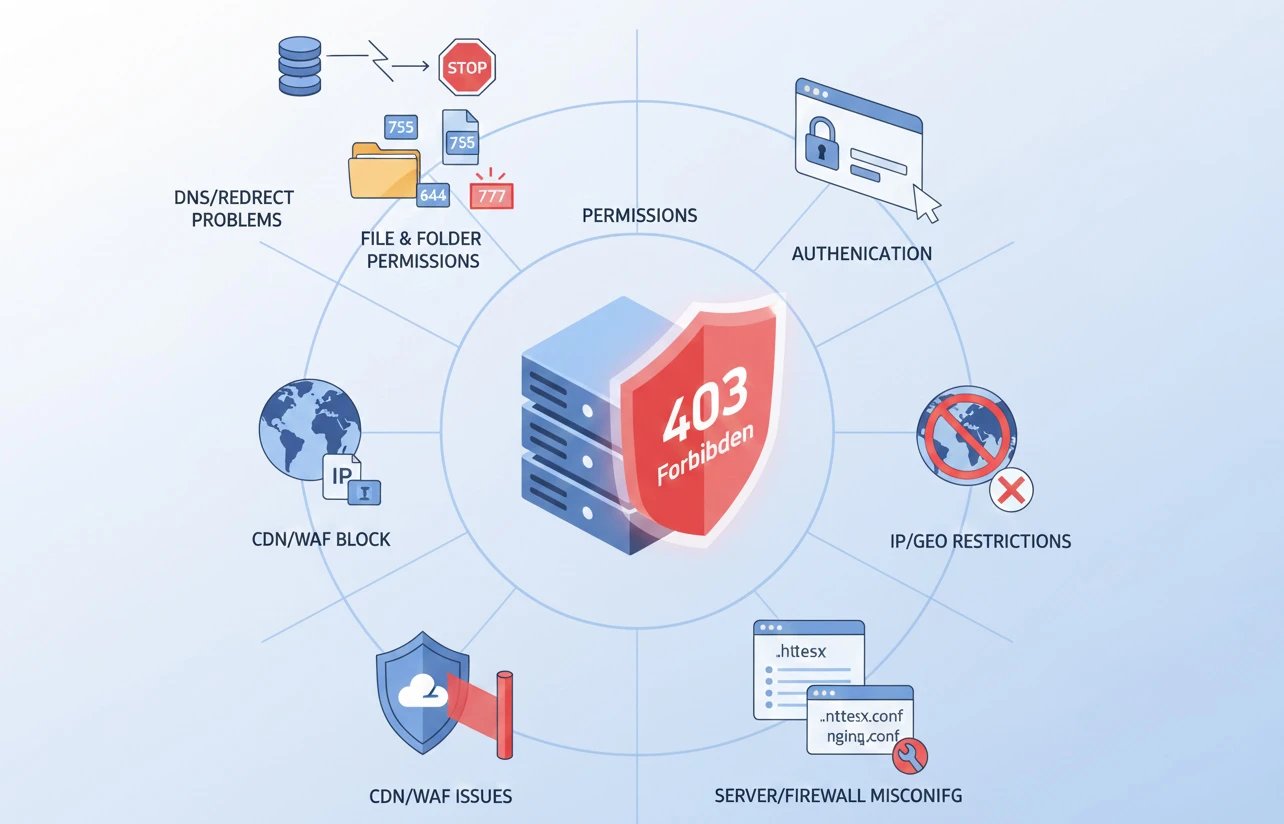
A 403 error usually comes down to access or configuration issues. Some of the most common causes include the following:
-
File or folder permission issues: If files or directories on the server have incorrect permissions, such as unsafe settings like chmod 777 or wrong user access, the server may be unable to read them and will return a 403 error.
-
Authentication required: Protected pages that require login. If you try to access these pages without signing in to the associated account, you may encounter a 403 error.
-
IP address or geographic restrictions: Some websites restrict access for specific users, countries, or IP address ranges. In these cases, even if the site is up and running, the server will block your access.
-
Misconfigured server or firewall settings: Rules in server configuration files such as .htaccess in Apache or Nginx configuration files may be set to block access. Server security modules like ModSecurity or hardware firewalls can also block requests.
-
CDN or WAF issues: In some cases, a Content Delivery Network (CDN) or a Web Application Firewall (WAF) such as Cloudflare may cause a 403 error due to misconfiguration or false-positive security triggers.
-
DNS or redirect issues: If the domain is not configured correctly or an incorrect redirect is in place, the server may route the request to the wrong resource and deny access.
In general, a 403 error occurs when the server recognizes you but rejects the request due to reasons such as missing or insufficient permissions. In the next section, we’ll walk through ways to fix this error in different scenarios.
How to Fix a 403 Error in Google Chrome
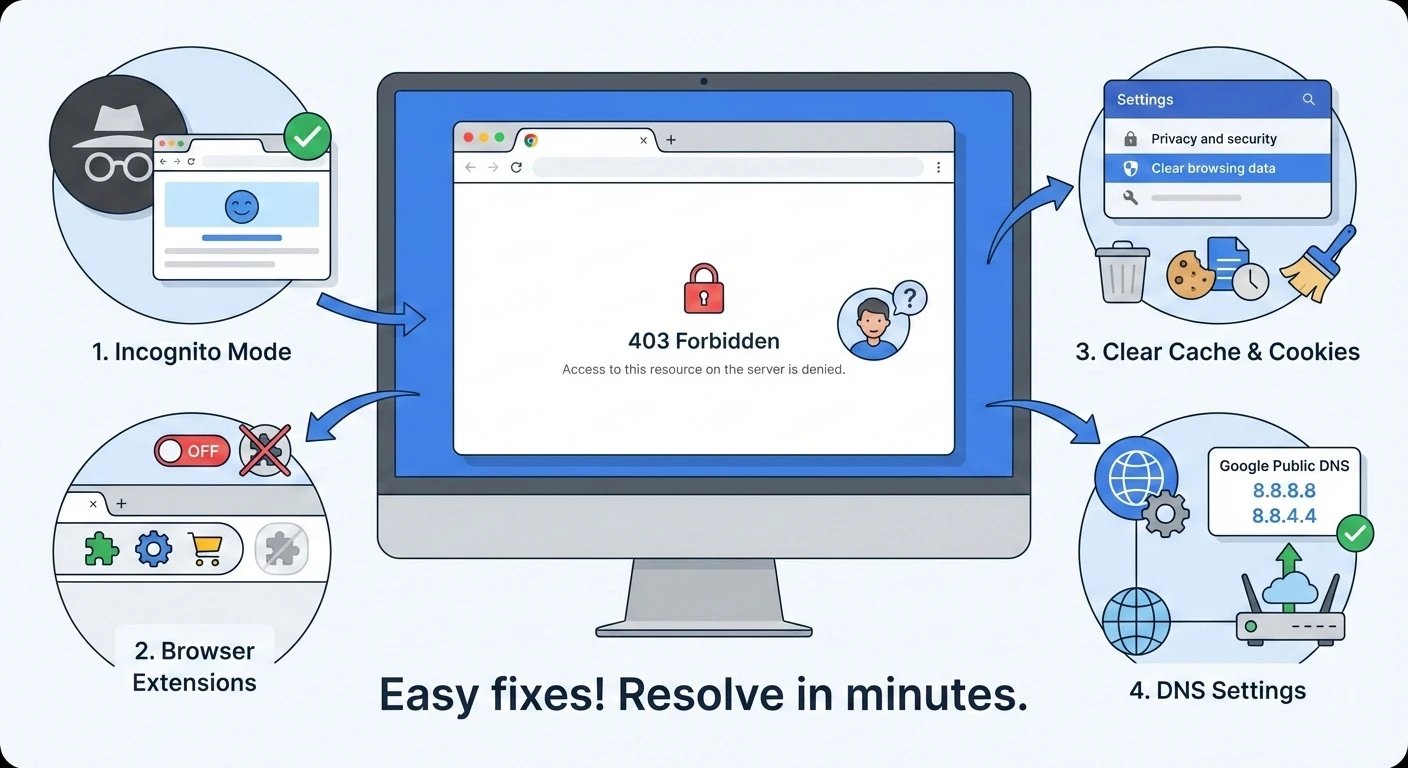
If you encounter a 403 error in Chrome, the issue is often on your system rather than the website’s server. First, try using Incognito mode. If the site opens in this mode, it means one of your installed browser extensions or stored cookies is causing the problem.
To clear the cache in Chrome, click the three dots at the top of the browser, go to Settings, then navigate to Privacy and security and select Clear browsing data. Make sure the time range is set to All time, and check both Cookies and other site data and Cached images and files.
Sometimes, DNS conflicts in Chrome can also be the cause. In Chrome’s security settings, you can change the Use secure DNS option or switch to a reliable DNS provider such as Google DNS (8.8.8.8) to ensure your request is properly routed to the destination server.
Fixing the 403 Forbidden Error on Android and iPhone
Mobile users are not immune to this error either. On smartphones, the main cause is usually network settings or accumulated data in the browser app.
How to Fix a 403 Error on Android

On Android, if you’re using Chrome, the steps are similar to the desktop version. However, there is one additional technical step you can try: go to your phone’s Settings, open Apps, find Chrome, and tap Clear Cache, and if necessary, Clear Data.
Also, if you’re connected to Wi-Fi, turn it off and try using mobile data instead. This helps determine whether your modem’s IP address has been blocked by the website. Finally, if you’re using a VPN on your phone, disable it and try again.
How to Fix a 403 Error on iPhone
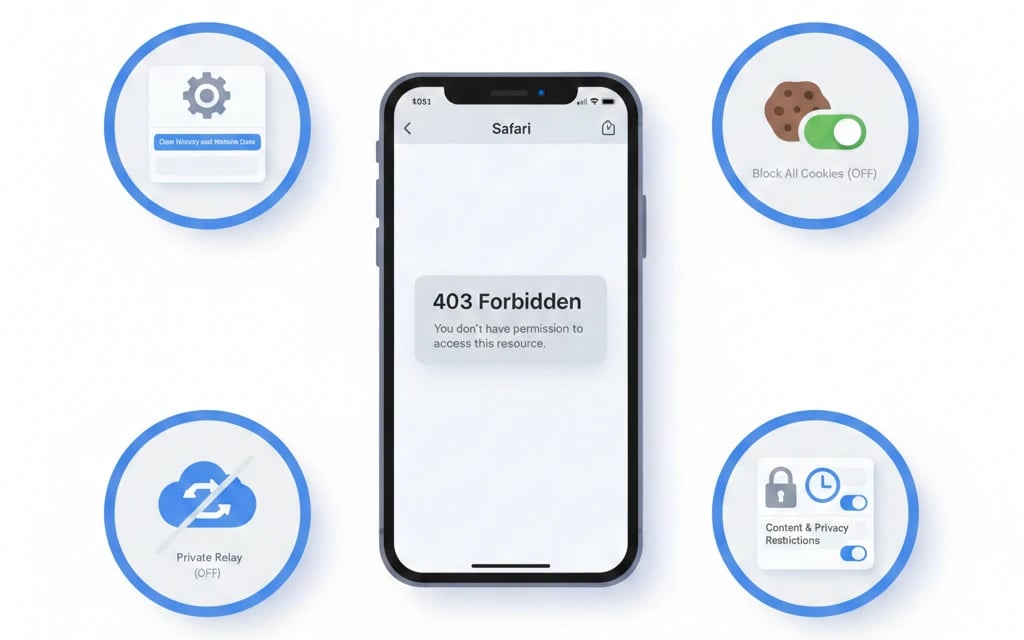
On iPhone, the default browser is Safari. To fix access issues, go to Settings, find Safari, and tap Clear History and Website Data.
in the same Safari settings, make sure Block All Cookies is not enabled. Many modern websites rely on cookies to function properly, and blocking them can result in a 403 error.
Additionally, if you’re using iCloud Private Relay, Apple’s IP addresses may be blocked by some firewalls. Try turning it off temporarily and test again. As a final check, go to Screen Time > Content & Privacy Restrictions and make sure access to the website or browser has not been restricted.
Fixing a 403 Error on Linux

If your web server is running on a Linux-based operating system, a 403 error is usually caused by permission issues or web server configuration problems. Check the following steps:
1. File and Directory Permissions
Set the root directory of your website (for example, /var/www/html) and its subdirectories to 755:
chmod 755 /var/www/html
Set internal files (such as HTML or PHP pages) to 644:
chmod 644 /var/www/html/*.*
Apply permissions recursively to subdirectories and files using the -R option if needed.
2. Ownership
Make sure files and directories have the correct ownership, typically the web server user. For Apache this is often www-data, and for Nginx it may be www-data or nginx. Example:
chown -R www-data:www-data /var/www/html
3. Checking SELinux
On distributions like CentOS or RHEL where SELinux is enabled, access issues may be related to file contexts. The following command shows the file context:
ls -Z /var/www/html
If the context is incorrect, you can temporarily disable SELinux for testing or assign the proper HTTP context to the directory:
setenforce 0 # Temporarily disable SELinux for testing
chcon -R -t httpd_sys_content_t /var/www/html
After that, restart the web server service.
4. Apache vs. Nginx Configuration
In Apache, check configuration files (such as apache2.conf or sites-available/*.conf) and make sure the <Directory> directive includes Require all granted.
In Nginx Verify that the root or alias directives correctly point to the intended directory path.
5. Modules and Firewall
If you’re using a server firewall (such as ufw or firewalld), make sure ports 80 and 443 are open and that your IP address is not blocked.
In Apache, security modules like mod_security may block requests, so review the relevant logs.
6. Error Logs
Check /var/log/apache2/error.log or /var/log/nginx/error.log. These logs usually contain specific details about why the 403 error occurred, such as the file name or permission issue.
7. User Directory Permissions
If you’re hosting from a home directory (for example, ~/public_html), ensure that UserDir settings are enabled and that SELinux/HomeDir permissions are correctly configured.
With these settings, the 403 error on your Linux server should be resolved. In the next sections, we’ll go into more detail about Apache and Nginx configurations.
Fixing a 403 Forbidden Error on a Nginx Web Server
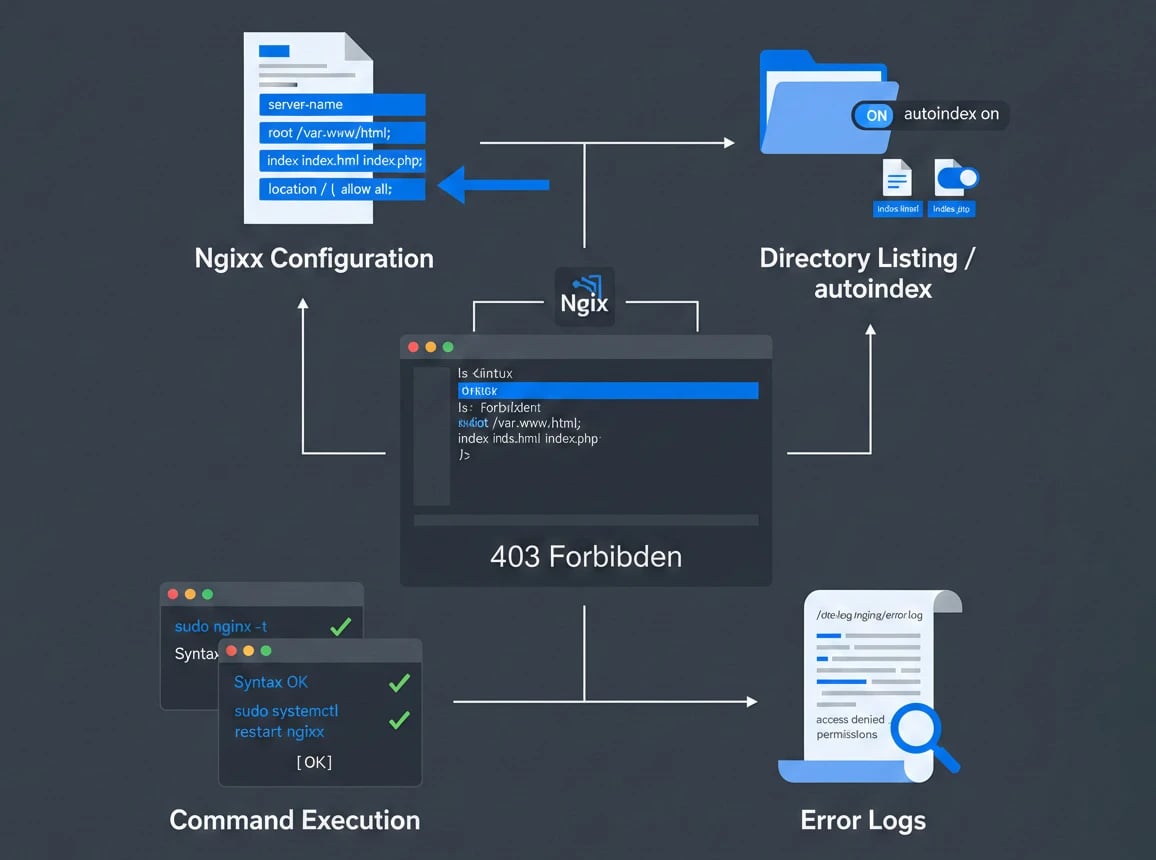
A 403 error in Nginx usually occurs when you try to view the contents of a directory while the autoindex feature is disabled. To fix this, open your site’s configuration file, which is typically located in /etc/nginx/sites-available/, and check the location block.
If you want directory listings to be displayed, you can add autoindex on; . However, a better and more secure solution is to make sure you have a valid index file in place. The following snippet shows a standard configuration that helps prevent 403 errors:
server {
listen 80;
server_name example.com;
root /var/www/html;
index index.html index.php;
location / {
try_files $uri $uri/ /index.php?$args;
}
}
Don’t forget to run sudo nginx -t after making any changes to test the configuration, and then apply them with sudo systemctl restart nginx.
If the issue persists, be sure to check the error.log file located in /var/log/nginx/. Nginx clearly logs the exact reason why access was denied.
Fixing a 403 Forbidden Error on Apache Servers
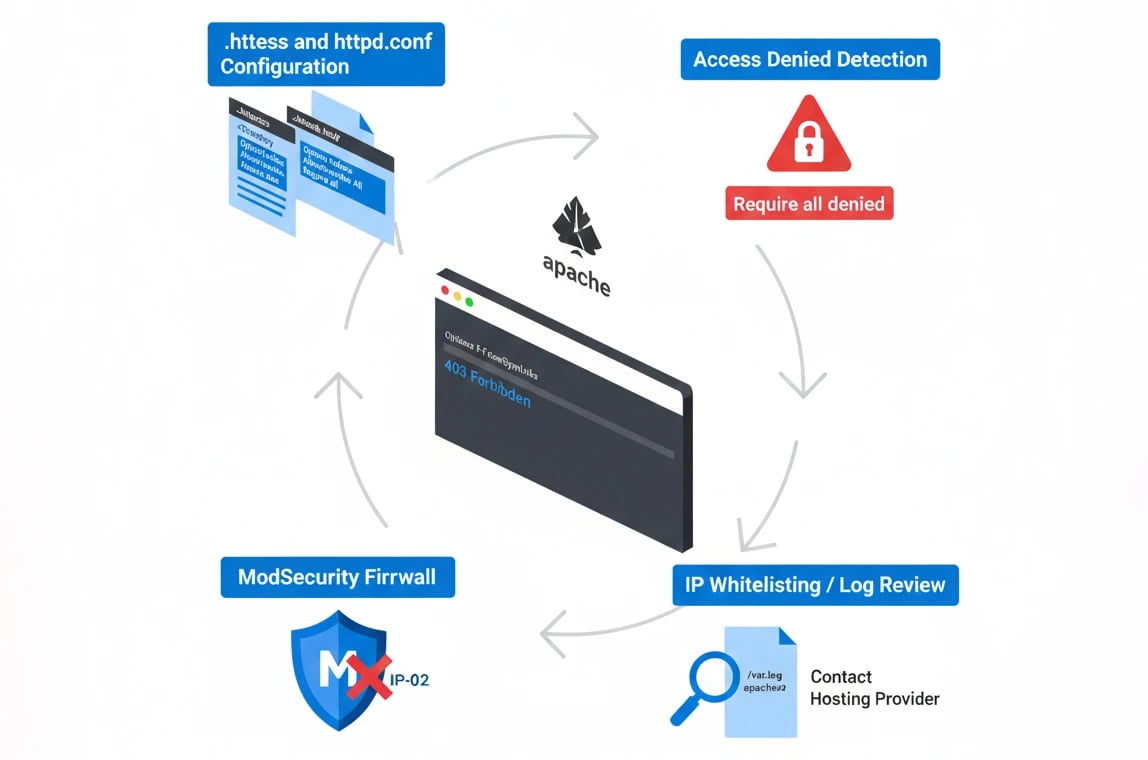
In Apache, many roads lead to .htaccess. Most 403 errors in Apache are caused by restrictive directives in this file or in the main httpd.conf configuration file.
If you encounter the error “Forbidden – You don't have permission to access / on this server”, first check the <Directory> section in Apache’s main configuration. In newer versions of Apache (2.4 and later), access control handling has changed. Instead of older syntax, you should use the following structure:
<Directory "/var/www/html">
Options Indexes FollowSymLinks
AllowOverride All
Require all granted
</Directory>
If you see Require all denied anywhere, that’s the exact reason access is being blocked.
Also note that Apache’s ModSecurity module can automatically block your IP address and trigger a 403 error if it detects suspicious patterns in your requests. In such cases, you may need to contact your hosting provider and ask them to review the security logs and, if necessary, whitelist your IP address.
Fixing a 403 Error Caused by a CDN or WAF
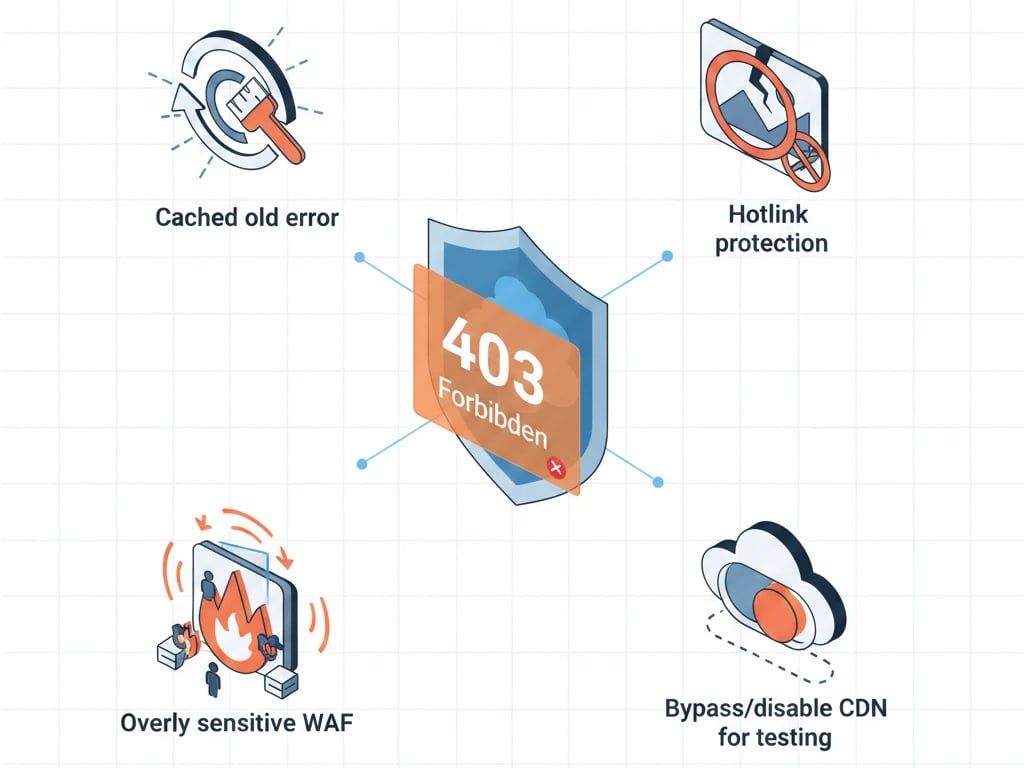
Today, most professional websites use content delivery services such as Cloudflare. These systems act as the first line of defense and are responsible for filtering malicious traffic.
If you see a 403 message along with the Cloudflare logo, it means your request has been blocked by their security rules. This can happen for several reasons, including:
-
Cached old error: Sometimes your origin server returns a 403 error once, and the CDN then caches that error page and serves it to everyone. In this case, you need to completely purge the CDN cache.
-
Overly sensitive WAF: The web application firewall may interpret your behavior, such as very rapid clicks or the use of certain browser extensions, as an attack.
-
Hotlink protection: If your site has hotlink protection enabled to prevent others from using your images on their own websites, incorrect configuration can cause you to encounter 403 errors when trying to view your own images.
For testing, it’s recommended to temporarily bypass or disable the CDN. If the site loads correctly without the CDN, the issue is related to the CDN’s firewall rules or caching configuration.
Custom 403 Forbidden Page: Why and How?
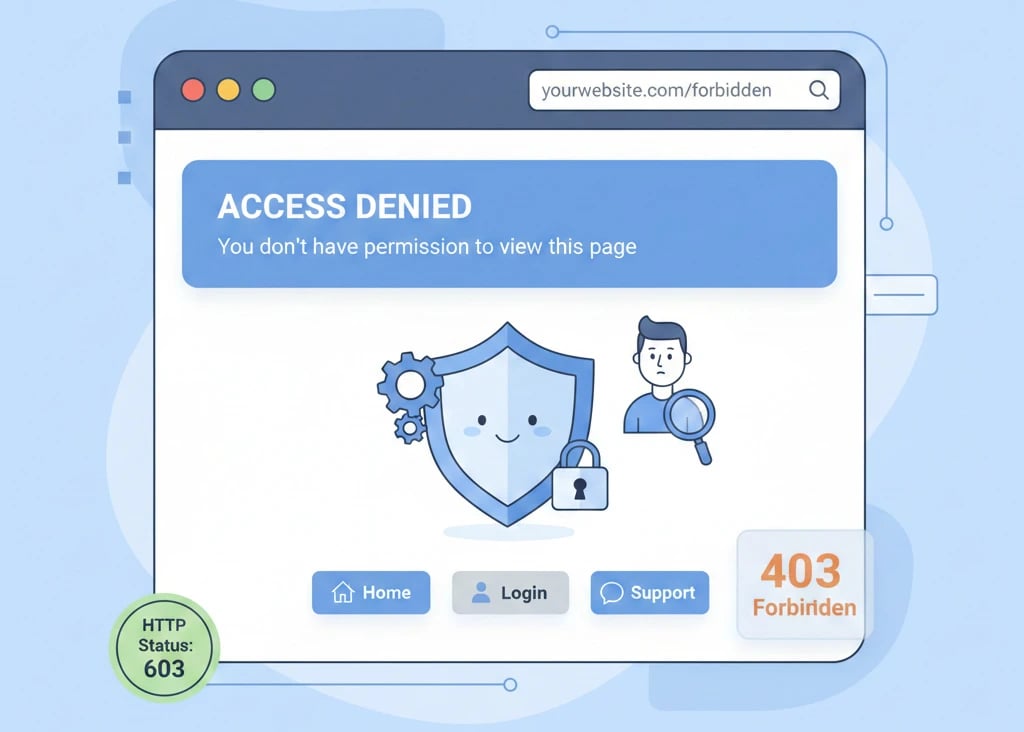
When a 403 error occurs, the server usually displays a default page or message telling the user “Access Forbidden.” For example:
403 ForbiddenYou don't have permission to access / on this server.
Seeing this message can be confusing for users. That’s why it’s better to use a custom, user-friendly error page. In addition to showing the 403 status code, this page should briefly explain the issue and guide the user on what to do next. Adding links to the homepage, login page, or support section helps users understand their next step.
Keep in mind that search engines understand the meaning of a 403 error and typically do not index these pages, so there’s no major SEO concern. Just make sure the HTTP response code remains 403 and that the page content is clear. For a better experience, match the design of the 403 page with your site’s overall theme. A simple layout combined with a friendly message creates a much better user experience.
Common Mistakes When Fixing a 403 Error
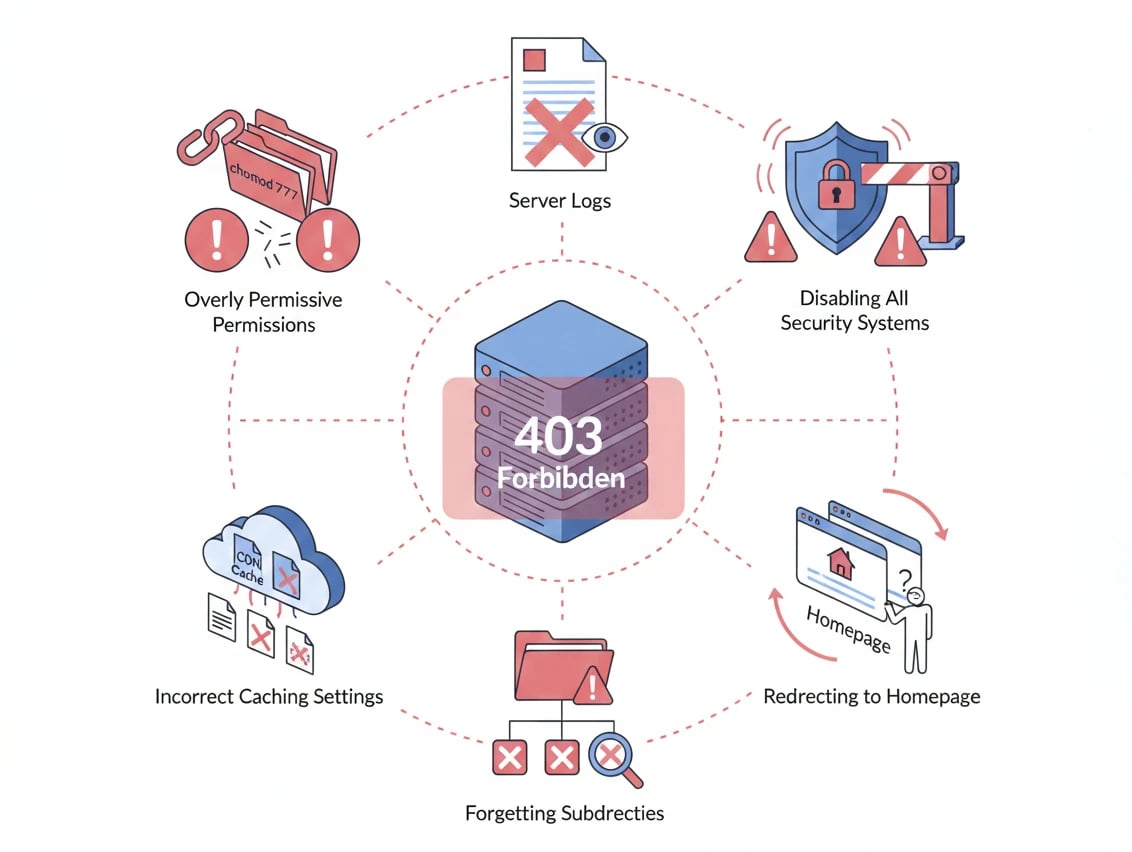
Sometimes, while trying to fix a 403 error, people make mistakes that actually worsen the issue or prevent it from being resolved properly. Some of the most common mistakes include:
-
Overly permissive permissions (chmod 777): Using 777 creates serious security risks; always use proper permissions like 755 for folders and 644 for files.
-
Ignoring server logs: Logs clearly show why a 403 occurs, but many people skip them and try to fix the issue blindly.
-
Disabling all security systems: Completely turning off firewalls or ModSecurity may work temporarily, but the error will likely return without fixing the root cause.
-
Redirecting to the homepage: Hiding a 403 error with redirects confuses users and leaves the real access issue unresolved.
-
Incorrect caching settings: Misconfigured CDN or server caching can block static files and cause 403 errors.
-
Forgetting subdirectories: Permission problems in subfolders like /images or /uploads can trigger 403 errors even if the main directory is fine.
By avoiding these mistakes, you can resolve 403 errors faster and ensure the issue is fully and properly fixed. If you’re dealing with other server-side errors as well, our guide on How to Fix HTTP Error 505 can help you troubleshoot and resolve them more effectively.
Conclusion
As you can see, the 403 Forbidden error indicates that the server understands your request but does not allow access. By following the methods above, you can often fix this error yourself. If the problem persists or you are not sure what settings are causing the error, you may need to use a reliable and supported hosting service that minimizes such errors as much as possible. Good luck and we hope that with the above steps you can fix the 403 error successfully and regain access to the resources you need.





![What Is Cold Data Storage? ❄️ [2026 Guide]](https://1gbits.com/cdn-cgi/image//https://s3.1gbits.com/blog/2026/02/what-is-cold-data-storage-750xAuto.webp "What Is Cold Data Storage? ❄️ [2026 Guide]")
![What Is Virtual Desktop Infrastructure? 🖥️ [VDI Explained]](https://1gbits.com/cdn-cgi/image//https://s3.1gbits.com/blog/2026/02/what-is-virtual-desktop-infrastructure-vdi-750xAuto.webp "What Is Virtual Desktop Infrastructure? 🖥️ [VDI Explained]")