
Many businesses use RDP to manage internal servers or let employees connect to work computers from home. It’s an excellent tool for improving flexibility and efficiency, but that same ease of access has made RDP one of the biggest security vulnerabilities. Unfortunately, cyber attackers are well aware of this weakness and often exploit it through methods like RDP botting, targeting various businesses, especially small ones. In this 1Gbits article, we explain what these remote desktop attacks are and how to protect your systems from them.
What Is RDP Botting?
As you probably know, RDP (Remote Desktop Protocol) is Microsoft’s proprietary protocol that allows you to remotely access and control a computer or server. On the other hand, “botting” refers to using VPS servers to run automated, continuous tasks. For example, some companies use VPS to run data-collection scripts 24/7 without putting load on their personal computers.
Malicious RDP botting means attackers use these same automated techniques for a malicious purpose: targeting, scanning, and cracking the passwords of your RDP servers. Hackers use bots to guess a huge number of username-password combinations in a short time to gain access to your network.
How RDP botting works?
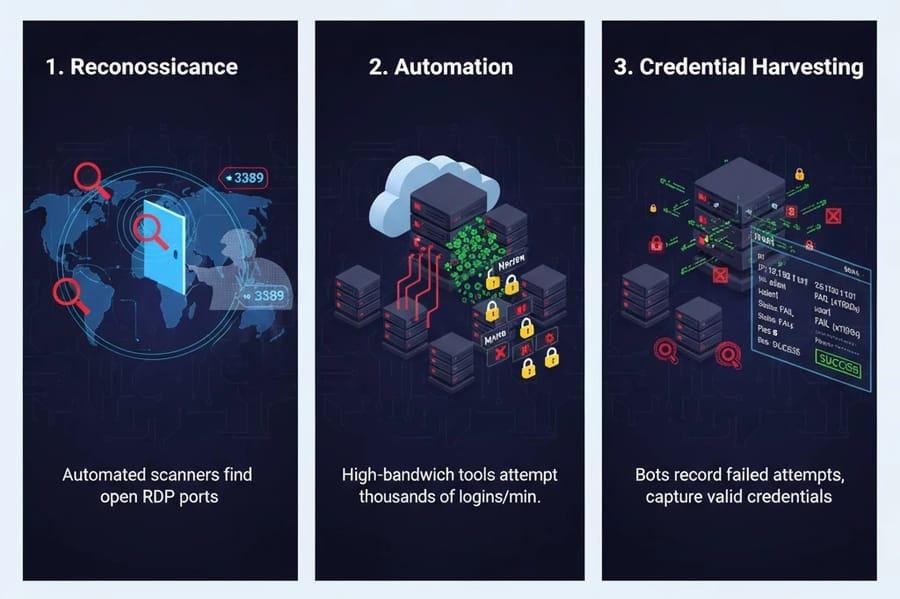
The intrusion process via RDP botting typically involves three simple stages:
1. Reconnaissance:
Attackers use automated scanners to find servers with the RDP port (3389) open and build a list of targets. Like a burglar looking for open doors. If your port is internet facing, your server is instantly flagged.
2. Automation:
After discovery, attackers launch automated tools (e.g. Hydra, Ncrack) from high bandwidth cloud hosts. These tools can perform thousands of logins attempts per minute, a lethal rate for guessing passwords.
3. Credential harvesting:
Bots continue trying and record IPs and usernames with many failed attempts until a valid credential is found. The high volume of failures can degrade RDP performance and consume CPU and network resources, effectively a mild DoS.
This simple process explains why even low-skilled attackers can launch large-scale attacks and greatly increase the risk for small businesses.
Brute Force vs. Dictionary Attacks
There are two main types of automated password attacks that RDP bots will use against you, and you need to know the difference between them to design a proper defense:
|
Attack type |
How it works |
Inputs / resources |
Relative speed |
Limitations / disadvantages |
|
Dictionary attack |
Try passwords from precompiled lists of leaked, common, or real words against the target. |
Dictionary lists (e.g. password123, company names, birth years, common words), often sorted by popularity. |
Very fast (especially against common words). |
Effective only against word-based or patterned passwords; weak versus long/random passwords. |
|
Simple Brute Force (full-force) |
Systematically try every possible character combination (upper/lowercase, numbers, symbols) until the password is found. |
The entire combination space defined by the character set and password length. |
Very slow for long/complex passwords; fast for short ones. |
Can take years or longer for long/complex passwords; high time and resource cost. |
Both types of attacks can quickly consume system resources, for example causing RDP to slow down or triggering alerts for multiple login attempts, so repeated failed RDP logins are a serious warning sign.
Why are small businesses a prime target?
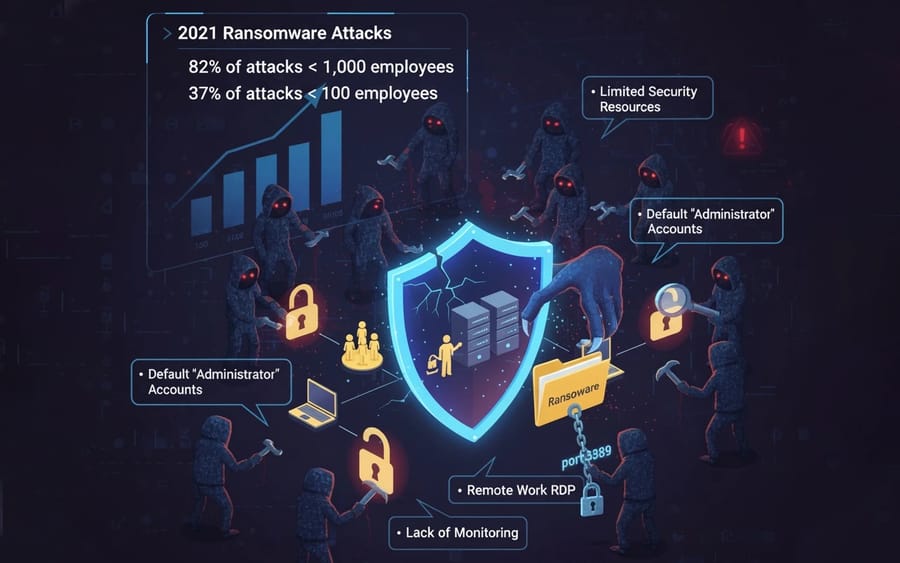
Statistics show that 82% of ransomware attacks in 2021 targeted companies with fewer than 1,000 employees, and 37% of those were companies with fewer than 100 employees. This indicates a strategic shift on the part of attackers. Why?
Limited security resources:
Small businesses typically have smaller security budgets, don’t have full-time security experts, and often use outdated or outdated software. This is why hackers target RDP.
Default settings:
In many small businesses, administrators use the default “Administrator” account or simple usernames. The default RDP port (usually 3389) may also be openly accessible on the Internet. This makes it easy for a hacker to attack.
Widespread use of remote work solutions:
During the COVID-19 pandemic and beyond, many small businesses have turned to RDP for remote work for their employees, without taking adequate security measures.
Lack of monitoring and surveillance:
Many SMBs are not equipped with advanced real-time monitoring tools. They may not notice the warning signals at first, for example, by not looking at login logs or not having alert settings enabled.
All of these factors make small businesses easy targets for hackers. To stay ahead of them, you first need to know what warning signs your system may have that indicate an RDP attack.
Signs of an RDP Attack Against Your Business

If attackers target your RDP server, you may notice reduced performance or sudden account lockouts. However, the most reliable evidence of an attack is recorded in your Windows security logs. The Windows Event Viewer provides the most detailed clues about these incidents. You should closely monitor your security logs and look for a high number of failed login attempts within a short period (for example, dozens of attempts within a few minutes).
The most important events to monitor for detecting RDP brute-force attacks are listed in the table below.
|
Event ID |
Event Description |
Importance for Detecting RDP Attacks |
Key Indicator |
|
4625 |
Failed login attempt |
Critical (direct indicator of Brute Force or Dictionary attack) |
Records the attacker’s source IP and the targeted username. |
|
4624 (Logon Type 10) |
Successful user login |
Critical (indicator of a successful intrusion) |
Immediately review successful RDP logins (Logon Type 10) from external IPs or at unusual times. |
|
1149 (Remote Connection Manager) |
Successful user authentication (RDS) |
High |
Seeing successful authentications with random or non-domain usernames often indicates bot activity. |
|
4648 |
Logon attempt using explicit credentials |
High |
Indicates an attacker attempting to use stolen credentials for lateral movement after initial RDP access. |
A very big red flag is if you see successful RDP logins with local user accounts that you did not create and that lack domain names, this indicates that the attacker is trying to create and use hidden access paths.
How to Prevent RDP Brute-Force Attacks?
We need to build our defense strategy based on the principle of Defense in Depth. This means not relying on a single security layer, but creating multiple obstacles for attackers.
1. Never allow direct access
You should never allow direct RDP access from external networks (the Internet) to your servers or workstations. The default port 3389 (and even other ports) is constantly scanned by attackers. Keeping this port open is essentially an open invitation for malicious bots.
2. Use an RDP Gateway
The safest method for remote access is using an RDP Gateway or RDP Broker. These gateways act as a secure proxy layer, enforcing Multi-Factor Authentication (MFA) and access policies before traffic reaches your main server.
3. Tunnel through a VPN (Alternative Option)
If implementing an RDP Gateway is complex for you, always tunnel RDP connections through a secure VPN. A VPN first establishes a secure tunnel to your internal network, and only then is RDP access possible through that tunnel. Note that RDP and VPN are not substitutes; they perform best when used together.
4. IP Filtering (ACL)
Using Windows Firewall or network firewalls, restrict RDP access only to trusted static IP addresses (e.g., office IP or VPN server). This significantly reduces brute-force attacks from around the world. Microsoft itself warns that exposing your computer directly to the Internet is not recommended unless you use a very strong password and consider Dynamic DNS to manage potential public IP changes.
5. Enable NLA (Network Level Authentication)
NLA is an essential security measure that authenticates users before a full RDP session is established. This is crucial because it protects your server from brute-force attacks and prevents failed login attempts from consuming all server resources. To enable NLA, go to Remote Desktop settings in System Properties and check “Allow connections only from computers running Remote Desktop with Network Level Authentication.”
6. Enforce MFA
Even a strong password may be compromised. Multi-Factor Authentication (MFA) adds a second layer of verification (e.g., mobile app confirmation), fully mitigating this risk. MFA can be integrated via Microsoft’s Network Policy Server (NPS) with Microsoft Entra ID (Azure AD), including RD Gateway setup and connection policy configuration in NPS. Third-party solutions like Duo Security, RSA SecurID, or AuthLite also provide easy plug-and-play deployment for SMBs.
7. Changing the port (from 3389) alone is not enough
Changing the default port 3389 (e.g., to 45000) is only security by obscurity. Skilled attackers use advanced network scanning tools like Nmap, which can easily find your new RDP port. Do not rely on this as a complete solution. If you change the port, combine it with strict firewalls, NLA, and preferably a VPN.
8. RDP Monitoring Tools
You can’t sit by the system 24/7 checking 4625 logs manually. To prevent continuous brute-force attacks, automated tools are needed to block attacker IPs immediately upon detection.
-
RdpGuard: A popular Windows service that monitors logs and blocks IPs after a set number of failed attempts (e.g., 3 tries). It can prevent brute-force attacks on multiple protocols, including RDP, MSSQL, and FTP.
-
Stop RDP Brute Force: Reads failed login attempts in real-time and adds attacking IPs to a block list.
-
RDPWall: A lightweight tool that monitors Audit Failure events and blocks IPs with more than 3 failed attempts.
For small businesses, using these blocking tools provides a critical operational defense layer. They stop brute-force attacks before legitimate accounts get locked and significantly reduce the workload of your IT administrator.
What to Do If You Are Exposed to Risk?
Having a standardized Incident Response (IR) plan is essential to take the right actions immediately in case of a breach and prevent an incident from turning into a disaster.
Incident Response Workflow
Initial actions include:
- 1. Identification: Your first task is to confirm the breach. Check Event ID 4624 logs with Logon Type 10 (RDP login) to ensure the intrusion occurred via RDP. Identify who the attacker was, when they accessed the system, and from which IP address the attack originated.
- 2. Containment: Containment should be your fastest response. Keep in mind that ransomware or data extortion may be the final stage of the attack and could be used to cover previous malicious activities.
- 3. Disconnect: Immediately terminate the active and suspicious RDP session. Also, disable the compromised account or change its password to a highly complex, unique string.
- 4. Block IPs: Completely block suspicious IP addresses in both the host and network firewalls.
- 5. Network Isolation: Isolate the physical network of the affected server from critical networks (such as the Active Directory server or main file server) to prevent lateral movement and protect the AD infrastructure from further intrusion.
- 6. Elimination: After containment, remove the attacker and any malware from the systems. Identify and delete all backdoors or new user accounts created by the attacker.
Finally, check all systems for any secondary malware.
Recovery and Future Risk Mitigation
After neutralizing the threat, you must prepare for future attacks because you have now become a potential target.
1. Secure Recovery: Restore affected systems from offline, encrypted backups. Experts usually perform this recovery in a clean, isolated network or VLAN.
2. Security Gap Analysis: Try to learn what made the attack possible. Was the password weak? Was MFA missing? Were systems unpatched? Focus on these points and strengthen the weakest links in your security.
3. Final Hardening: After recovery, document all lessons learned and update your security policies. Be sure to implement MFA and RDP Gateway/VPN.
These measures ensure that only authorized software runs on sensitive systems, effectively preventing malware execution after an RDP intrusion.
RDP Security Checklist
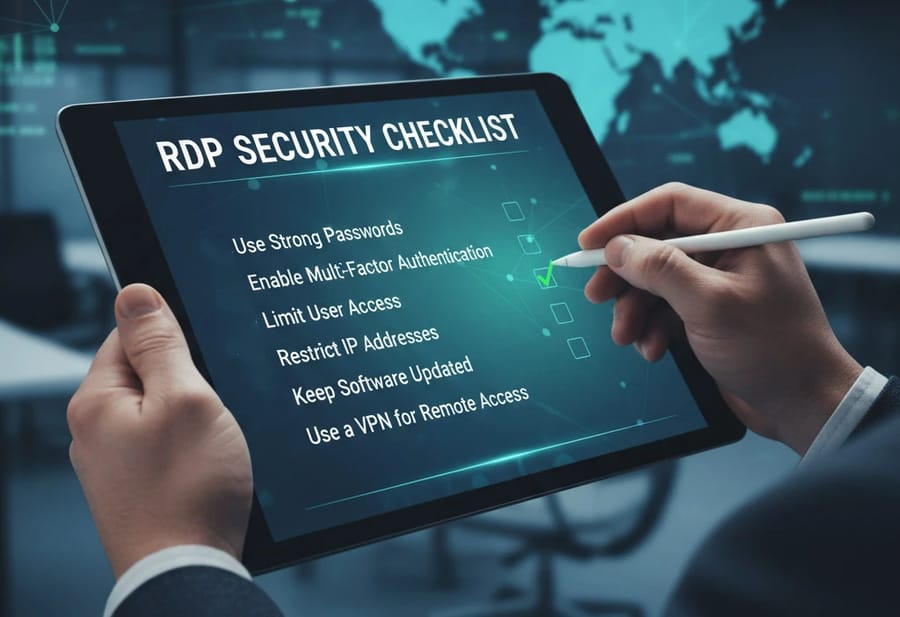
To make sure you don’t miss anything critical, we’ve prepared this practical checklist. I recommend implementing these measures immediately in your business infrastructure.
|
Security Area |
Required Action |
Importance |
|
Network Access |
Is the default port 3389 blocked from direct access from the Internet? |
Critical |
|
Network Access |
Is RDP Gateway or VPN used for all external connections? |
Critical |
|
Authentication |
Is Multi-Factor Authentication (MFA) enforced for all RDP accounts? |
Critical |
|
RDP Configuration |
Is Network Level Authentication (NLA) enabled? |
Essential |
|
Account Management |
Are strong, unique passwords applied for RDP accounts? |
Essential |
|
Monitoring |
Are automated IP blocking tools (e.g., RdpGuard) installed to prevent brute-force attacks? |
Essential |
|
Network Access |
Is RDP access restricted in the firewall to allowed IP addresses (ACL)? |
Recommended |
|
Administrative Accounts |
Are administrative accounts (e.g., Administrator) disabled or renamed for RDP? |
Recommended |
Next Steps for Security
RDP Botting attacks are a major threat to remote infrastructures. However, by following the recommended security measures, you can protect yourself against most of these attacks. At the end, if you are looking for a powerful solution for remote management and automated task execution, the Botting RDP service from 1Gbits is a smart choice. This service runs bots, scripts, and automation software without interruptions or slowdowns and, with dedicated resources and fast access, makes managing automated processes secure and efficient.
Visit Botting RDP 1Gbits now and take the next step toward smarter and safer automation.

Leave A Comment