
Data loss occurs frequently because it has become an unavoidable occurrence. The combination of hardware failures, ransomware attacks, accidental deletions, and misconfigured updates leads to thousands of server outages that occur each year, while industry studies show that most small and mid-size businesses will close their operations within months after experiencing major data loss.
The process of learning to schedule automatic backups for Linux server environments needs to be studied because it serves as an essential requirement for maintaining infrastructure. The correct implementation of a Linux automatic backup system will provide continuous protection for essential system files, database content, and configuration settings without the need for manual backup processes.
The creation of an automated backup system enables users to manage Ubuntu, Debian, CentOS, and Linux Mint systems through a backup process that functions as a reliable protective measure instead of a backup process that requires active user response. The guide explains how to schedule Linux backups, create Linux backup scripts, and establish continuous Linux server protection through scheduled backup processes.
What Does It Mean to Schedule Automatic Backups for Linux? 🔄
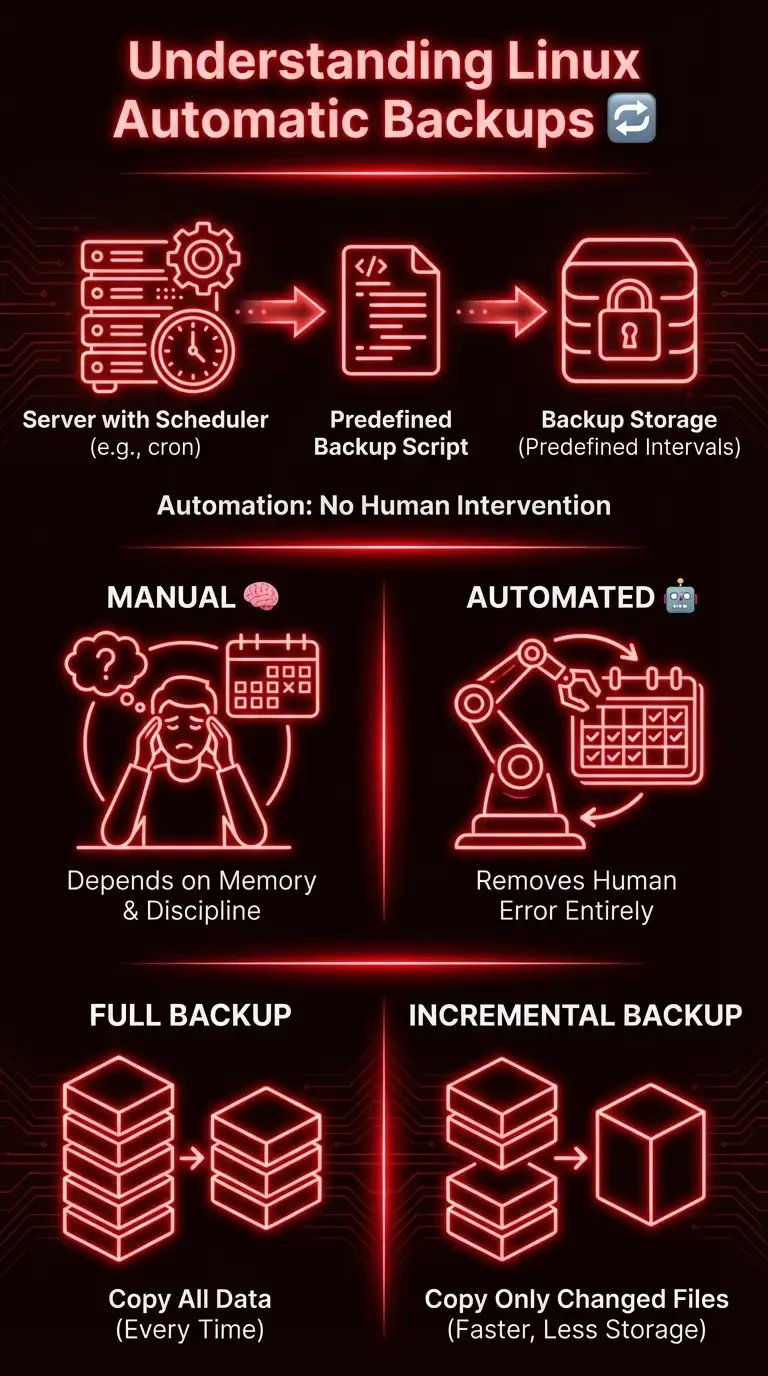
To schedule automatic backups for Linux means configuring your server to perform a Linux automatic backup at predefined intervals without human intervention, using tools like cron or a Linux batch scheduler. Instead of relying on manual commands every time you want to protect your data, a scheduled backup Linux setup runs a predefined Linux backup script automatically.
The difference between manual and scheduled backup Linux is simple: manual backups depend on memory and discipline, while automation removes human error entirely. From a strategy perspective, backups can be full (copying all data every time) or incremental (copying only changed files to reduce storage and improve speed).
Backup Methods in Linux 🧰
When you plan to schedule automatic backups for Linux, choosing the right scheduling mechanism matters as much as the backup tool itself. Linux offers multiple built-in automation systems that allow you to configure a reliable Linux automatic backup workflow depending on your server type and uptime requirements.
Using Cron⏰
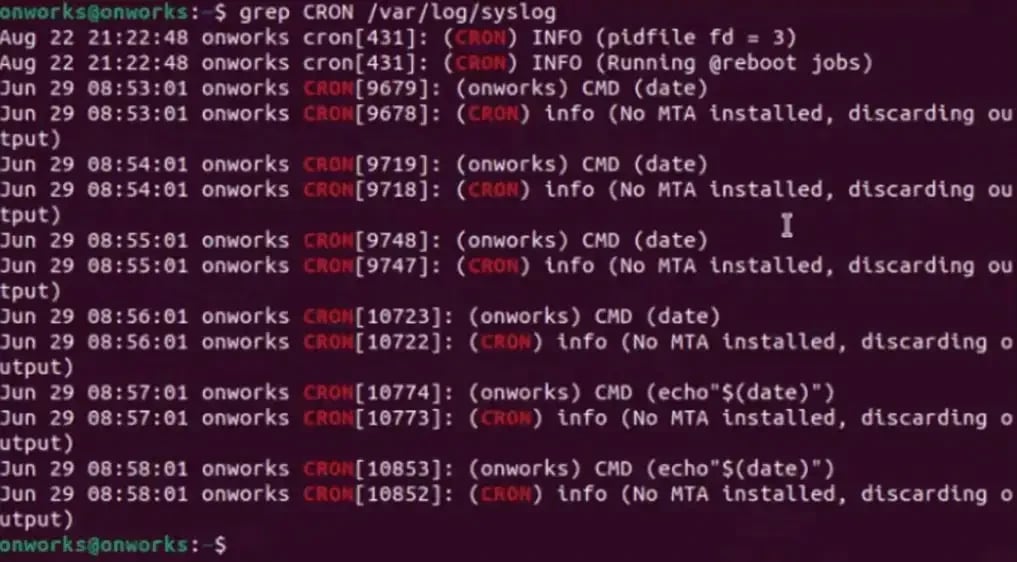
Cron is the most widely used Linux batch scheduler for automating tasks, including scheduled backup Linux jobs. It executes commands or Linux backup scripts at predefined times based on a structured schedule defined in the crontab file.
-
Uses the crontab file to define scheduled jobs
-
Follows a 5-field time structure: minute, hour, day, month, weekday
-
Executes commands automatically in the background
-
Ideal for configuring Linux daily, weekly, or monthly jobs
-
Commonly used to schedule backup in Linux servers running 24/7
-
Works perfectly for automating rsync, tar, or a custom Linux backup script tasks
Cron remains the simplest and most reliable method to schedule backup Linux environments on production servers.
Using systemd Timers ⚙️
systemd timers are a modern alternative to cron, designed for systems that use systemd as the init system (most modern distributions). They offer more advanced dependency control and logging capabilities for Linux automatic backup workflows.
-
Native to modern Ubuntu, Debian, and CentOS versions
-
Integrated with systemd services
-
Better logging through journalctl
-
Supports dependency management between services
-
Can trigger jobs on boot if missed during downtime
-
More flexible timing expressions compared to cron
systemd timers are ideal when you want tighter control and enhanced monitoring for a production-grade Linux schedule backup strategy.
Using Anacron🔁
Anacron is designed for systems that are not continuously powered on, such as desktops or laptops. It ensures that scheduled tasks run even if the system is offline at the expected time.
-
Best suited for Workstations and personal machines
-
Environments where uptime is inconsistent
-
Automating Linux daily backup tasks after reboot
-
Lightweight scheduled backup Linux automation
-
Situations where missed cron jobs must run later
Anacron is particularly useful when you need to schedule backup Linux Mint or other systems that are not online 24/7.
How to Schedule Automatic Backups for Linux Server (Step-by-Step) 🛠️
Now let’s move from theory to execution and properly schedule automatic backups for Linux in a production-ready way. This step-by-step process will help you build a reliable Linux automatic backup system using structured Linux backup scripts and a stable Linux batch scheduler.
Step 1 – Create a Linux Backup Script 📜
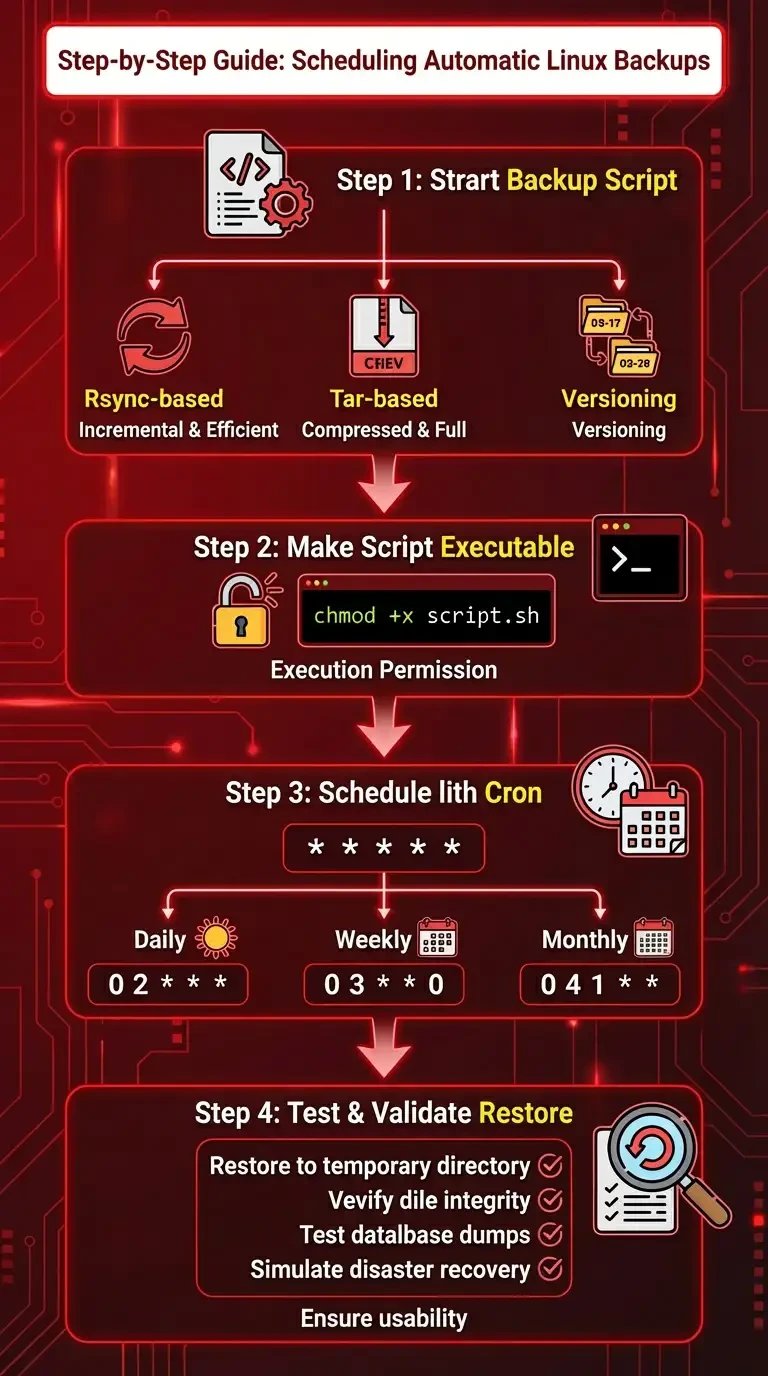
The foundation of every scheduled backup Linux setup is a properly written Linux backup script. This script defines what gets backed up, where it is stored, and how versioning or incremental logic is handled.
You can use one of the following approaches:
-
Rsync-based Linux backup script
-
Efficient incremental backup
-
Ideal for linux schedule rsync over SSH
-
Copies only changed files
-
Great for remote or local synchronization
Example:
rsync -avz --delete /var/www/ /backup/www/
-
Tar-based script
-
Creates compressed archive
-
Suitable for full snapshot backups
-
Good for monthly or weekly archive rotation
Example:
tar -czvf /backup/home-$(date +%F).tar.gz /home/user
-
Versioning example
-
Create dated directories
-
Store backups like /backup/2026-03-15/
-
Helps maintain restore points
-
Supports retention policies
Your Linux backup scripts should be simple, readable, and tested manually before you schedule backup in Linux.
Step 2 – Make Script Executable 🔐
Once your Linux backup script is ready, the next step is to grant execution permission so the system can run it automatically. Without this permission, your Linux automatic backup job will fail silently.
Steps to make it executable:
-
Save the script (e.g., /home/user/linux-backup.sh)
-
Run:
chmod +x /home/user/linux-backup.sh
-
Test it manually:
./linux-backup.sh
-
Confirm files are properly created
-
Check for permission or path errors
This ensures your script is fully prepared before configuring a scheduled backup Linux job.
Step 3 – Schedule Backup in Linux Using Cron ⏰
Now you can use cron as a Linux batch scheduler to automate the process. This is where you officially schedule automatic backups for Linux and convert your script into a recurring task.
Example cron job:
0 2 * * * /home/user/linux-backup.sh
Explanation of scheduling options:
-
Linux daily backup
-
0 2 * * *
-
Runs every day at 2:00 AM
-
Ideal for database or file backups
-
Weekly backup
-
0 3 * * 0
-
Runs every Sunday at 3:00 AM
-
Suitable for full system snapshots
-
Monthly rotation
-
0 4 1 * *
-
Runs on the 1st of each month
-
Ideal for long-term archive storage
Using cron is the most common way to schedule backup Linux systems and build a stable linux schedule backup schedule strategy.
Step 4 – Test & Validate Restore 🔎
Most guides explain how to create backups, but very few explain restore testing, and this is where real reliability is proven. A backup that cannot be restored is useless, even if your scheduled backup runs perfectly every night.
Restore validation checklist:
-
Restore files to a temporary directory
-
Verify file integrity and permissions
-
Check database dumps by importing into a test database
-
Confirm that versioned backups can be accessed
-
Simulate a disaster recovery scenario
Testing restores ensures your Linux automatic backup process is not just automated, but actually usable when disaster strikes.
How to Schedule Automatic Backups for Linux Server Ubuntu 🐧
If you want to schedule automatic backups for Linux on Ubuntu, the process is nearly identical to other distributions, but there are a few Ubuntu-specific details to keep in mind. Understanding service locations and cron behavior ensures your Linux automatic backup runs reliably without permission or path issues.
-
Default user home paths are typically /home/username/
-
System-wide cron jobs may be stored in /etc/crontab
-
User-specific cron jobs are edited using crontab -e
-
Check cron service status:
systemctl status cron
-
Start cron if inactive:
sudo systemctl start cron
-
For scheduling backup Linux Mint, cron works the same way, but Mint desktop systems may rely more on Anacron if not running 24/7
-
Ubuntu servers typically use cron continuously since they stay online
Once configured correctly, Ubuntu makes it straightforward to schedule backups in Linux and maintain a stable Linux daily backup strategy. If you're new to cron configuration, this detailed guide on How to Create and Setup a Cron Job in Ubuntu walks you through the exact commands and scheduling structure step-by-step.
Linux Remote Backup 🌍
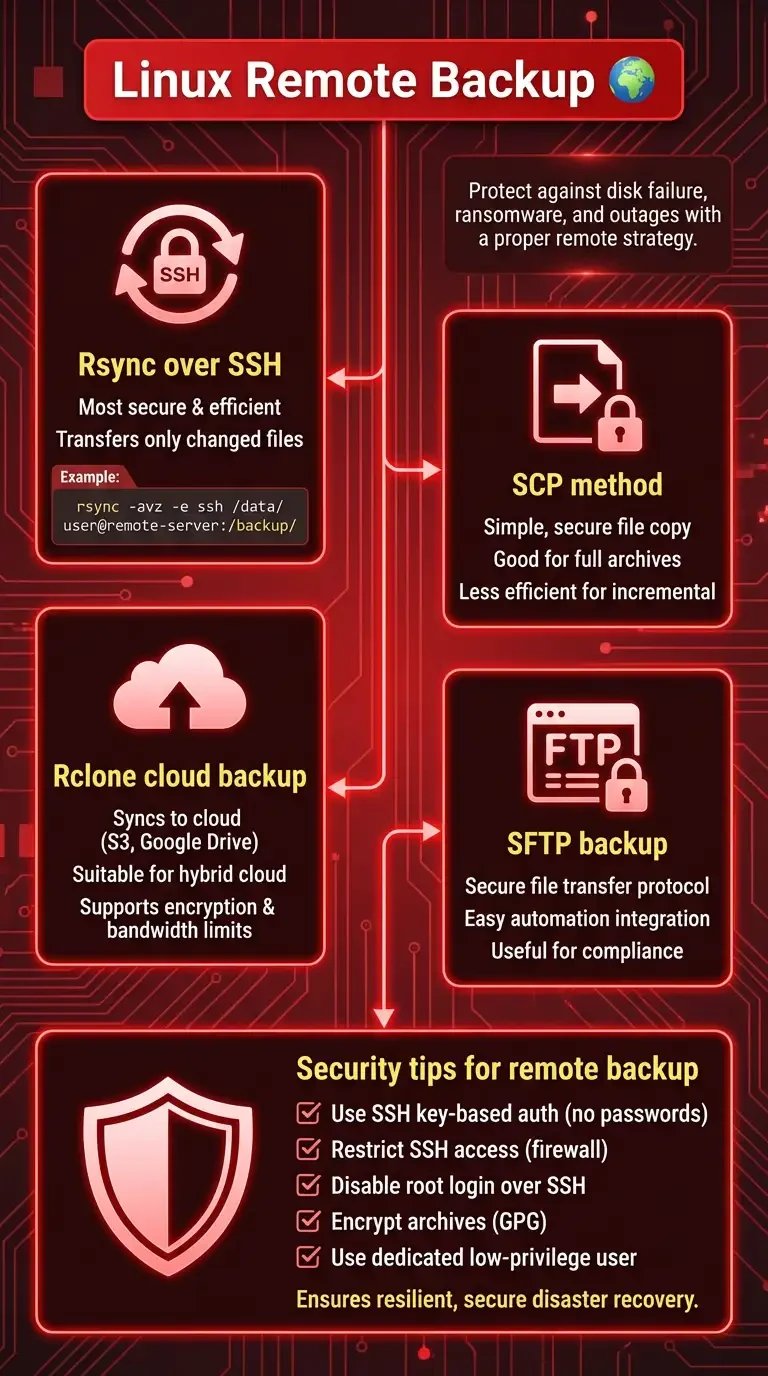
A local backup protects against accidental deletion, but it does not protect against disk failure, ransomware, or data center outages. That’s why a proper Linux remote backup strategy is critical when you schedule automatic backups for Linux in production environments.
Rsync over SSH
- Most secure and efficient method
- Ideal for Linux schedule rsync automation
- Transfers only changed files
- Example:
rsync -avz -e ssh /data/ user@remote-server:/backup/
SCP method
- Simple, secure file copy
- Good for full archive transfer
- Less efficient than rsync for incremental updates
Rclone cloud backup
- Syncs to cloud providers (S3, Google Drive, etc.)
- Suitable for hybrid cloud environments
- Supports encryption and bandwidth limits
SFTP backup
- Secure file transfer protocol
- Easy integration with automation scripts
- Useful for compliance-driven environments
Security tips for remote backup:
-
Use SSH key-based authentication instead of passwords
-
Restrict SSH access via firewall rules
-
Disable root login over SSH
-
Encrypt backup archives using GPG
-
Use a dedicated low-privilege backup user
Implementing off-site protection ensures your scheduled backup Linux strategy is resilient, secure, and ready for real-world disaster recovery scenarios.
Automating Backup Rotation & Cleanup ♻️
Creating backups is only half the strategy; without rotation and cleanup, storage fills up, and your Linux automatic backup system becomes inefficient. When you schedule automatic backups for Linux, you must also automate retention rules to keep your scheduled backup environment clean, optimized, and predictable.
Keep the last 7 backups
- Maintain a rolling window of recent restore points
- Automatically remove the oldest backup after the eighth is created
- Ideal for daily production servers
Delete older than X days
- Use the find command with -mtime to remove outdated archives
- Example:
find /backup/ -type f -mtime +30 -delete
Helps manage long-term storage consumption
-
Log rotation
-
Store backup logs in /var/log/backup.log
-
Rotate logs weekly or monthly
-
Prevents uncontrolled log growth
-
Versioning best practices
-
Use date-based folder naming (YYYY-MM-DD)
-
Combine incremental and full backups
-
Separate weekly and monthly archives
Core strategy components:
-
Retention policy: Define how long backups must be stored based on business or compliance requirements.
-
Snapshot strategy: Use incremental snapshots to reduce disk usage while preserving multiple restore points.
-
Disaster recovery model: Maintain at least one off-site Linux remote backup to ensure recovery from hardware or data center failure.
A well-automated cleanup process ensures your Linux schedule backup setup remains sustainable, secure, and production-ready over the long term.
Cron vs systemd vs Anacron⏱️
Each Linux batch scheduler has strengths depending on uptime, complexity, and infrastructure design.
|
Feature |
Cron |
systemd Timer |
Anacron |
|
Runs if the system was off at the scheduled time |
❌ |
❌ (unless configured) |
✅ |
|
Best for servers (24/7 uptime) |
✅ |
✅ |
⚠️ |
|
Best for desktops/laptops |
⚠️ |
⚠️ |
✅ |
|
Logging capabilities |
Basic |
Advanced (journalctl) |
Basic |
|
Complexity |
Low |
Medium |
Low |
|
Integration with services |
Limited |
Native systemd integration |
Limited |
For most production environments running continuously, cron or systemd timers are the preferred way to schedule backup in Linux, while Anacron is better suited for non-24/7 systems, such as when you schedule backup Linux Mint on a personal workstation.
Rsync vs Tar vs Rsnapshot 📦
After you decide how to schedule your jobs, the next step is choosing the right backup tool for your Linux automatic backup strategy. The tool you use determines efficiency, storage usage, and restore flexibility.
|
Feature |
rsync |
tar |
rsnapshot |
|
Incremental backup |
✅ |
❌ |
✅ |
|
Compression |
❌ (native) |
✅ |
Optional |
|
Remote sync support |
✅ |
⚠️ (manual) |
✅ |
|
Versioned backups |
Manual setup |
Manual |
Built-in |
|
Best use case |
Remote sync & incremental |
Full archive snapshot |
Versioned incremental backups |
If your goal is efficient linux schedule rsync for remote servers, rsync is ideal; for full compressed archives, tar works well; and for automated versioning within Linux backup scripts, rsnapshot provides a structured solution.
Common Mistakes When Scheduling Linux Backups ⚠️
Many administrators successfully schedule automatic backups for Linux, but overlook critical operational details that cause failure during emergencies. Avoiding these common mistakes ensures your scheduled backup Linux setup actually protects your infrastructure.
|
Mistake |
Why It’s Dangerous |
|
Not testing restore |
Backups may be corrupted or incomplete without validation |
|
No offsite backup |
Local disk failure can destroy all copies |
|
No encryption |
Sensitive data can be exposed if storage is compromised |
|
Wrong file permissions |
Backup jobs may fail silently or skip files |
|
Forgetting crontab backup |
Scheduler configuration can be lost after migration |
A reliable Linux daily backup system isn’t just about automation; it’s about planning for recovery, security, and verification.
How to Take Crontab Backup in Linux 🗂️
When you schedule automatic backups for Linux, protecting your backup jobs themselves is just as important as protecting your data. If your crontab configuration is lost during migration or system failure, your entire Linux automatic backup strategy can silently stop working.
Command example:
crontab -l > cron-backup.txt
Automation method:
-
Use crontab -l to list current scheduled jobs
-
Redirect output to a file (cron-backup.txt)
-
Store this file inside your main backup directory
-
Add this command inside your existing Linux backup script
-
Schedule it using your Linux batch scheduler so it runs weekly
-
Optionally sync it to a remote server as part of your Linux remote backup
Backing up your crontab ensures that when you schedule a backup in Linux, your automation layer is also protected and restorable.
How to Sync Data Between Two Linux Servers Automatically 🔄
Synchronizing two servers is a common requirement when you schedule automatic backups for Linux, especially in production VPS or dedicated server environments. Automated server-to-server sync ensures high availability and real disaster recovery capability.
Core components of automated sync:
Rsync with SSH
- Secure and efficient file transfer
- Ideal for linux schedule rsync jobs
- Transfers only changed files
- Example:
rsync -avz -e ssh /data/ user@remote-server:/backup/
Key-based authentication
- Generate SSH keys using ssh-keygen
- Copy public key to remote server
- Disable password login for stronger security
- Enables passwordless automated execution
Scheduled remote sync
- Add the rsync command to your Linux backup scripts
- Use cron to define frequency (daily, hourly, weekly)
- Monitor logs for failed sync attempts
A properly configured scheduled backup Linux sync between two servers dramatically improves uptime and business continuity.
Security & Compliance Best Practices 🔐
A professional Linux automatic backup strategy must address security, compliance, and operational resilience, not just file copying. When you schedule automatic backups for Linux, you are protecting sensitive infrastructure, so security must be built into the process.
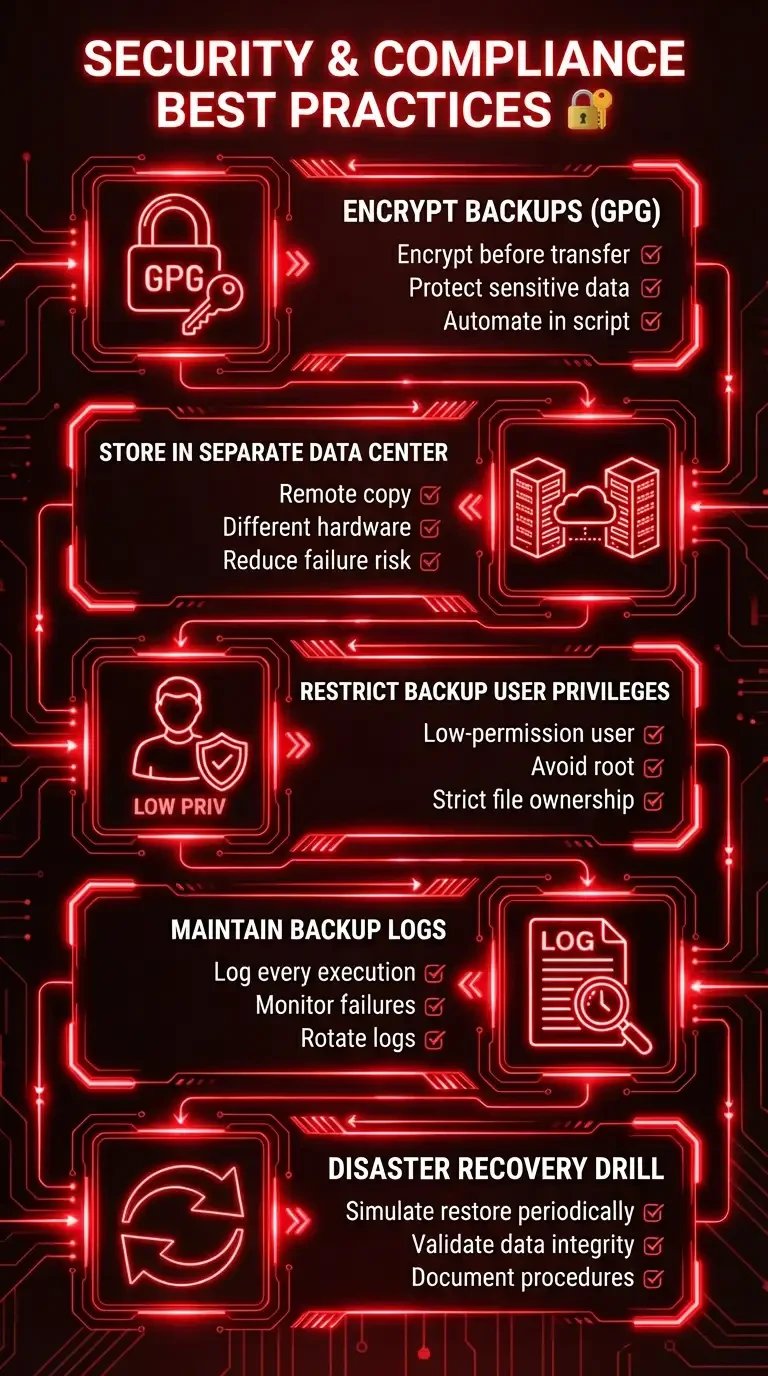
Best practices checklist:
Encrypt backups (GPG)
- Encrypt archives before offsite transfer
- Protect sensitive data in case of storage compromise
- Automate encryption within your Linux backup script
Store in a separate data center
- Keep at least one Linux remote backup copy
- Avoid storing backups on the same physical hardware
- Reduce risk from hardware or data center failure
Restrict backup user privileges
- Create a dedicated low-permission backup user
- Avoid running backup jobs as root unless necessary
- Apply strict file ownership rules
Maintain backup logs
- Log every Linux daily backup execution
- Monitor failures proactively
- Rotate logs to prevent disk overflow
Disaster recovery drill
- Periodically simulate a full restore
- Validate data integrity
- Document recovery procedures
A strong backup strategy should always be combined with hardened infrastructure practices outlined in Linux Server Security to minimize vulnerability risks before a disaster even occurs.
Conclusion
Scheduling automatic backups for Linux requires technical skills, as it is a fundamental system security measure that safeguards your data and infrastructure and maintains business operations.
The implementation of structured Linux backup scripts, the establishment of accurate Linux batch scheduling, and the deployment of Linux daily backup systems and secure Linux remote backup replication will create a comprehensive Linux automatic backup system that functions effectively during emergencies.
For production environments that require reliable automation and high uptime, deploying your backup-ready workloads on a performance-optimized Linux VPS from 1Gbits ensures stability, instant provisioning, and 24/7 technical support.




![What Is Cold Data Storage? ❄️ [2026 Guide]](https://1gbits.com/cdn-cgi/image//https://s3.1gbits.com/blog/2026/02/what-is-cold-data-storage-750xAuto.webp "What Is Cold Data Storage? ❄️ [2026 Guide]")
![What Is Virtual Desktop Infrastructure? 🖥️ [VDI Explained]](https://1gbits.com/cdn-cgi/image//https://s3.1gbits.com/blog/2026/02/what-is-virtual-desktop-infrastructure-vdi-750xAuto.webp "What Is Virtual Desktop Infrastructure? 🖥️ [VDI Explained]")